 ChecklistGuro
 Warranty Claim Processing Workflow
Streamline your auto repair shop's profitability and customer satisfaction with our optimized Warranty Claim Processing Workflow. Eliminate manual errors, reduce claim denials, and accelerate reimbursements by automating every step-from initial inspection and parts verification to final documentation and submission. Master your shop management with a seamless, audit-ready process designed to recover revenue faster and keep your service bays moving.
This Template was installed 2 times.
Start
Start of the Workflow/Process.
1. Fetch Customer Profile
Retrieve customer contact details and warranty eligibility status from the Customer Data Model.
2. Retrieve Product Details
Fetch product serial number, purchase date, and warranty period from the Product Data Model.
3. Initialize Claim Entry
Create a new entry in the 'Warranty Claims' data model to track the lifecycle of this specific claim.
4. Calculate Days Since Purchase
Calculate the difference between the current date and the product purchase date to verify warranty validity.
5. Determine Claim Urgency
Execute a formula to assign a priority level (Low, Medium, High) based on the product type and customer tier.
6. Update Claim Status to 'Under Review'
Update the newly created Warranty Claim entry status to 'Under Review'.
7. Assign Technical Inspection Task
Create a task for the Technical Support Team to inspect the reported defect.
8. Create Inspection Log
Create a new entry in the 'Inspection Logs' data model linked to the original claim.
9. Update Claim with Inspection Results
Update the Warranty Claim entry with the findings, repair costs, and technician notes.
10. Sum Total Repair Costs
Aggregate all parts and labor costs from the associated Inspection Log entries to determine total claim value.
11. Calculate Reimbursement Amount
Calculate the final amount to be reimbursed to the customer, subtracting any deductible or applicable fees.
12. Update Claim Approval Status
Update the Warranty Claim entry status to 'Approved' or 'Rejected' based on inspection results.
13. Assign Finance Approval Task
Create a task for the Finance Department to authorize the calculated reimbursement amount.
14. Create Payment Instruction
Create a new entry in the 'Disbursements' data model to trigger the actual payment process.
15. Notify Customer of Decision
Send an email to the customer containing the claim decision (Approved/Rejected) and the next steps.
16. Send Status Alert SMS
Send an SMS to the customer's registered phone number notifying them that their claim has been processed.
17. Generate Monthly Warranty Report
Create a summary report of all processed claims, total costs, and approval rates for management review.
18. Remove Duplicate Claim
Delete the redundant or duplicate claim entry if a duplicate was identified during the intake process.
End
End of the Workflow/Process.
Start of the Workflow/Process.
Retrieve customer contact details and warranty eligibility status from the Customer Data Model.
Fetch product serial number, purchase date, and warranty period from the Product Data Model.
Create a new entry in the 'Warranty Claims' data model to track the lifecycle of this specific claim.
Calculate the difference between the current date and the product purchase date to verify warranty validity.
Execute a formula to assign a priority level (Low, Medium, High) based on the product type and customer tier.
Update the newly created Warranty Claim entry status to 'Under Review'.
Create a task for the Technical Support Team to inspect the reported defect.
Create a new entry in the 'Inspection Logs' data model linked to the original claim.
Update the Warranty Claim entry with the findings, repair costs, and technician notes.
Aggregate all parts and labor costs from the associated Inspection Log entries to determine total claim value.
Calculate the final amount to be reimbursed to the customer, subtracting any deductible or applicable fees.
Update the Warranty Claim entry status to 'Approved' or 'Rejected' based on inspection results.
Create a task for the Finance Department to authorize the calculated reimbursement amount.
Create a new entry in the 'Disbursements' data model to trigger the actual payment process.
Send an email to the customer containing the claim decision (Approved/Rejected) and the next steps.
Send an SMS to the customer's registered phone number notifying them that their claim has been processed.
Create a summary report of all processed claims, total costs, and approval rates for management review.
Delete the redundant or duplicate claim entry if a duplicate was identified during the intake process.
End of the Workflow/Process.
Frequently Asked Questions
Comments
There are no comments yet. Be the first to add one!
Auto Repair Shop Management Solution Demo
Level up your auto repair shop & boost profits! ChecklistGuro simplifies job tracking, inventory management, and customer communication. Improve efficiency, reduce errors, & enhance customer satisfaction. Manage it all with our Work OS.
Related Workflow Templates
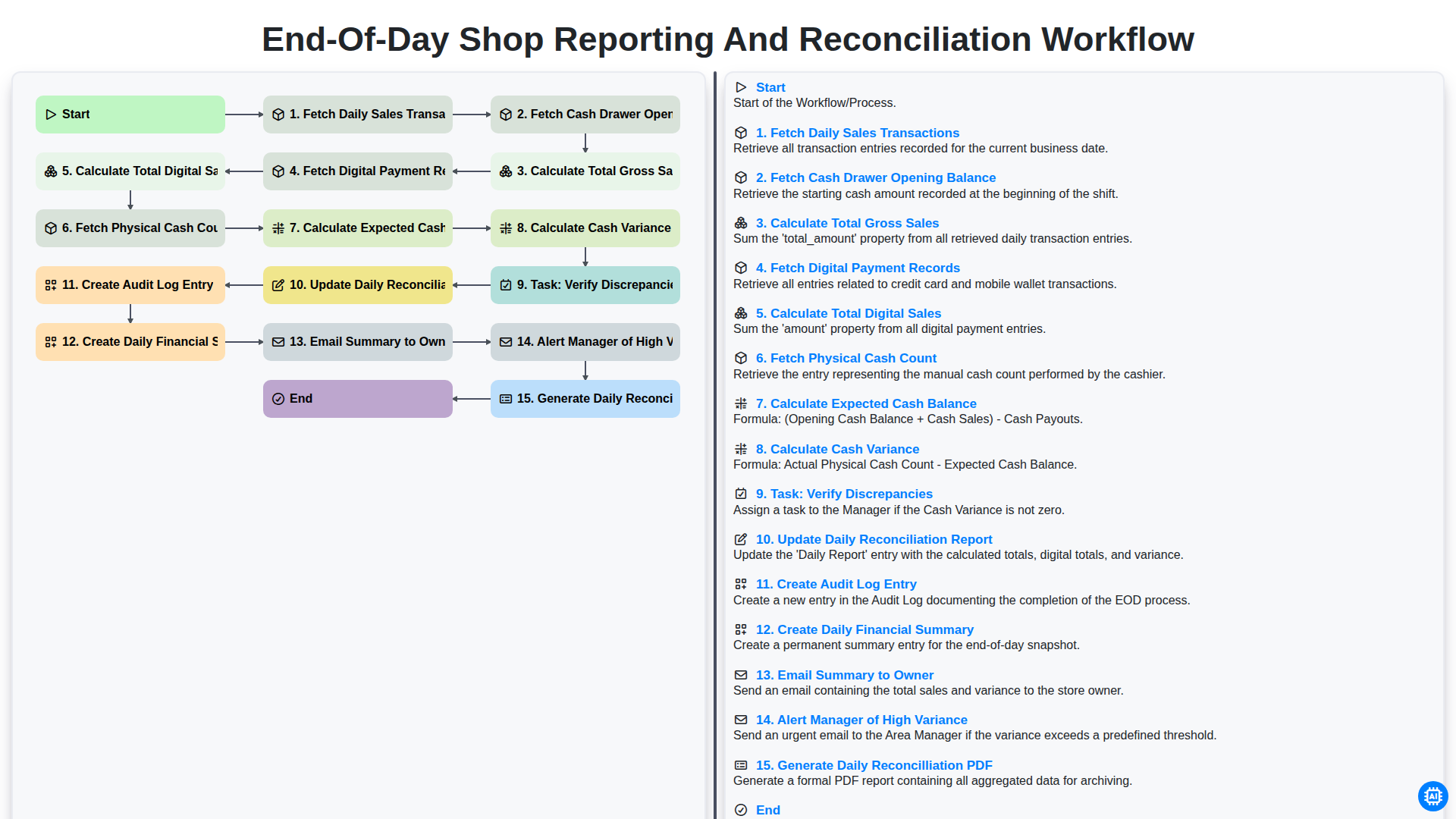
End-of-Day Shop Reporting and Reconciliation Workflow
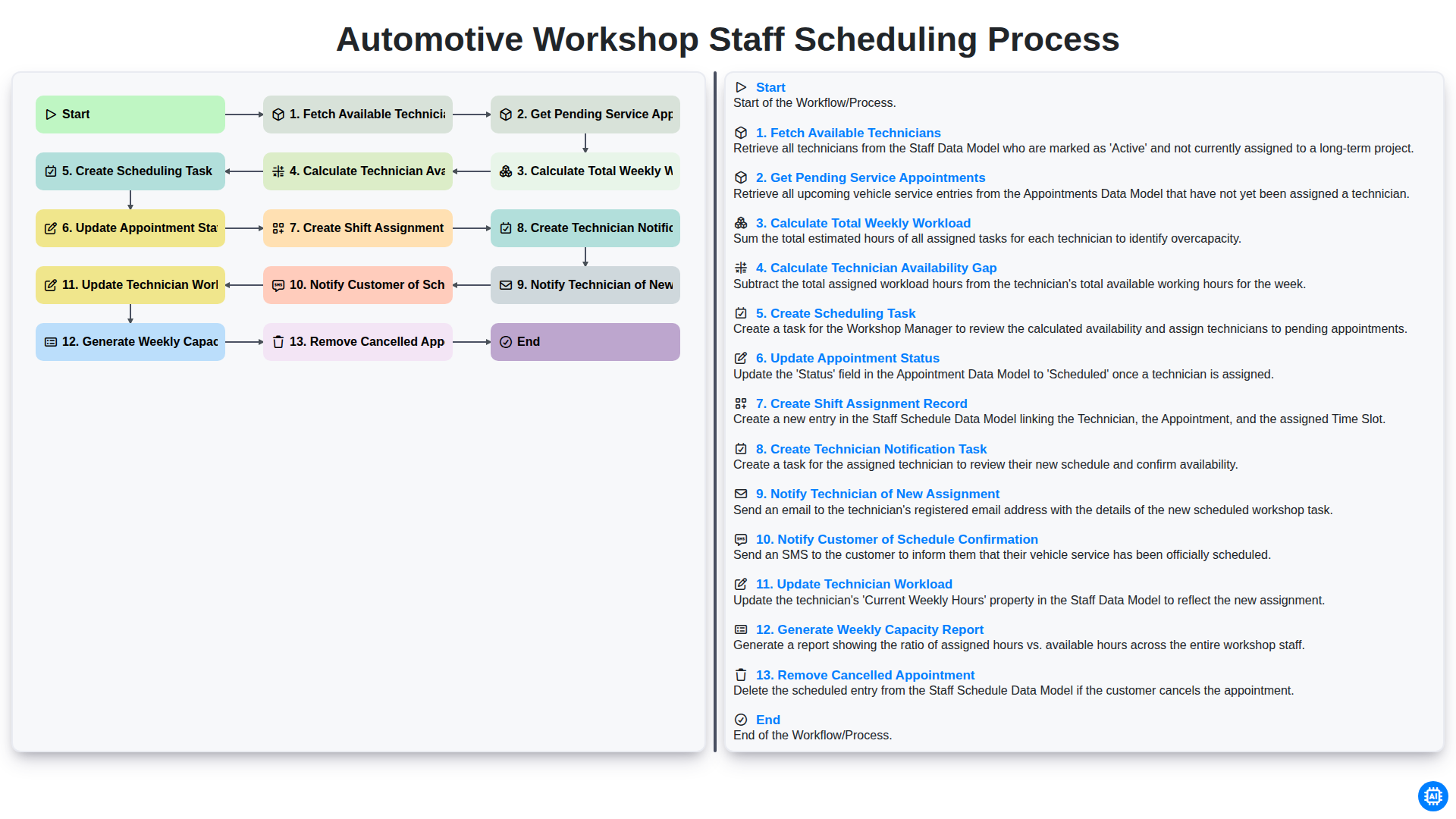
Automotive Workshop Staff Scheduling Process
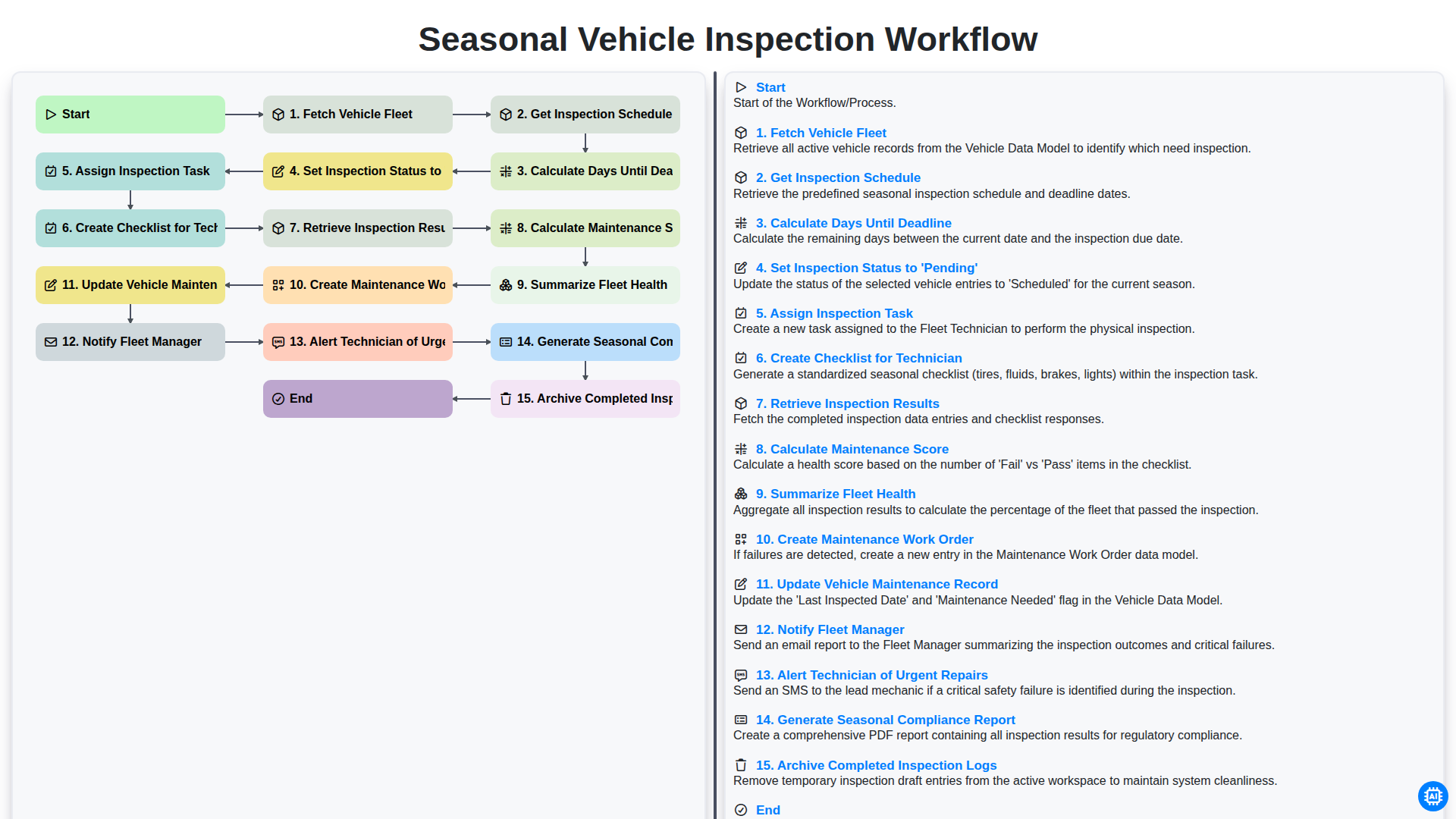
Seasonal Vehicle Inspection Workflow
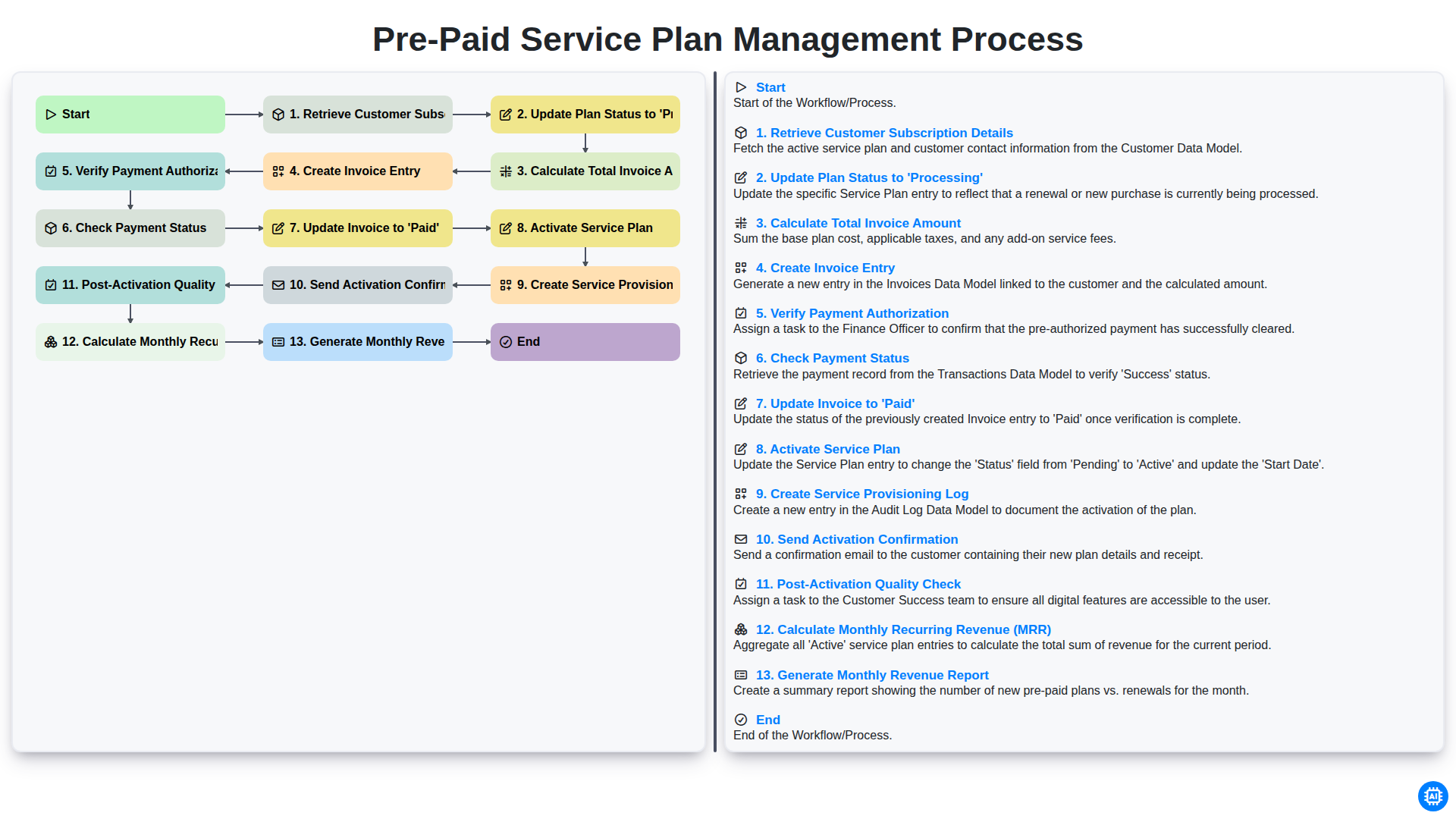
Pre-Paid Service Plan Management Process
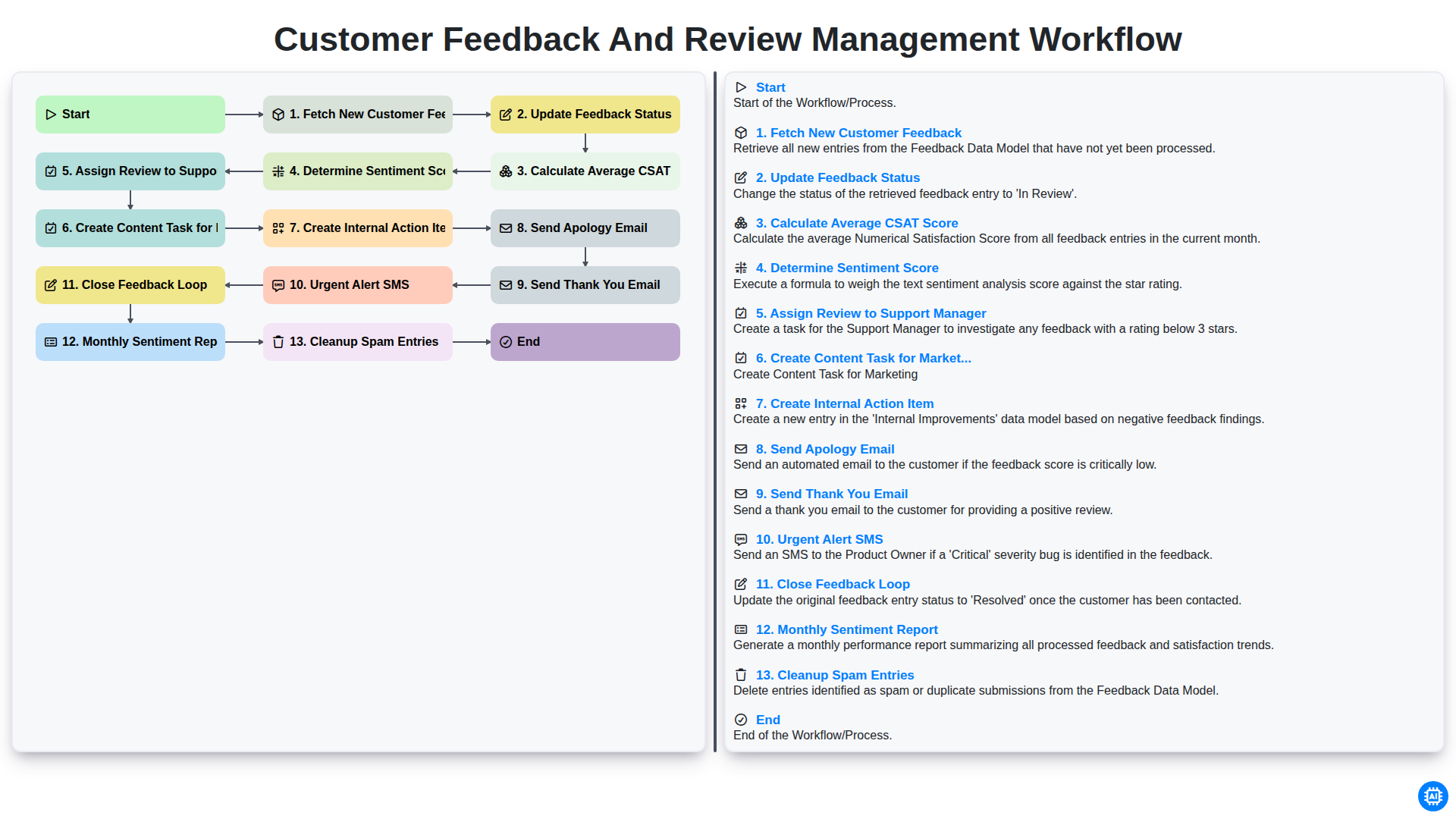
Customer Feedback and Review Management Workflow
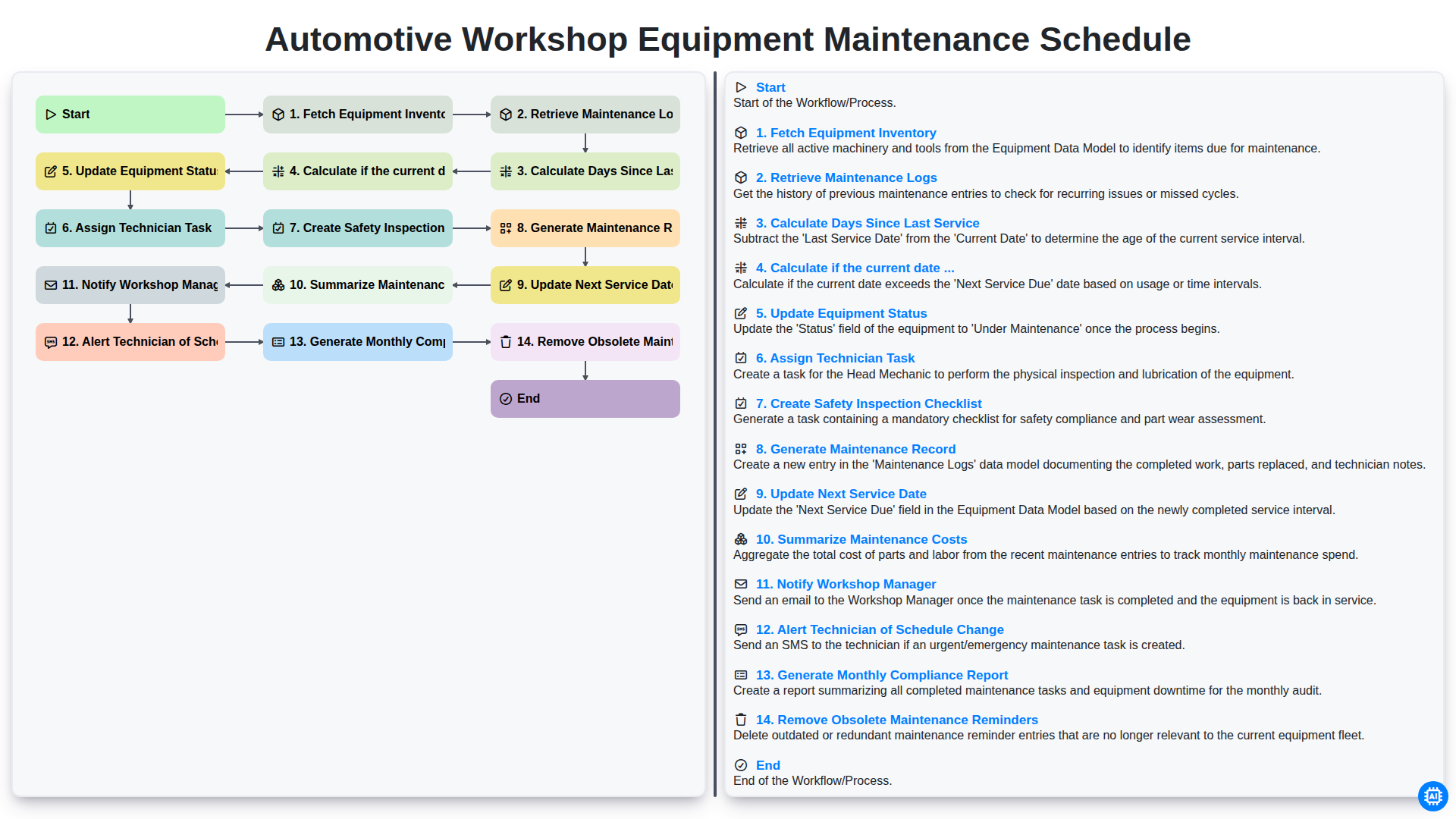
Automotive Workshop Equipment Maintenance Schedule
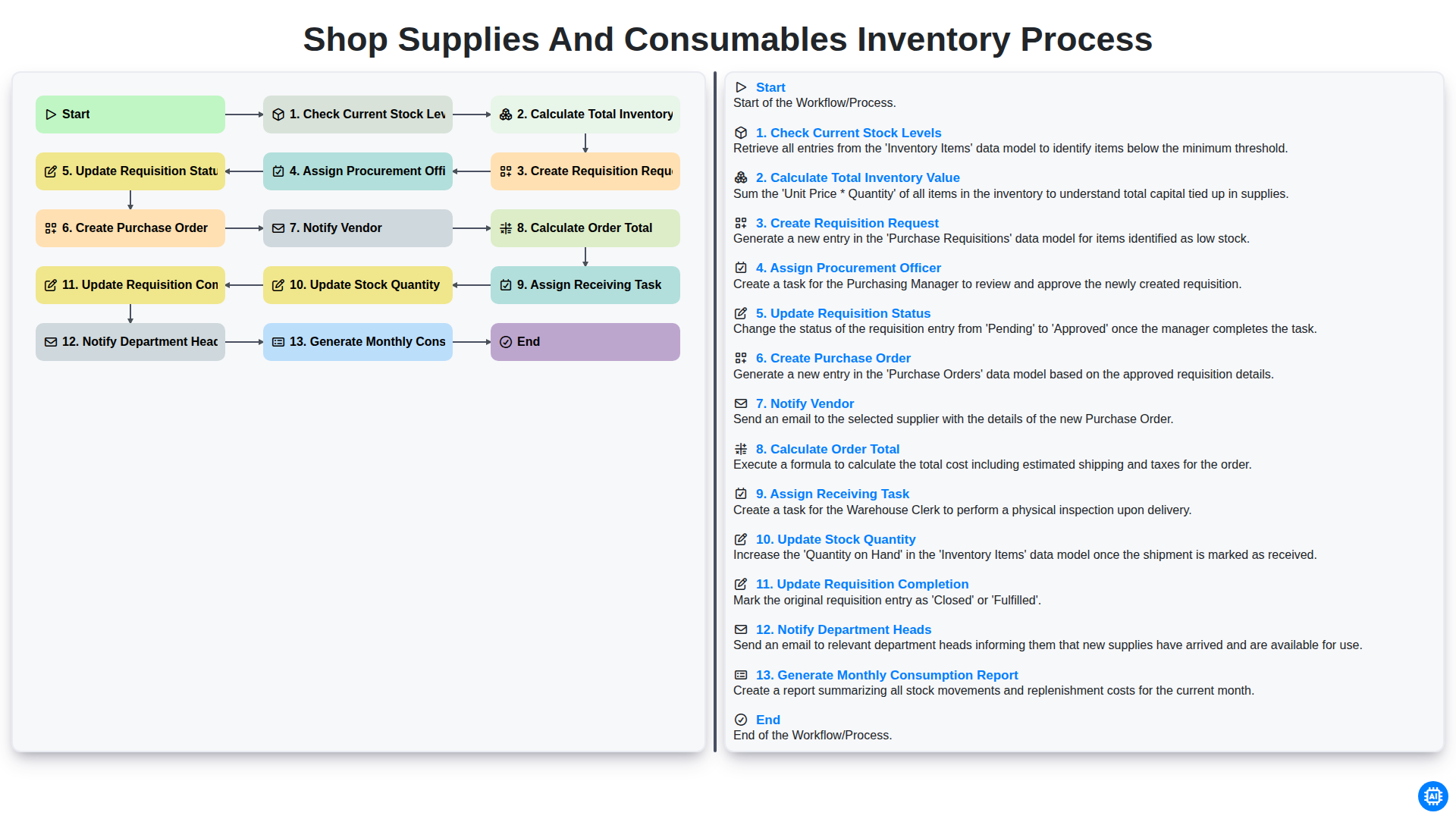
Shop Supplies and Consumables Inventory Process
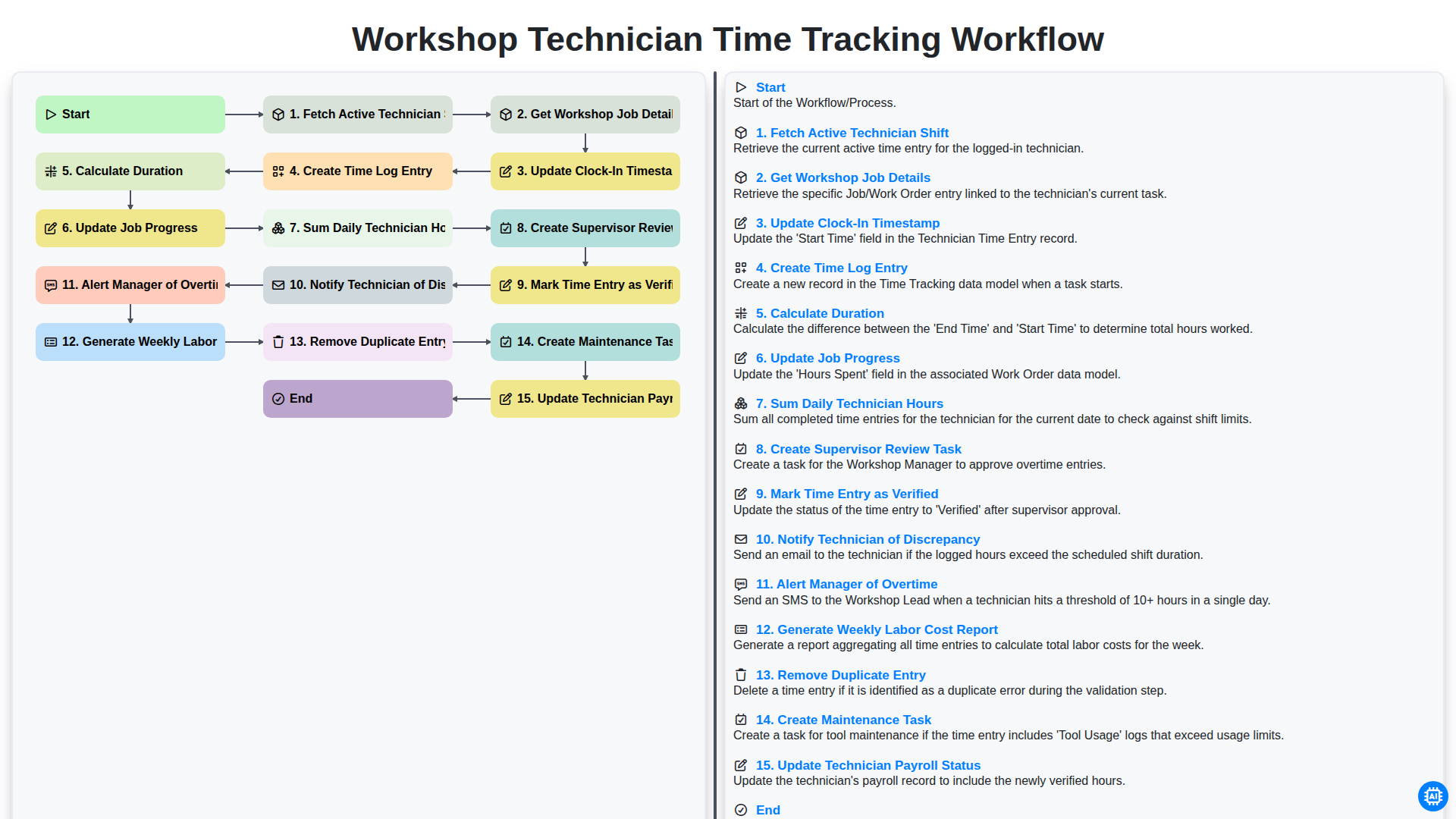
Workshop Technician Time Tracking Workflow
Need help with
Auto Repair Shop Management?
Have a question? We're here to help. Please submit your inquiry, and we'll respond promptly.