 ChecklistGuro
 Certificate of Insurance (COI) Tracking Process
Streamline your facility management operations with our automated Certificate of Insurance (COI) Tracking Process. Eliminate manual errors, ensure continuous vendor compliance, and mitigate risk by automating expiration alerts, document verification, and real-time coverage monitoring within a single, seamless workflow.
This Template was installed 3 times.
Start
Start of the Workflow/Process.
1. Retrieve Vendor Records
Fetch existing vendor entries from the Vendor Data Model to check for existing COI history.
2. Create COI Request Entry
Create a new entry in the COI Tracking Data Model to initiate the tracking of a new certificate.
3. Update COI Expiry Date
Update the specific COI entry with the new expiration date once the certificate is verified.
4. Calculate Days to Expiration
Calculate the difference between the current date and the COI expiration date to determine urgency.
5. Assign Verification Task
Create a task for the Risk Management Officer to review the uploaded document for compliance.
6. Notify Vendor of Missing Info
Create a task for the Procurement Agent to follow up with the vendor regarding incomplete documentation.
7. Send COI Request to Vendor
Send an automated email to the vendor contact requesting the updated Certificate of Insurance.
8. Send Expiry Alert to Stakeholders
Send an email notification to internal project managers when a vendor's COI is approaching expiration.
9. Summarize Expired Certificates
Aggregate the count of COI entries where the expiration date is in the past to identify high-risk vendors.
10. Update Vendor Compliance Status
Update the Vendor Data Model to change the 'Compliance Status' to 'Active' or 'Non-Compliant' based on COI validity.
11. Generate Monthly Compliance Report
Create a report summarizing all COI renewals processed and all expired certificates during the month.
12. Remove Duplicate COI Entries
Delete erroneous or duplicate COI entries identified during the verification process.
End
End of the Workflow/Process.
Start of the Workflow/Process.
Fetch existing vendor entries from the Vendor Data Model to check for existing COI history.
Create a new entry in the COI Tracking Data Model to initiate the tracking of a new certificate.
Update the specific COI entry with the new expiration date once the certificate is verified.
Calculate the difference between the current date and the COI expiration date to determine urgency.
Create a task for the Risk Management Officer to review the uploaded document for compliance.
Create a task for the Procurement Agent to follow up with the vendor regarding incomplete documentation.
Send an automated email to the vendor contact requesting the updated Certificate of Insurance.
Send an email notification to internal project managers when a vendor's COI is approaching expiration.
Aggregate the count of COI entries where the expiration date is in the past to identify high-risk vendors.
Update the Vendor Data Model to change the 'Compliance Status' to 'Active' or 'Non-Compliant' based on COI validity.
Create a report summarizing all COI renewals processed and all expired certificates during the month.
Delete erroneous or duplicate COI entries identified during the verification process.
End of the Workflow/Process.
Comments
There are no comments yet. Be the first to add one!
Facility Management Solution Demo
Keep your facilities running smoothly! ChecklistGuro streamlines maintenance, inspections, and vendor management. Reduce downtime, optimize efficiency, & improve safety. Manage it all with our Work OS.
Related Workflow Templates
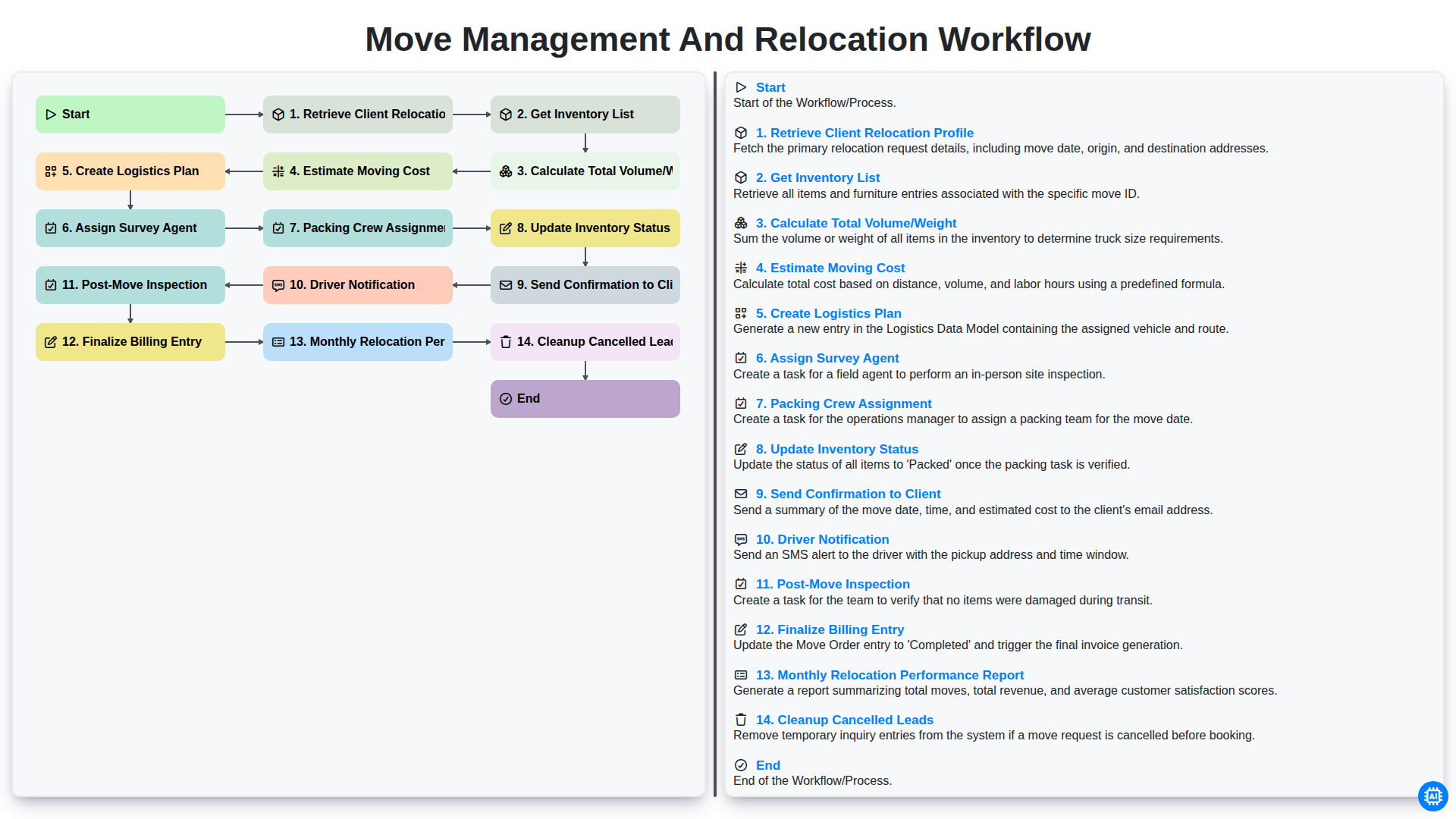
Move Management and Relocation Workflow
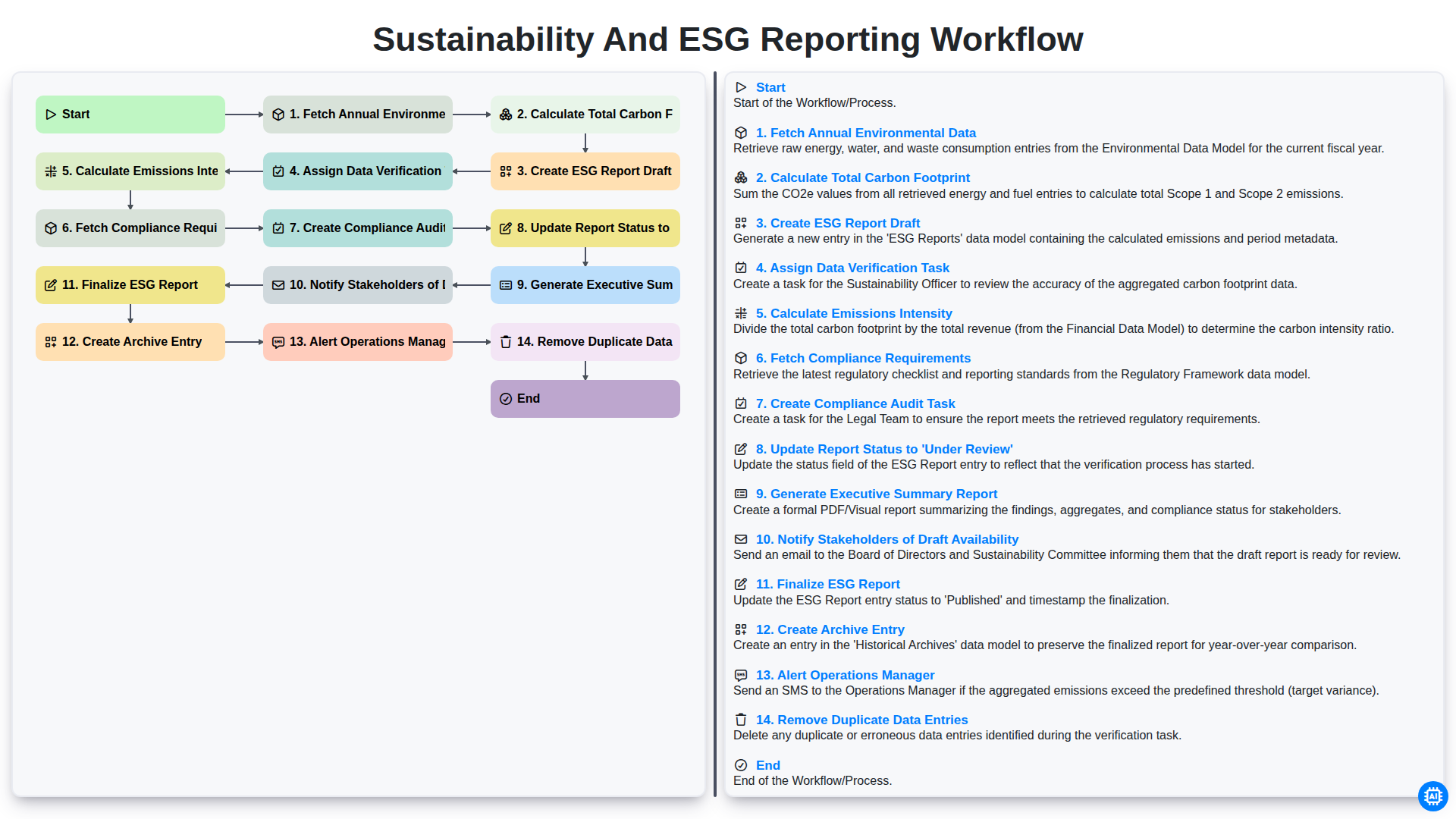
Sustainability and ESG Reporting Workflow
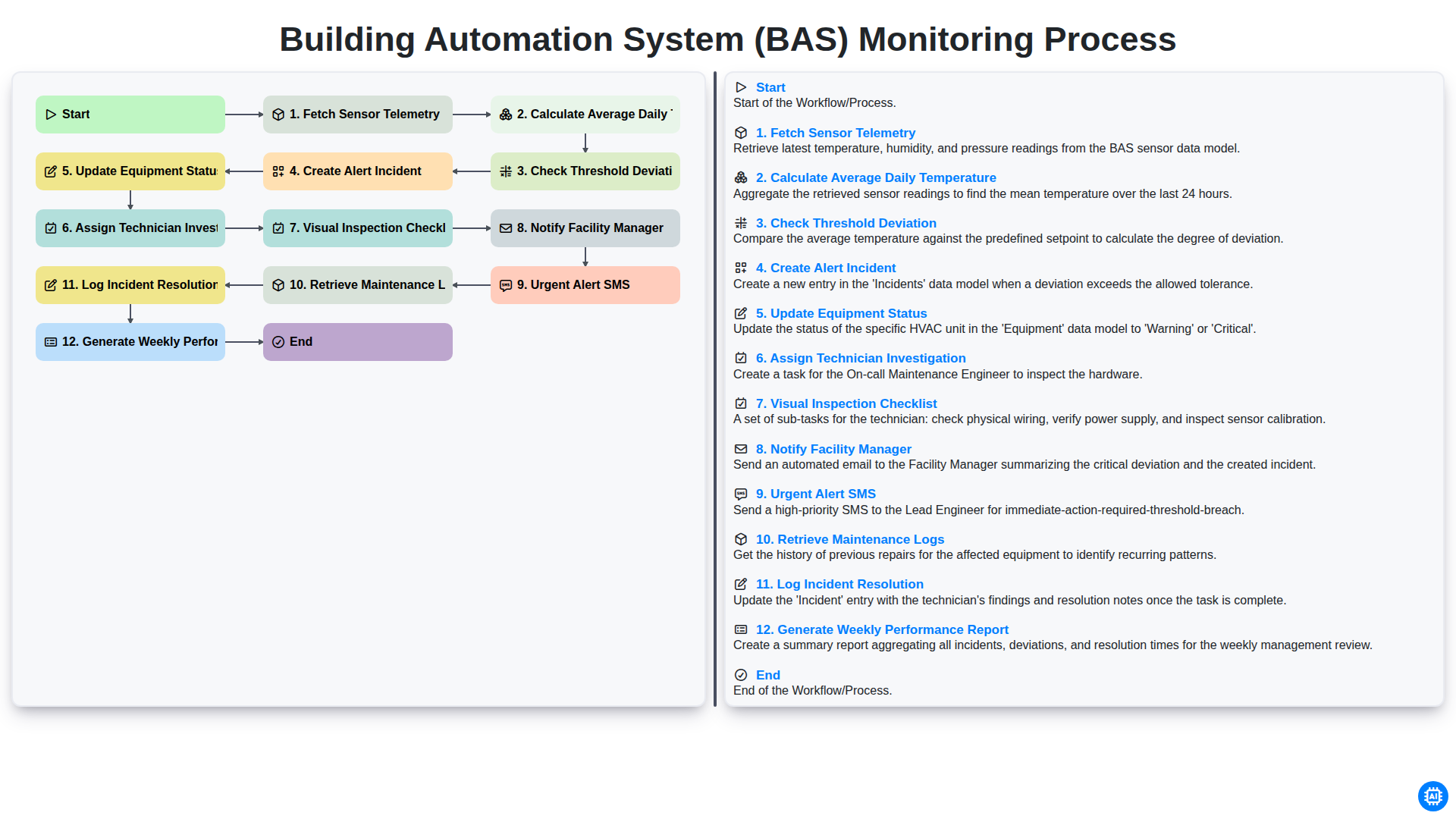
Building Automation System (BAS) Monitoring Process
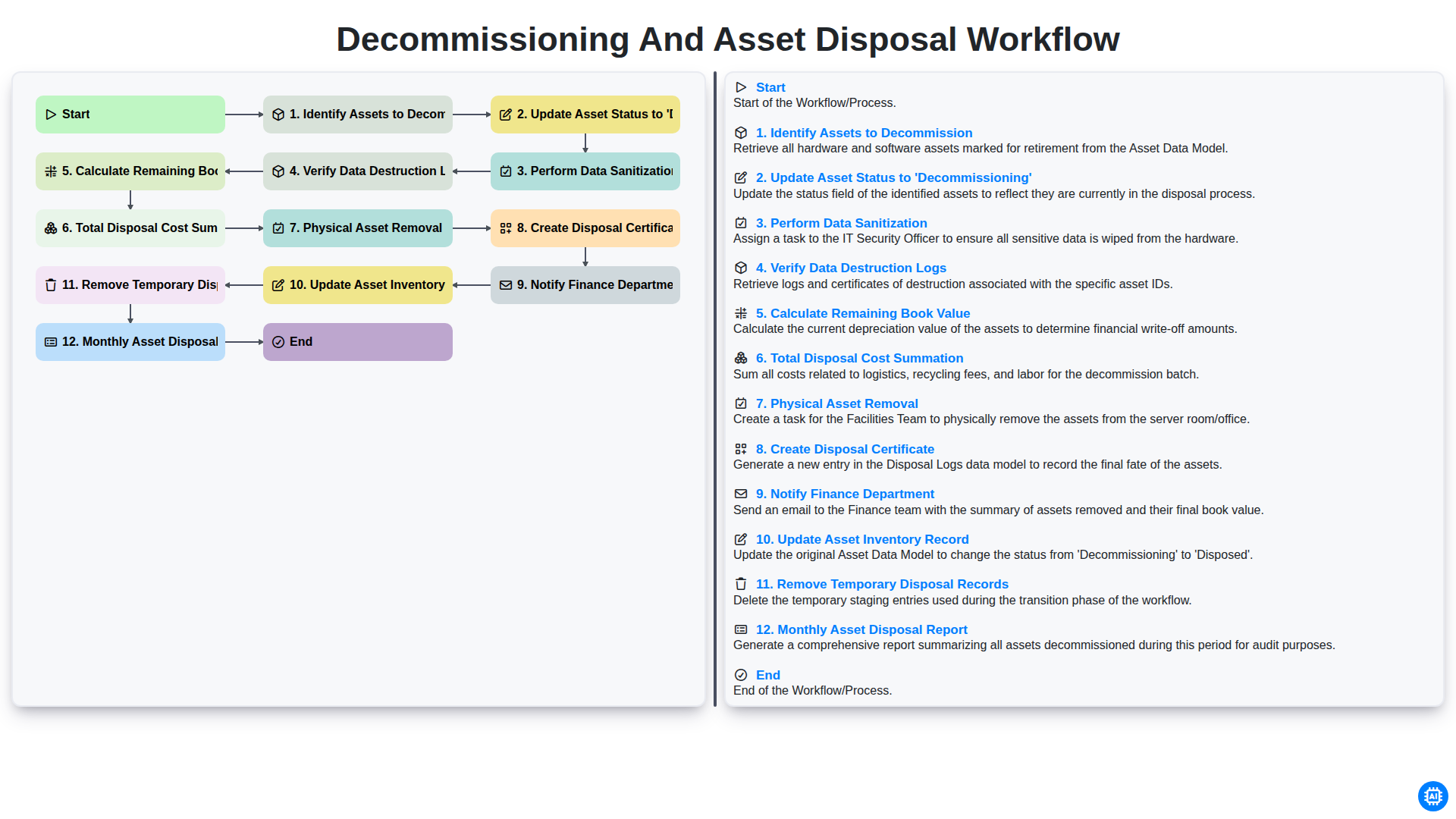
Decommissioning and Asset Disposal Workflow
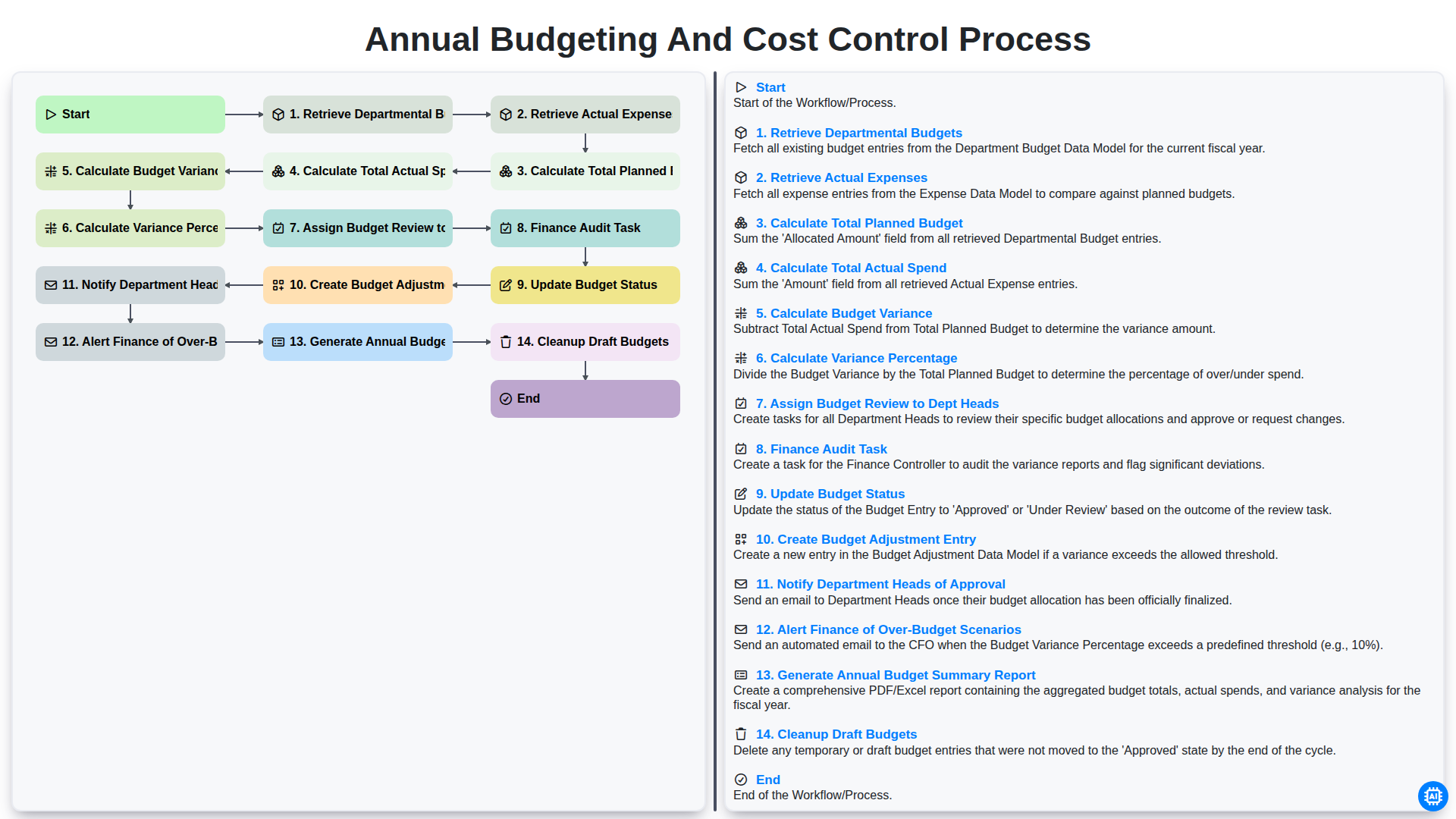
Annual Budgeting and Cost Control Process
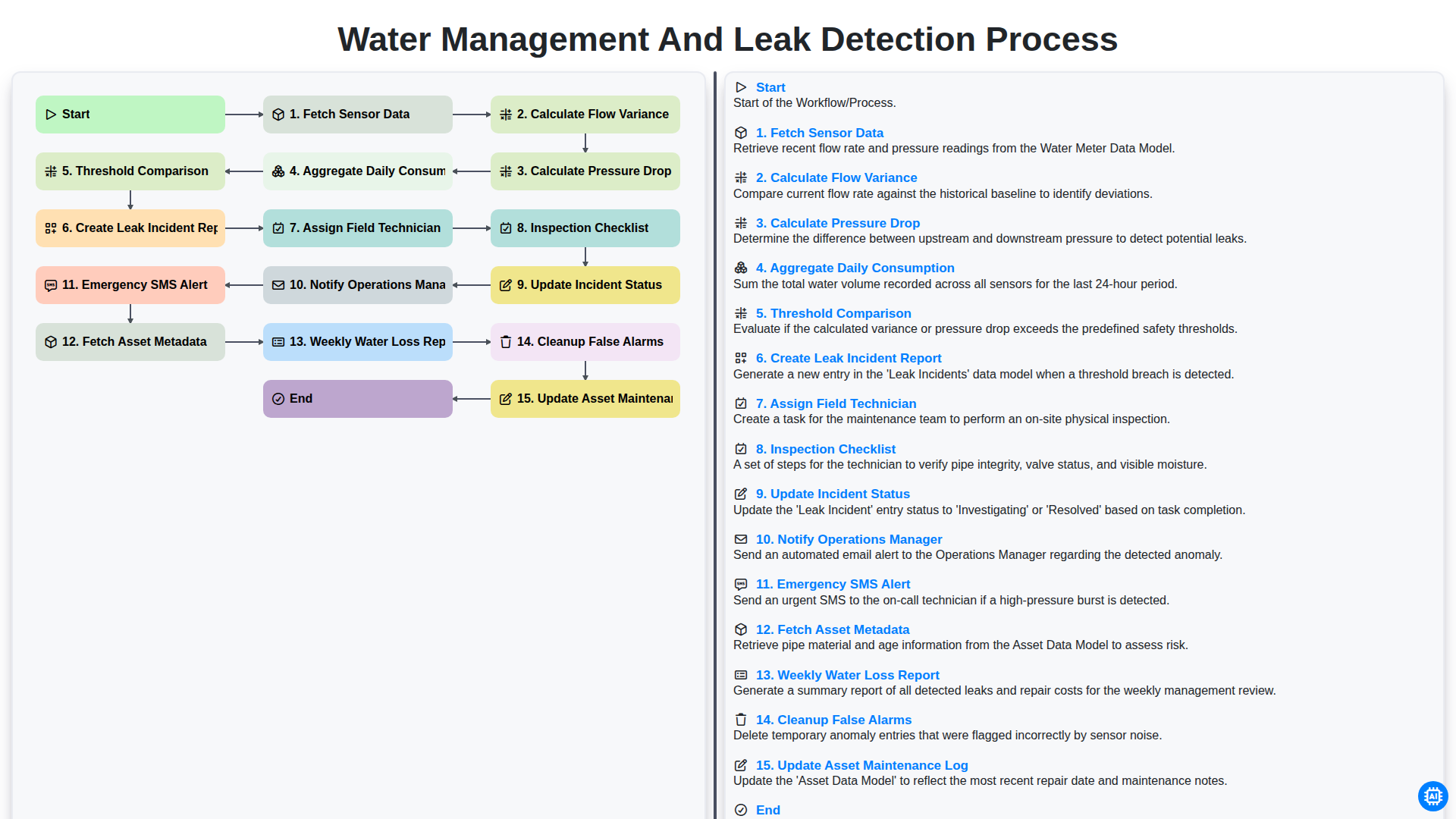
Water Management and Leak Detection Process
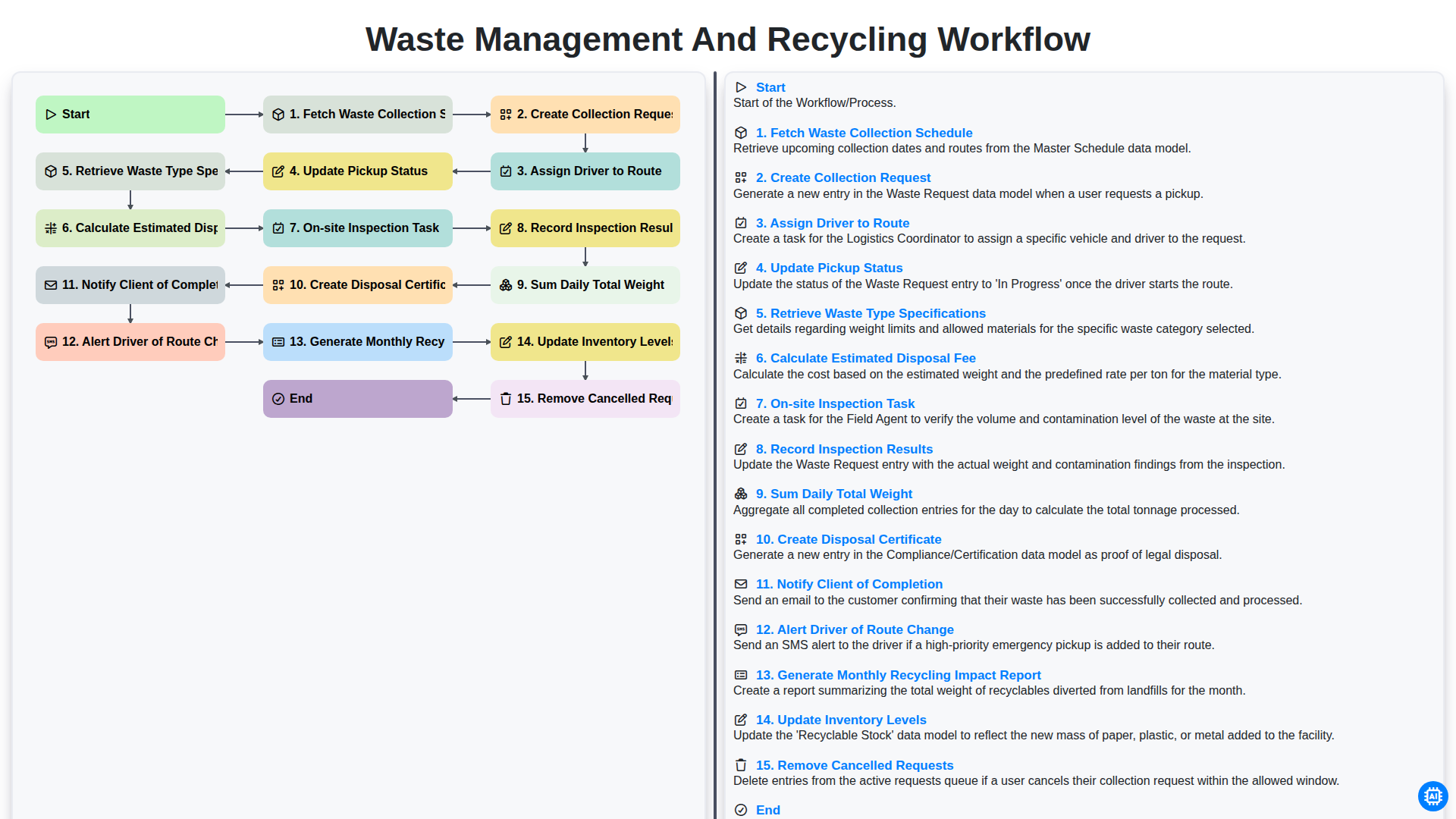
Waste Management and Recycling Workflow
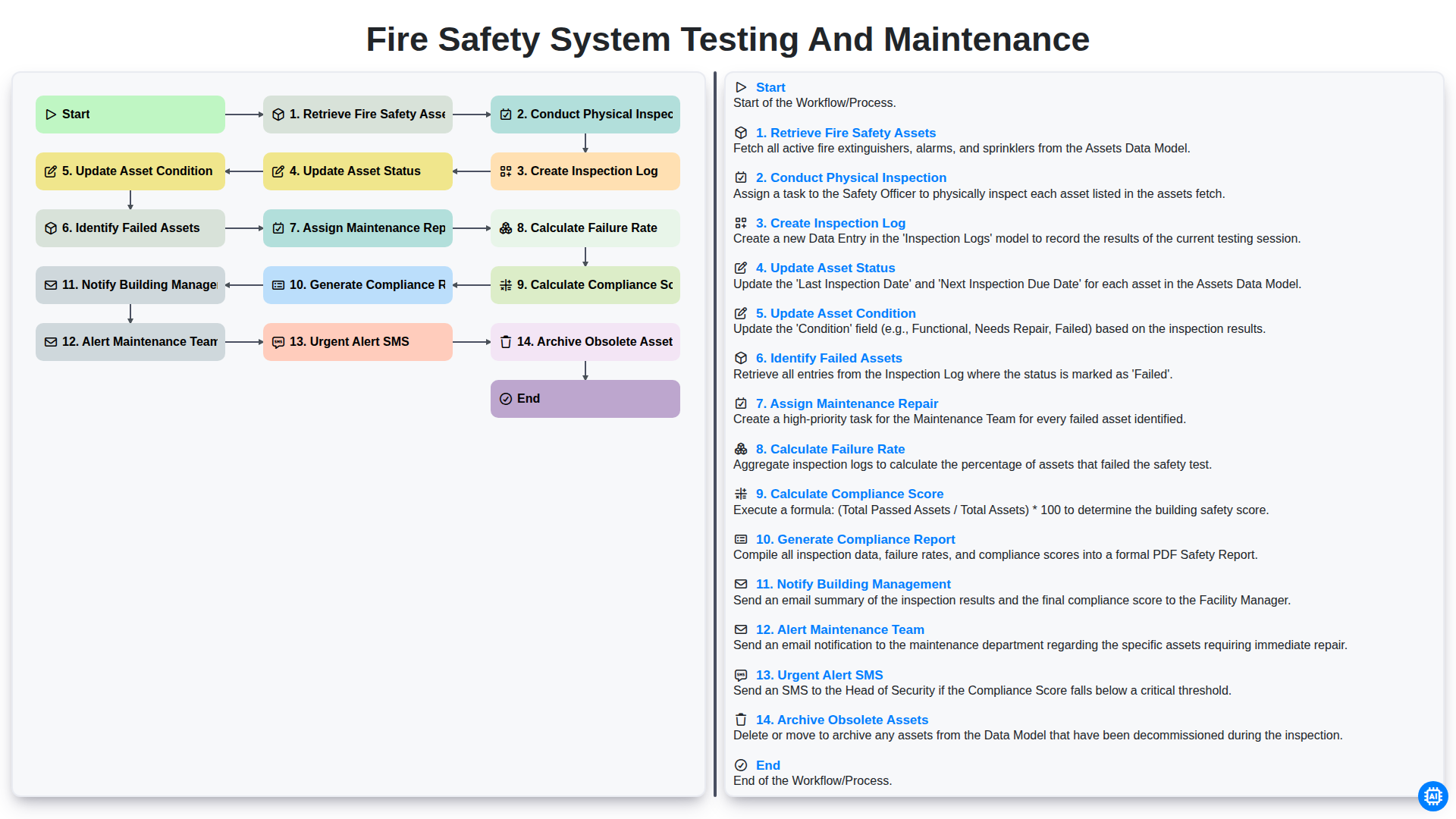
Fire Safety System Testing and Maintenance
We can do it Together
Need help with
Facility Management?
Have a question? We're here to help. Please submit your inquiry, and we'll respond promptly.