 ChecklistGuro
 Employee Probation Period Evaluation Workflow
Streamline your talent retention with our Employee Probation Period Evaluation Workflow. Automate performance reviews, standardize assessment criteria, and ensure seamless transitions from new hires to permanent team members. Optimize your HR decision-making and eliminate manual follow-ups with this structured, scalable probation management process.
This Template was installed 1 times.
Start
Start of the Workflow/Process.
1. Fetch Employee Record
Retrieve the employee's core profile and start date from the Employee Data Model.
2. Fetch Manager Details
Identify the direct supervisor/manager assigned to the employee for evaluation.
3. Calculate Probation End Date
Calculate the specific date when the probation period concludes (e.g., Start Date + 90 days).
4. Assign Mid-Probation Check-in
Create a task for the Manager to conduct a 45-day performance review.
5. Mid-Probation Review Checklist
Verify training completion, tool access, and initial cultural integration.
6. Create Evaluation Form
Generate a new evaluation entry in the Performance Review Data Model for the current period.
7. Final Probation Assessment Task
Create a high-priority task for the Manager to complete the final evaluation before the end date.
8. Retrieve Mid-Probation Feedback
Pull the data from the previously completed mid-probation evaluation entry.
9. Update Employee Status
Update the employee's status in the Data Model from 'Probation' to 'Permanent' or 'Extended'.
10. Calculate Performance Score
Average the scores from various competency criteria within the evaluation entry.
11. Aggregate Training Completion Rate
Calculate the percentage of completed mandatory training modules from the Training Data Model.
12. HR Final Review Task
Create a task for the HR Department to verify all documentation and signatures are complete.
13. Notify Employee of Result
Send an automated email to the employee regarding the outcome of their probation period.
14. Notify Management of Status Change
Send an email to Department Heads regarding the successful completion of the probation.
15. Generate Probation Summary Report
Create a formal PDF/Report summarizing the evaluation scores, feedback, and final decision for the employee file.
16. Remove Temporary Access Permissions
If probation is failed, trigger the deletion of temporary/probationary access rights from the system.
End
End of the Workflow/Process.
Start of the Workflow/Process.
Retrieve the employee's core profile and start date from the Employee Data Model.
Identify the direct supervisor/manager assigned to the employee for evaluation.
Calculate the specific date when the probation period concludes (e.g., Start Date + 90 days).
Create a task for the Manager to conduct a 45-day performance review.
Verify training completion, tool access, and initial cultural integration.
Generate a new evaluation entry in the Performance Review Data Model for the current period.
Create a high-priority task for the Manager to complete the final evaluation before the end date.
Pull the data from the previously completed mid-probation evaluation entry.
Update the employee's status in the Data Model from 'Probation' to 'Permanent' or 'Extended'.
Average the scores from various competency criteria within the evaluation entry.
Calculate the percentage of completed mandatory training modules from the Training Data Model.
Create a task for the HR Department to verify all documentation and signatures are complete.
Send an automated email to the employee regarding the outcome of their probation period.
Send an email to Department Heads regarding the successful completion of the probation.
Create a formal PDF/Report summarizing the evaluation scores, feedback, and final decision for the employee file.
If probation is failed, trigger the deletion of temporary/probationary access rights from the system.
End of the Workflow/Process.
Found this Workflow Template helpful?
Comments
There are no comments yet. Be the first to add one!
HRM - Human Resources Management Solution Demo
Simplify HR processes & empower your team! ChecklistGuro's HRM solution streamlines onboarding, performance management, & compliance. Improve employee engagement, reduce admin burden, & drive organizational growth. Manage it all with our Work OS.
Related Workflow Templates
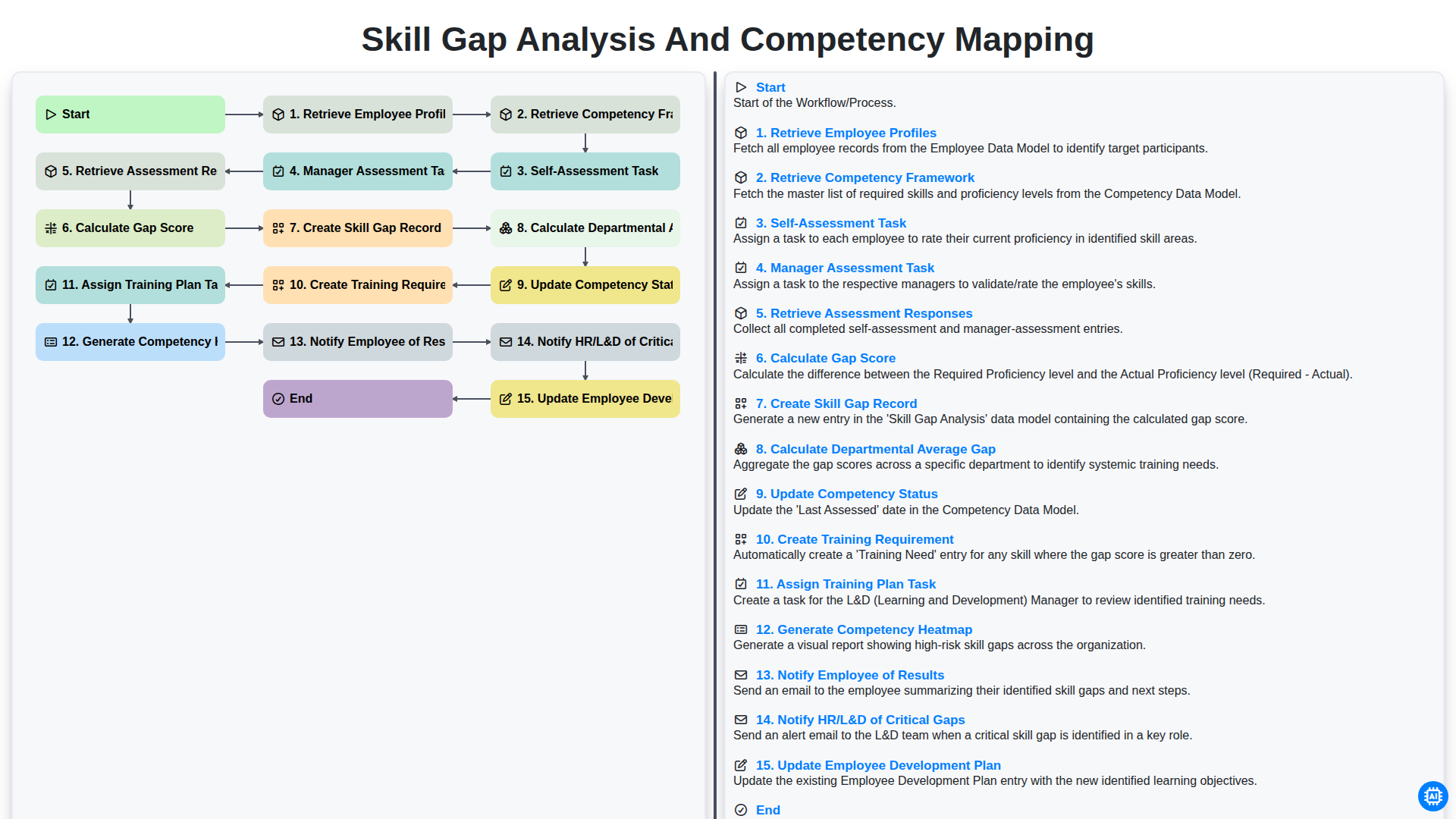
Skill Gap Analysis and Competency Mapping
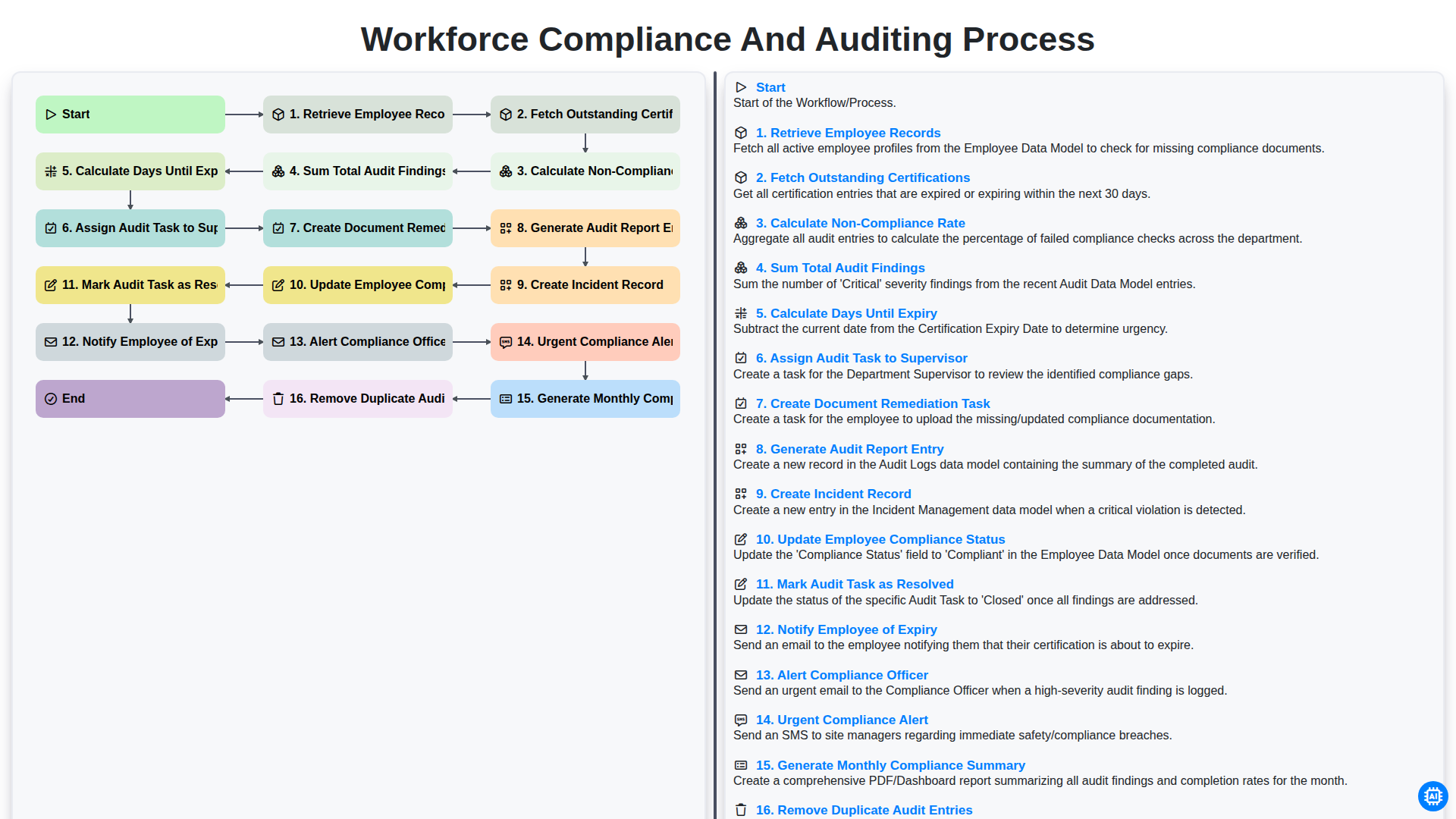
Workforce Compliance and Auditing Process
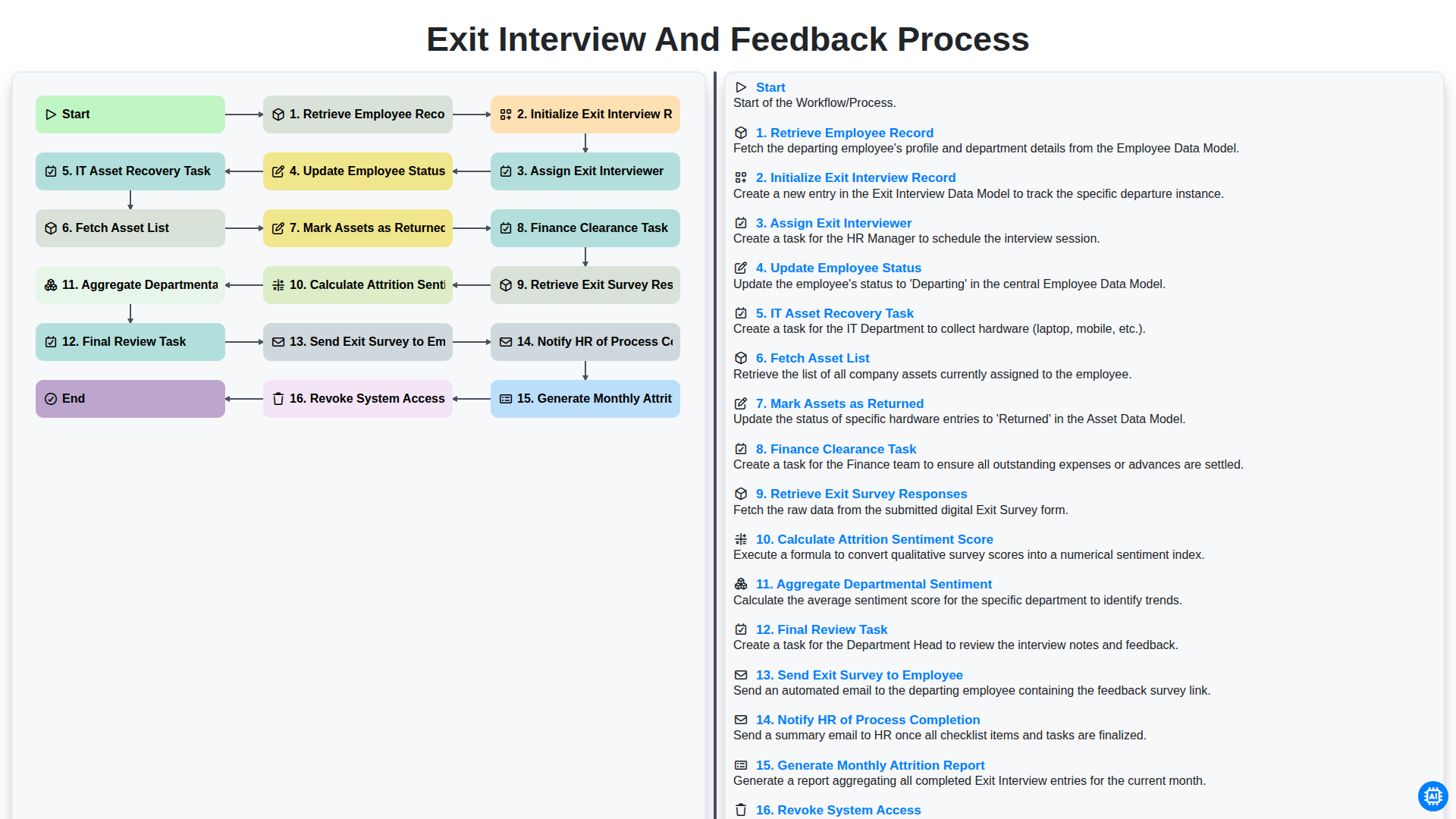
Exit Interview and Feedback Process
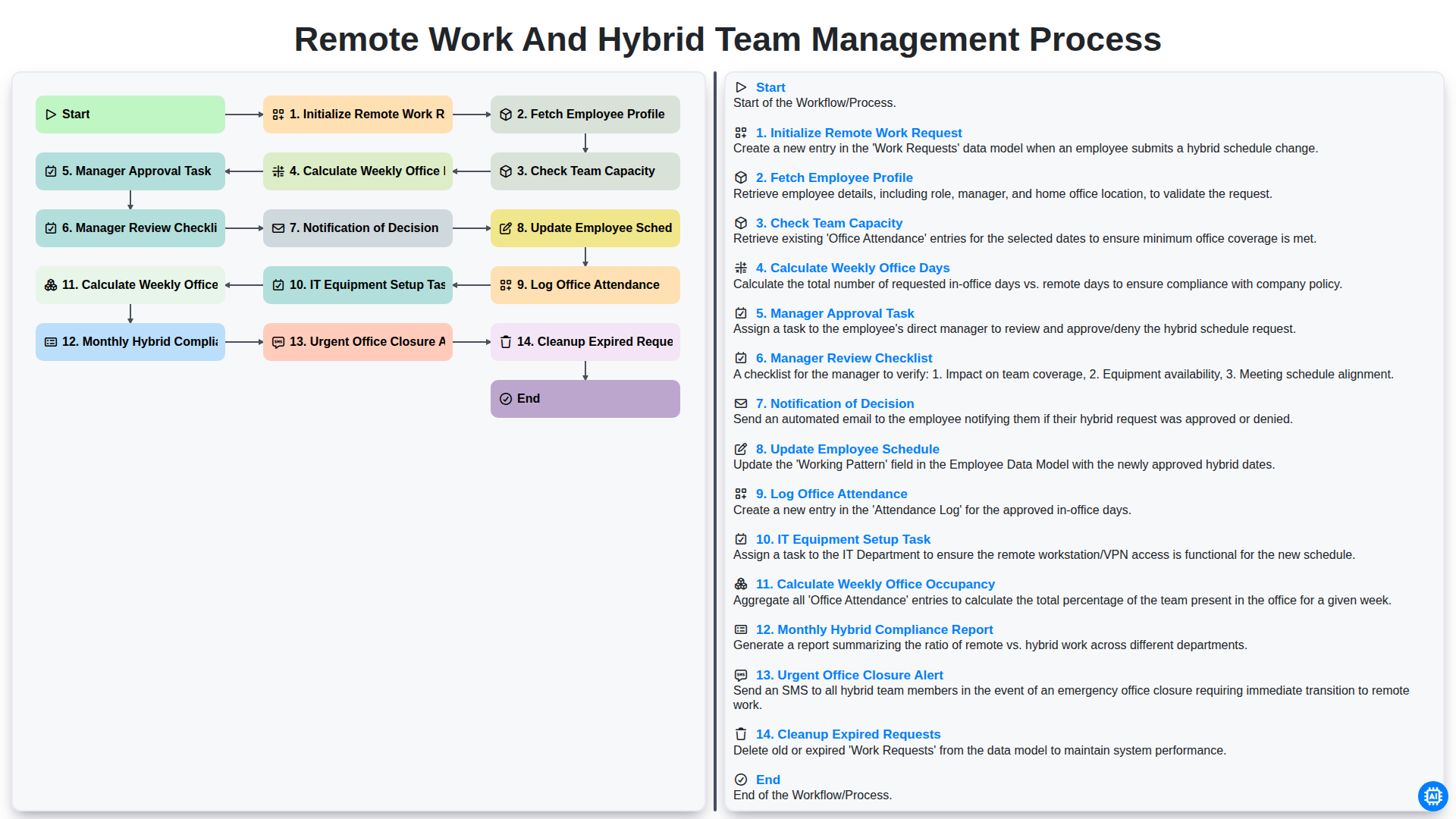
Remote Work and Hybrid Team Management Process
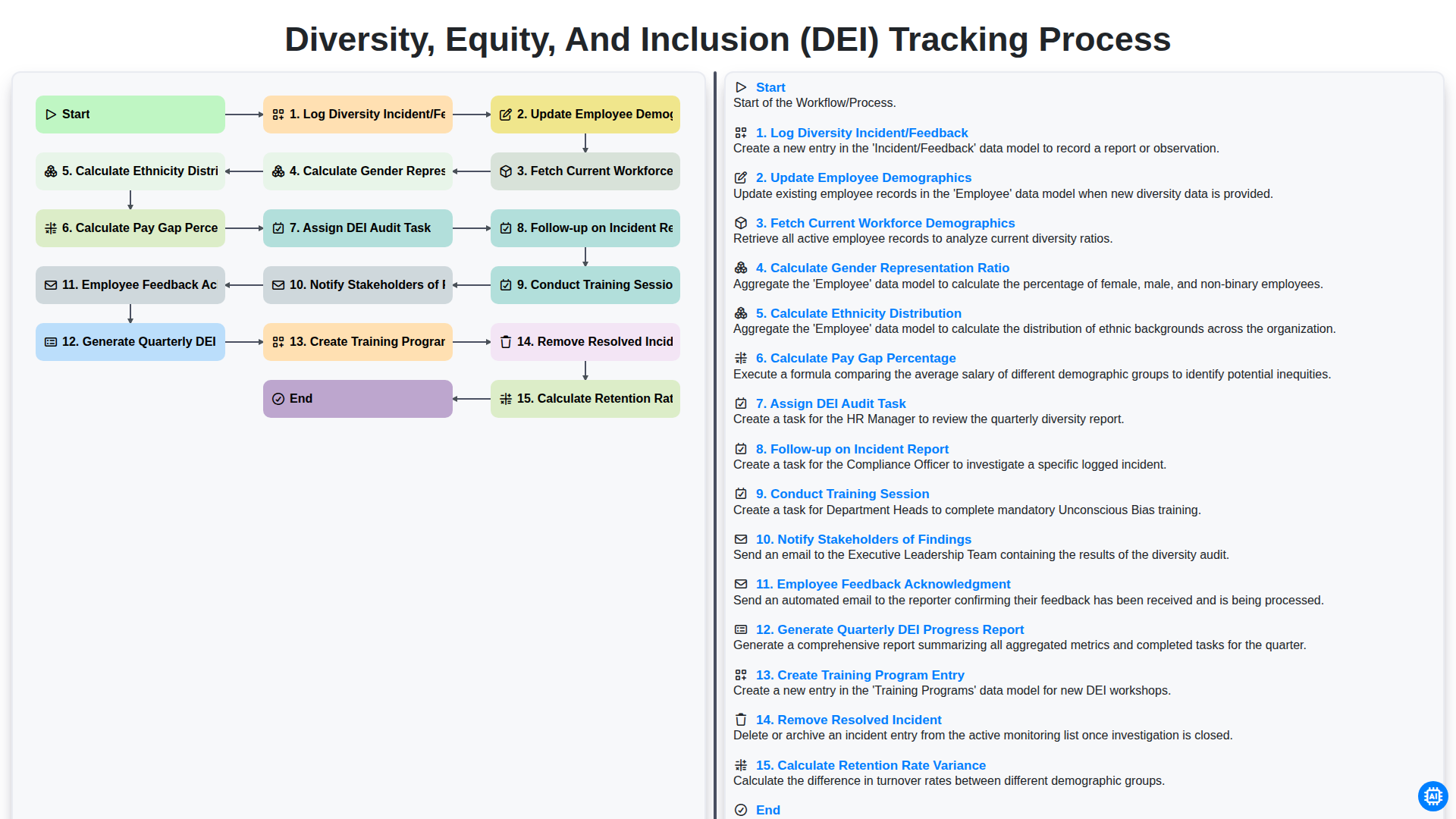
Diversity, Equity, and Inclusion (DEI) Tracking Process
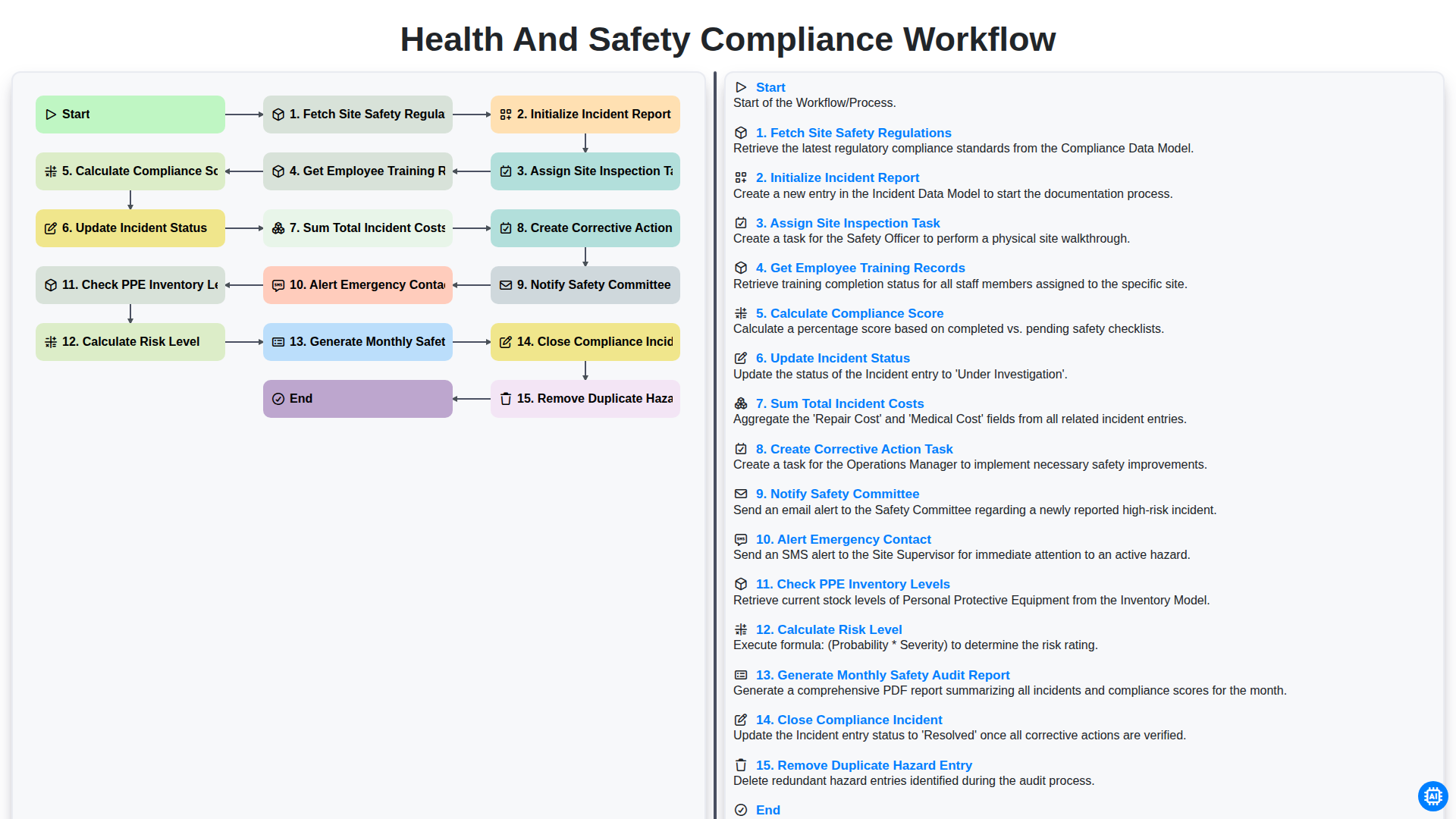
Health and Safety Compliance Workflow
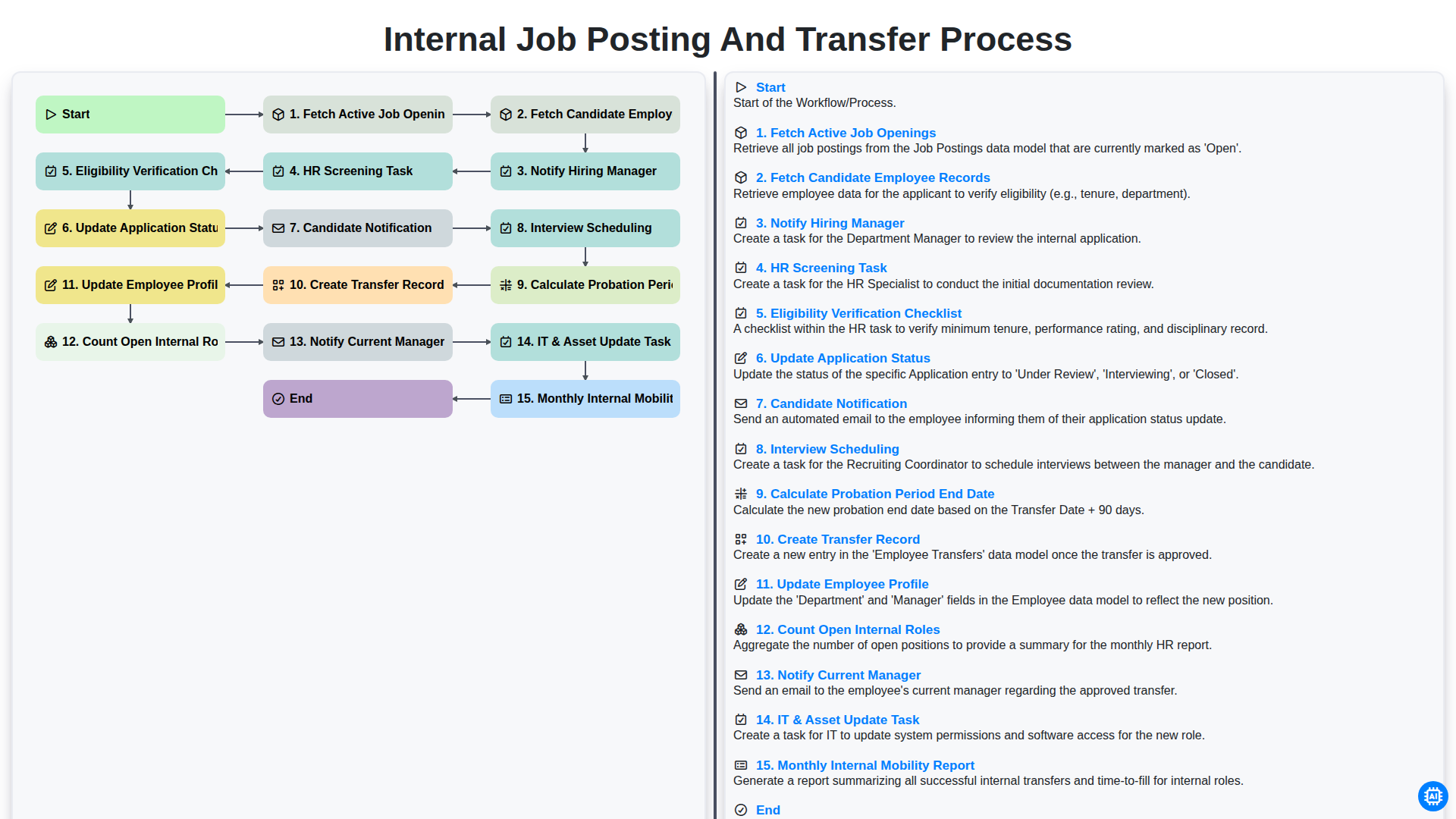
Internal Job Posting and Transfer Process
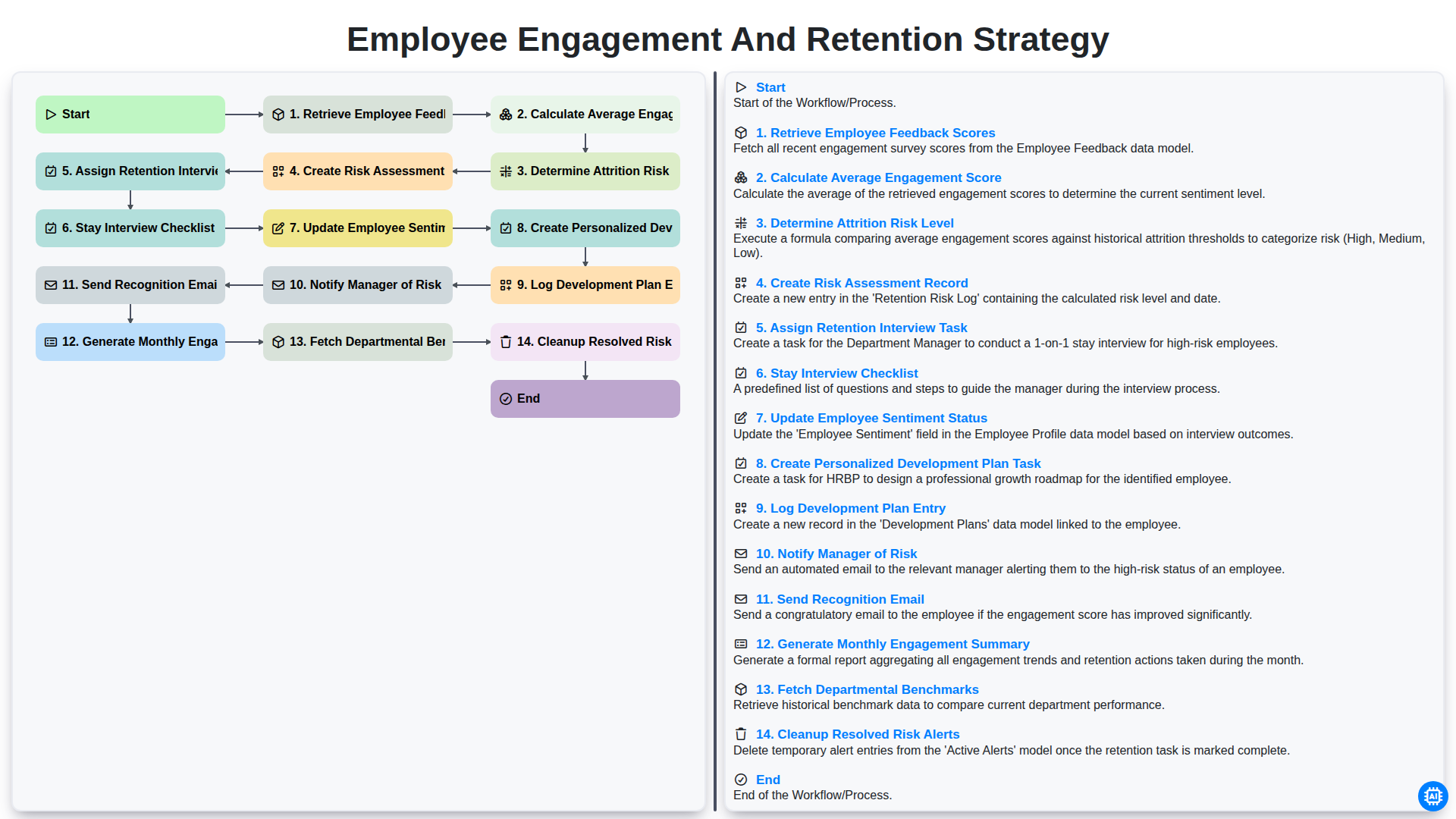
Employee Engagement and Retention Strategy
We can do it Together
Need help with
Human Resources Management (HRM)?
Have a question? We're here to help. Please submit your inquiry, and we'll respond promptly.