 ChecklistGuro
 Property Showing and Tour Scheduling Workflow
Streamline your real estate operations with our Property Showing and Tour Scheduling Workflow. Eliminate booking conflicts, automate agent notifications, and provide a seamless viewing experience for buyers. Perfect for real estate agents and property managers looking to master lead conversion through organized, professional, and efficient tour management.
This Template was installed 5 times.
Start
Start of the Workflow/Process.
1. Create Showing Request
Create a new entry in the 'Showing Requests' data model when a potential buyer expresses interest.
2. Fetch Property Details
Retrieve property information (address, availability, features) from the 'Properties' data model based on the request.
3. Calculate Buffer Time
Add a 15-minute buffer to the scheduled tour end time to account for travel between properties.
4. Assign Agent to Tour
Create a task for the assigned Real Estate Agent to prepare the property for the showing.
5. Property Preparation Checklist
Create a task containing a checklist for cleaning, lighting, and lockbox verification.
6. Update Property Status
Update the 'Properties' data model to mark the property as 'Under Showing' during the scheduled window.
7. Send Confirmation to Client
Send an email to the prospective buyer with the date, time, and meeting instructions.
8. Notify Agent via SMS
Send a text message to the agent with the tour address and client contact details.
9. Retrieve Agent Schedule
Check the 'Agent Availability' data model to ensure no conflicts exist for the requested time.
10. Post-Tour Feedback Task
Create a task for the agent to collect feedback from the client immediately after the tour.
11. Log Tour Feedback
Update the 'Showing Requests' entry with the client's notes and interest level after the tour.
12. Calculate Total Weekly Tours
Aggregate the number of completed showing entries to provide a weekly volume summary for the manager.
13. Generate Weekly Showing Report
Create a report summarizing all completed tours, feedback scores, and conversion rates for the week.
14. Cleanup Cancelled Requests
Delete the 'Showing Request' entry if the tour is cancelled by the client to keep the dashboard clean.
End
End of the Workflow/Process.
Start of the Workflow/Process.
Create a new entry in the 'Showing Requests' data model when a potential buyer expresses interest.
Retrieve property information (address, availability, features) from the 'Properties' data model based on the request.
Add a 15-minute buffer to the scheduled tour end time to account for travel between properties.
Create a task for the assigned Real Estate Agent to prepare the property for the showing.
Create a task containing a checklist for cleaning, lighting, and lockbox verification.
Update the 'Properties' data model to mark the property as 'Under Showing' during the scheduled window.
Send an email to the prospective buyer with the date, time, and meeting instructions.
Send a text message to the agent with the tour address and client contact details.
Check the 'Agent Availability' data model to ensure no conflicts exist for the requested time.
Create a task for the agent to collect feedback from the client immediately after the tour.
Update the 'Showing Requests' entry with the client's notes and interest level after the tour.
Aggregate the number of completed showing entries to provide a weekly volume summary for the manager.
Create a report summarizing all completed tours, feedback scores, and conversion rates for the week.
Delete the 'Showing Request' entry if the tour is cancelled by the client to keep the dashboard clean.
End of the Workflow/Process.
Frequently Asked Questions
Comments
There are no comments yet. Be the first to add one!
Real Estate Management Solution Demo
Simplify your real estate operations! ChecklistGuro streamlines property management, lease renewals, and maintenance requests. Enhance tenant satisfaction and maximize ROI. Manage it all with our Work OS.
Related Workflow Templates
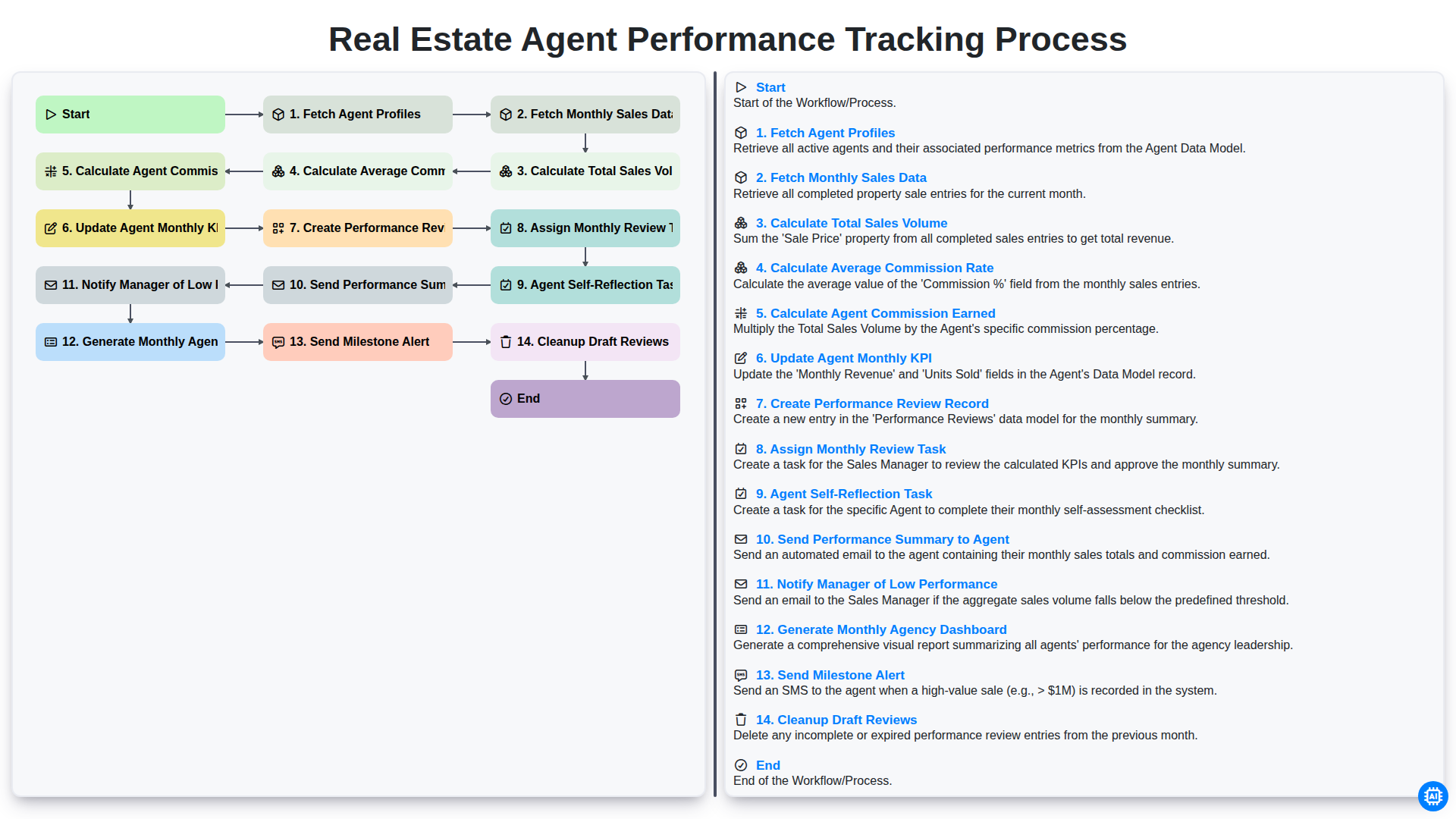
Real Estate Agent Performance Tracking Process
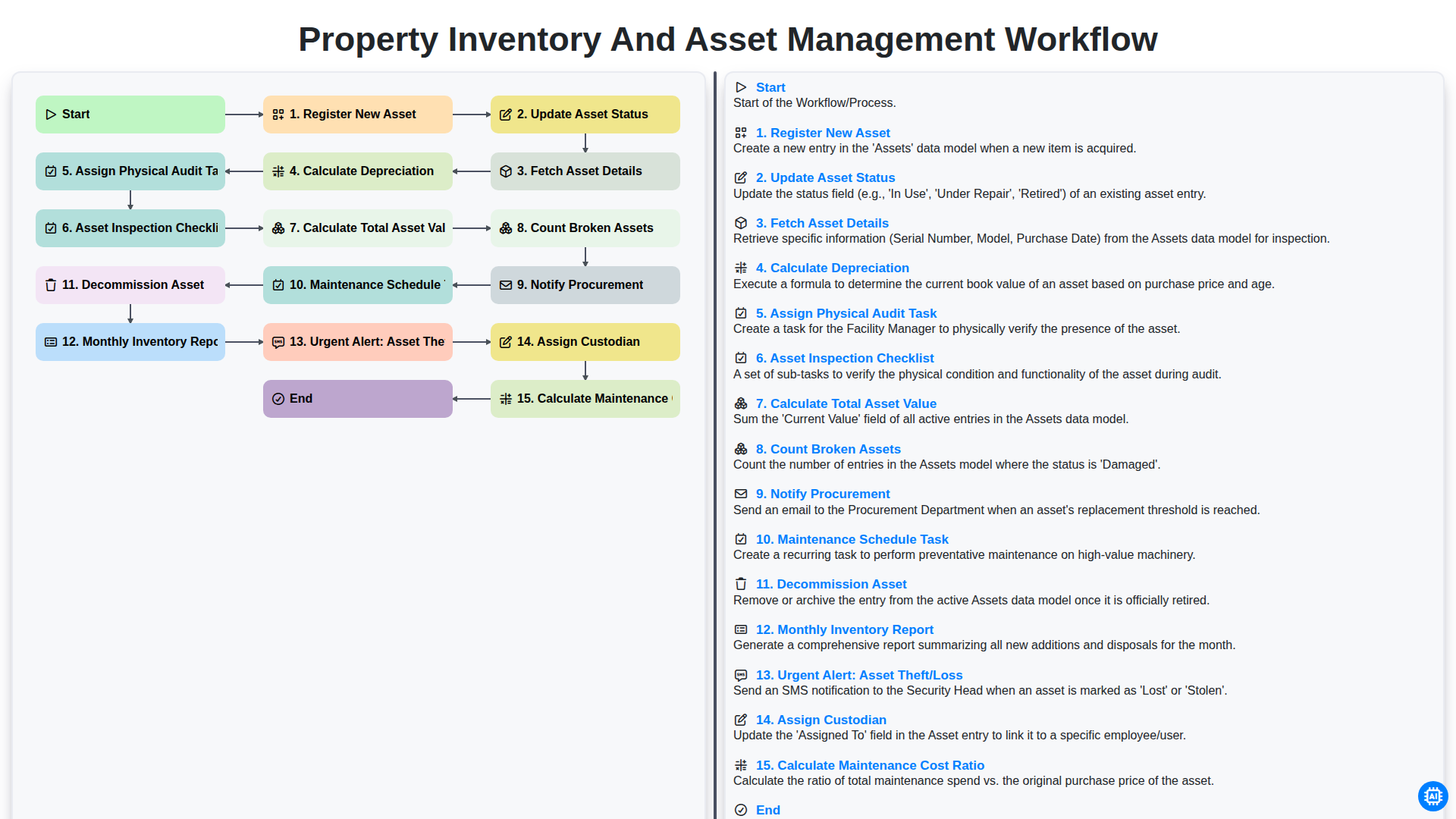
Property Inventory and Asset Management Workflow
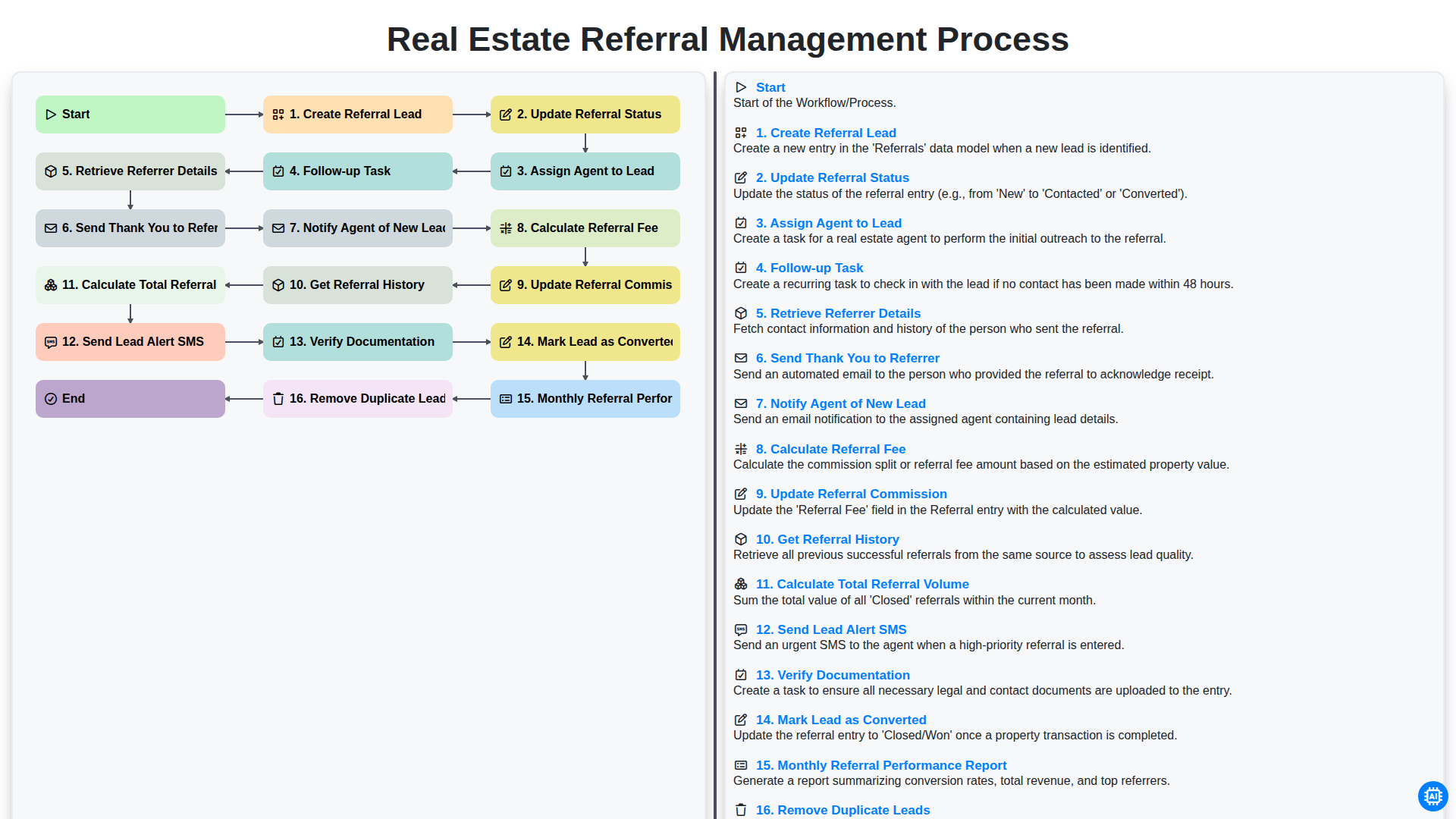
Real Estate Referral Management Process
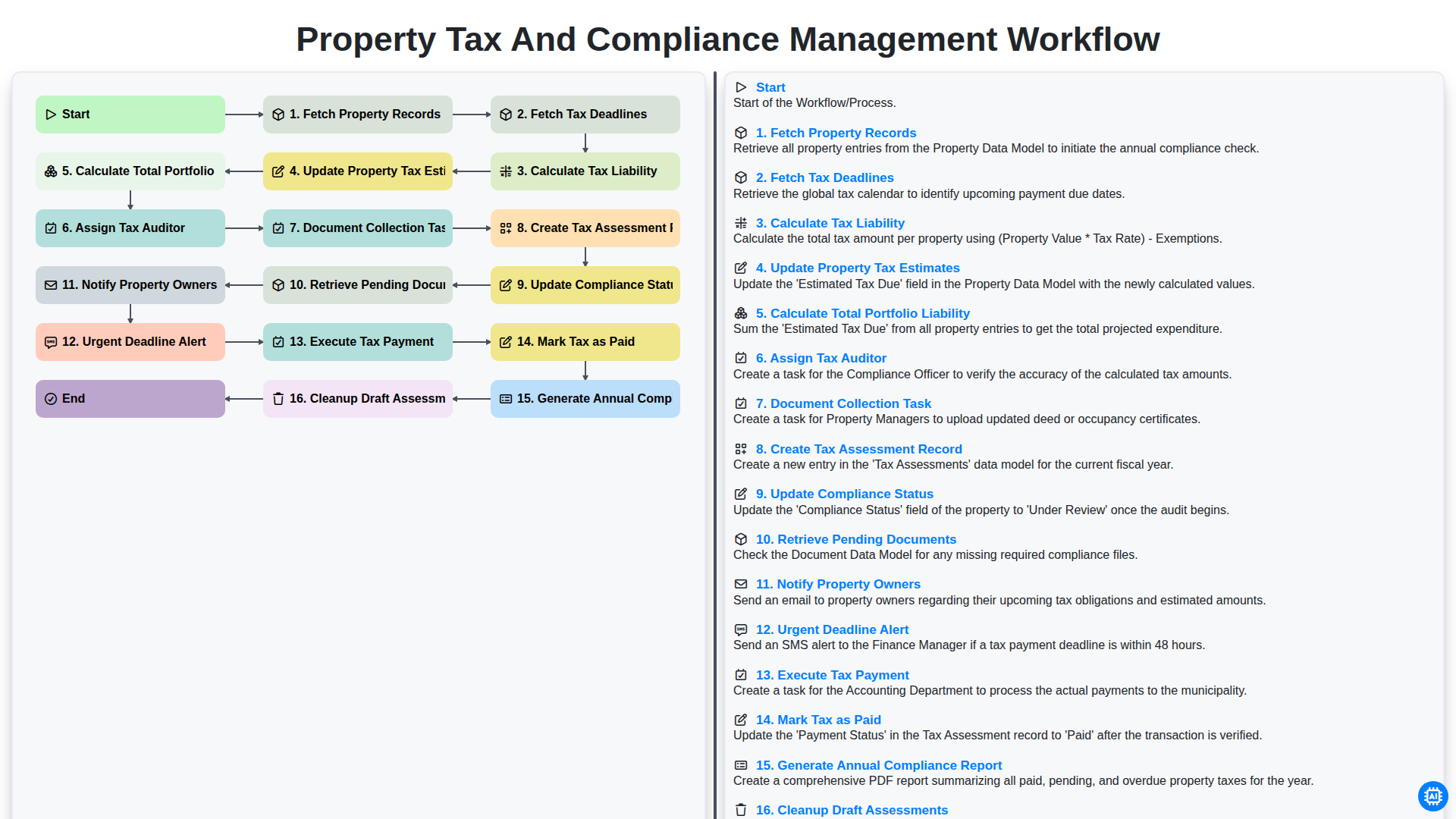
Property Tax and Compliance Management Workflow
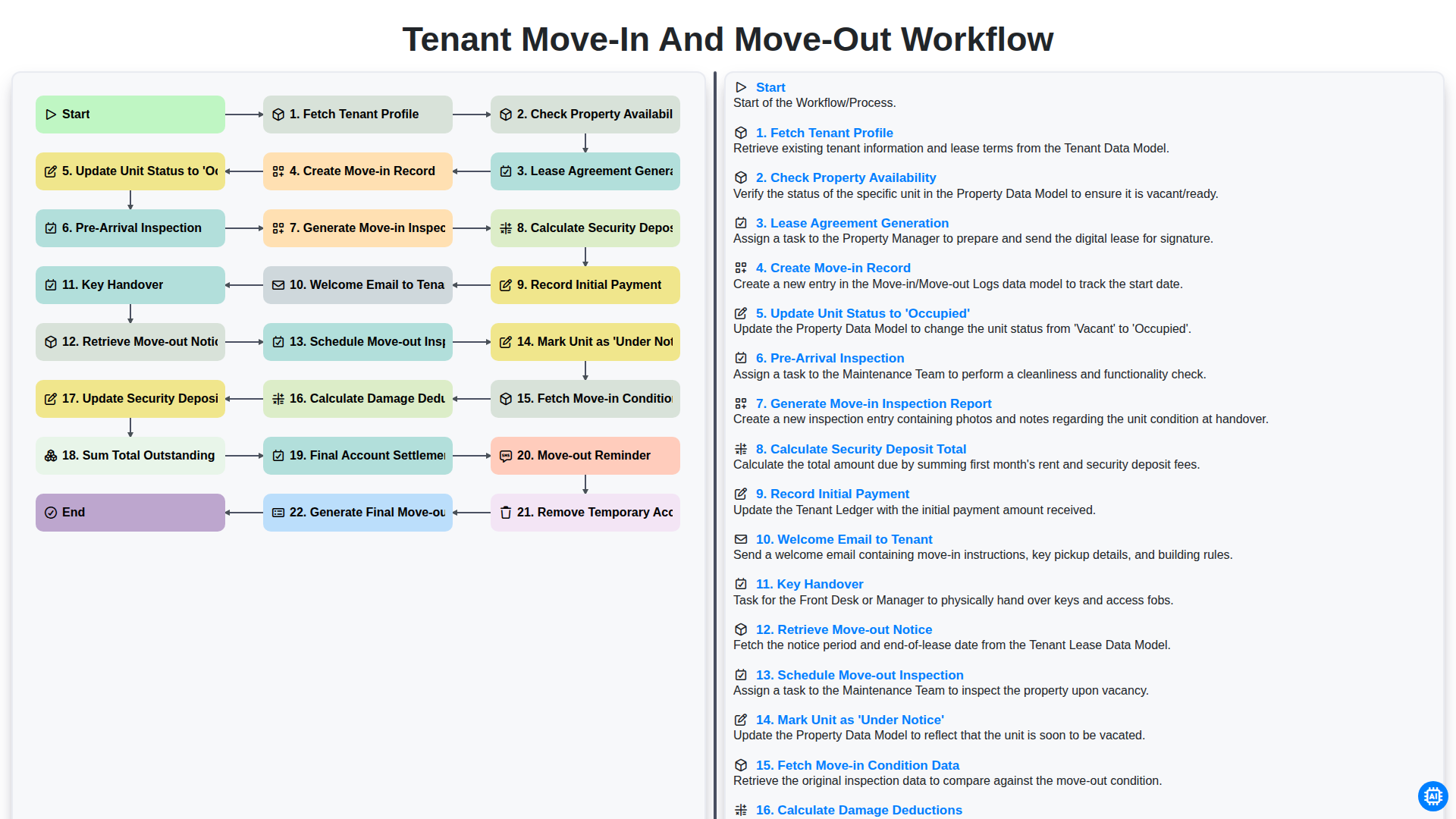
Tenant Move-in and Move-out Workflow
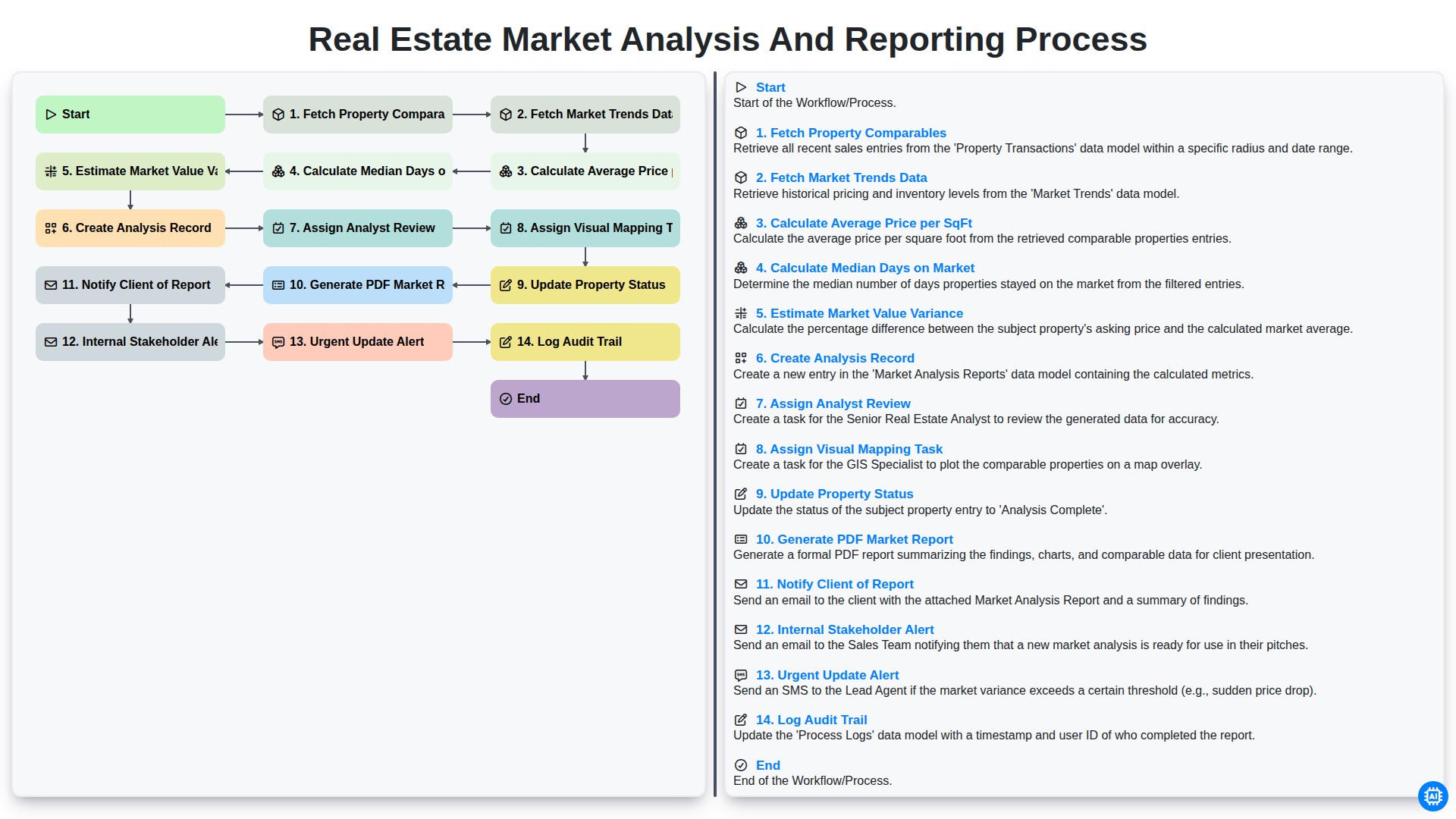
Real Estate Market Analysis and Reporting Process
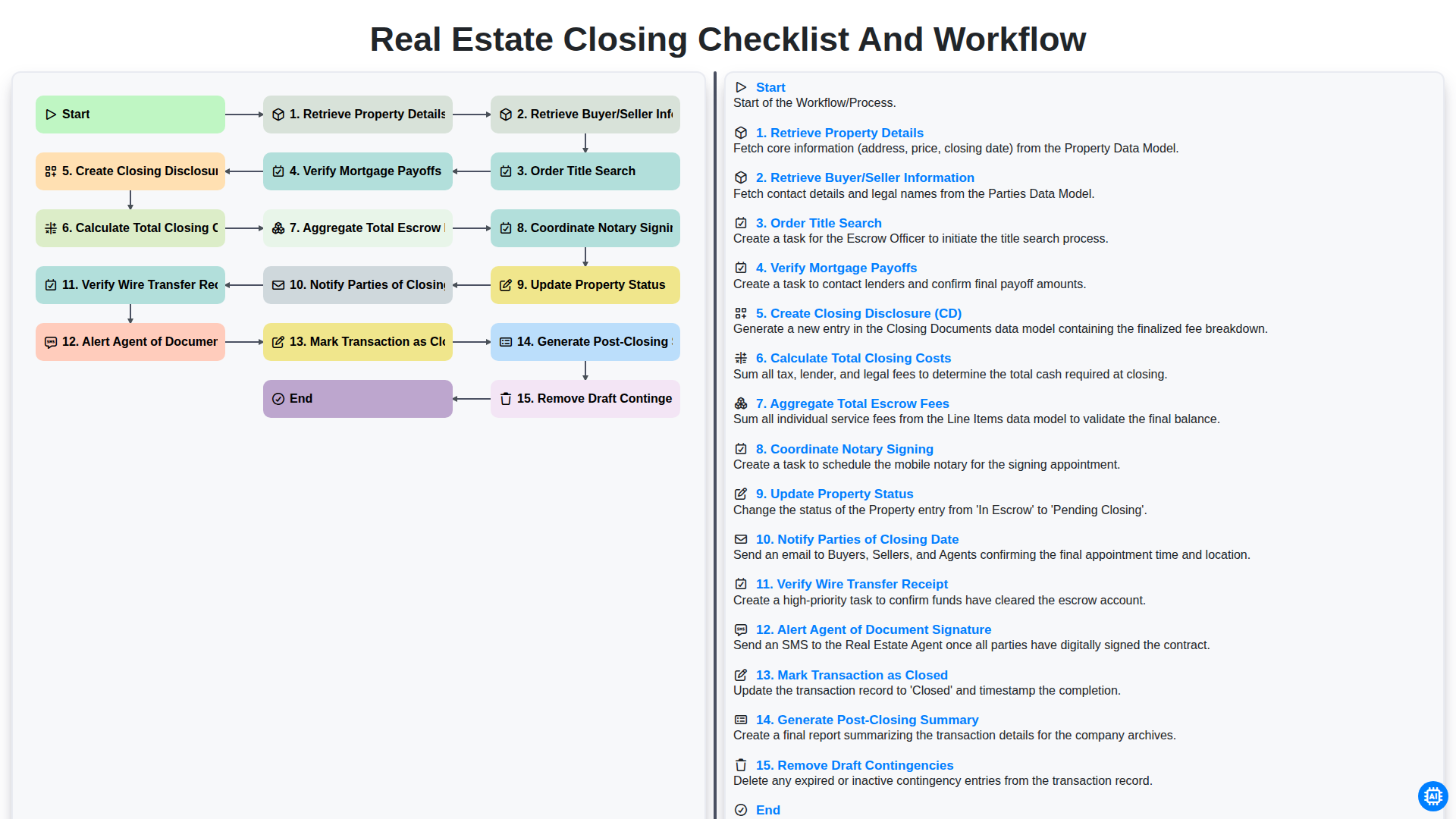
Real Estate Closing Checklist and Workflow
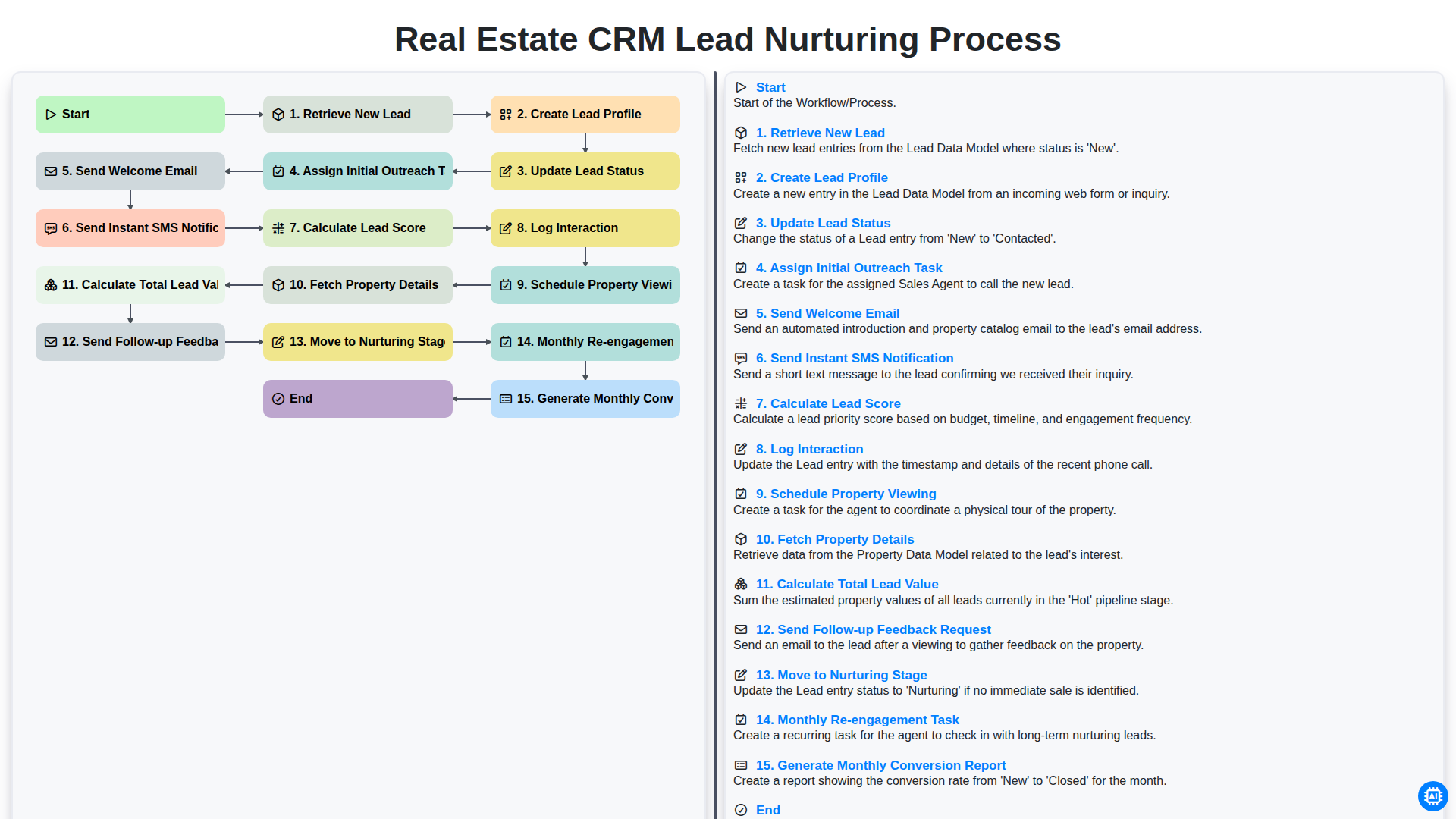
Real Estate CRM Lead Nurturing Process
Need help with
Real Estate?
Have a question? We're here to help. Please submit your inquiry, and we'll respond promptly.