The Ultimate Auditorium AV Equipment Checklist Template
Published: 09/02/2025 Updated: 05/11/2026
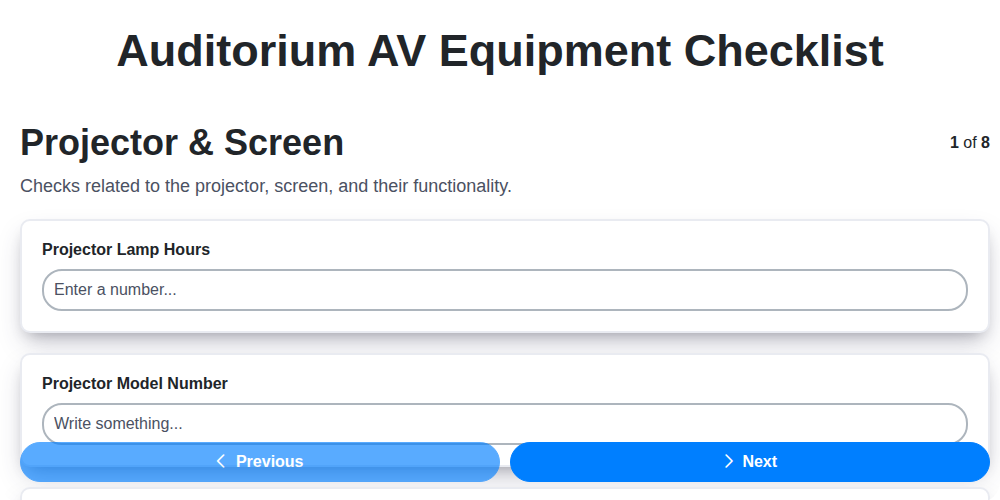
Table of Contents
- Why an Auditorium AV Checklist Matters
- Projector & Screen: Visual Clarity & Alignment
- Audio System: Ensuring Optimal Sound
- Video Sources & Playback: Seamless Content Delivery
- Control System & Remote: Streamlining Operations
- Connectivity & Cables: The Foundation of Your Setup
- Power & Backup: Preventing Disruptions
- Maintenance & Best Practices: Long-Term Reliability
- Resources & Links
TLDR: This free checklist template helps you ensure your auditorium's AV equipment is working perfectly *before* your event, preventing embarrassing technical glitches. It covers everything from projectors to microphones, and provides simple steps to diagnose and fix common issues - saving you time and stress!
Why an Auditorium AV Checklist Matters
An auditorium is more than just a room; it's a stage for impactful presentations, engaging performances, and crucial events. But a technical failure - a silent projector, distorted audio, or a dropped video feed - can instantly derail the entire experience, damaging credibility and frustrating both presenters and audiences.
Beyond the immediate disruption, neglecting a pre-event AV check carries wider implications. It can lead to missed opportunities, decreased audience engagement, and even potential safety hazards if equipment malfunctions unexpectedly. A well-maintained and properly functioning AV system fosters a professional atmosphere, allows presenters to focus on their message, and guarantees a seamless and enjoyable experience for everyone in attendance. Implementing a routine checklist demonstrates a commitment to quality and professionalism, protecting your reputation and ensuring every event shines.
Projector & Screen: Visual Clarity & Alignment
The projector and screen form the heart of your auditorium's visual experience. Ensuring they're functioning optimally is paramount for audience engagement and message delivery. Let's break down the essential checks to guarantee visual clarity and proper alignment.
Power and Lamp Status: Start with the basics. Verify the projector is receiving power and that the lamp is functioning correctly. Pay close attention to the lamp's remaining hours - projectors often dim significantly as lamps near the end of their lifespan. Schedule a lamp replacement before your event, not during!
Screen Integrity & Positioning: A wrinkled or damaged screen drastically diminishes image quality. Inspect the screen surface for tears, creases, or stains. The screen needs to be perfectly aligned with the projector's image. Slight misalignments can create a skewed or distorted picture, distracting from your presentation. Adjust the screen's position if necessary, and use alignment patterns or test images to achieve perfect symmetry.
Resolution and Focus: Projector resolution must match the source material for the sharpest image. Many projectors offer adjustable focus settings; take a moment to fine-tune the focus for maximum clarity, eliminating blurriness or fuzziness. A quick test with a simple image or text document is an easy way to gauge visual quality. Don't overlook the keystone correction settings either - these can help compensate for angle discrepancies and maintain a rectangular image. Finally, check the brightness setting to ensure the image is sufficiently visible in the room's ambient lighting.
Audio System: Ensuring Optimal Sound
A crystal-clear sound system is paramount for any successful auditorium event. Whether it's a captivating lecture or a dynamic musical performance, audiences need to hear every nuance. But a compromised audio system can instantly derail even the most compelling content. Here's a detailed breakdown of what to check:
Microphone Mastery: Begin by testing every microphone - both wired and wireless. Check for clarity, distortion, and proper volume levels. Wireless mics require a signal strength test to ensure consistent reception throughout the auditorium. Don't forget to check battery life!
Speaker Calibration: Verify that speakers are properly calibrated and distributed evenly throughout the auditorium. Listen for imbalances, buzzing, or unwanted feedback. Utilize a sound level meter if available for precise adjustments. Zone control, if equipped, should be tested to confirm consistent audio across different areas of the room.
Mixing Matters: Thoroughly test the mixer functionality. Adjust input levels to prevent clipping and distortion. Experiment with equalization (EQ) settings to optimize the sound signature. Check aux sends and returns for proper signal routing. Familiarize yourself with the mixer's presets for common event types.
Feedback Frequencies: Conduct a controlled feedback test to identify and eliminate any potential feedback loops. This involves slowly increasing microphone volume while scanning the room for unwanted squeals or howls. Adjust microphone placement and EQ to minimize feedback.
Beyond the Basics: Don't overlook the smaller details - check cable connections for security and integrity, and ensure all audio equipment is properly grounded to prevent hum or interference. A little attention to these often-overlooked elements can significantly improve the overall sound quality.
Video Sources & Playback: Seamless Content Delivery
The quality of your event hinges on reliably delivering your content. This section focuses on ensuring your video sources and playback systems function flawlessly. It's more than just plugging in a laptop; it's about verifying compatibility, resolution, and overall quality.
First, power verification is crucial. Double-check that all video sources-laptops, Blu-ray players, media servers, game consoles-are receiving power and operating correctly. A simple power outage can derail your entire event, so a quick visual check and power-on sequence are essential.
Next, cable connections are your lifeline. Confirm that all video cables (HDMI, VGA, DisplayPort) are securely connected to both the source device and the projector or display. Look for any signs of damage, like frayed cables or bent connectors, which can cause intermittent signal loss. Don't underestimate the importance of clean connections - a little dust can significantly degrade the signal.
Resolution and compatibility are frequent culprits for playback issues. Verify that the projector's native resolution is supported by the source device and that the video format is compatible. Mismatched resolutions can result in a blurry or distorted image. A quick check of the display settings on the source device to ensure the correct output resolution is selected is a simple preventative measure.
Finally, a brief content preview is invaluable. Play a short segment of each video source to confirm accuracy, sound synchronization (if applicable), and overall visual quality. This is your last chance to catch any errors or unexpected behavior before the event begins. Don't just assume it will work because it worked last time - always test.
Control System & Remote: Streamlining Operations
The heart of a modern auditorium's AV experience often lies in its control system. This isn't just a fancy remote; it's a centralized hub that integrates all your equipment - projectors, audio mixers, lighting desks, video sources - and allows for seamless operation. A well-configured control system simplifies complex tasks, reduces operator error, and creates a polished, professional presentation.
But like any complex system, it needs regular checks. Here's what you should be verifying:
- Power Up and Diagnostics: Ensure the control system itself is powered on and running diagnostics correctly. Look for any error messages or warning indicators.
- Remote Functionality: Test every button and function on the control remote. Don't assume anything! Confirm that each function triggers the intended action on the connected equipment.
- Integration Verification: This is crucial. Confirm that the control system truly communicates with all AV components. Verify that commands from the remote accurately reflect changes in the auditorium's environment (e.g., dimming lights, adjusting audio levels).
- Scene Recall Testing: Most control systems allow you to save scenes - pre-configured setups for different event types (e.g., Presentation Mode, Concert Performance). Thoroughly test each scene to ensure it recalls the correct settings for each device. Look for unexpected behavior or devices not responding as expected.
- Software/Firmware Updates: Check for any available software or firmware updates for the control system. Keeping these up-to-date can improve performance and security.
- User Access & Security: If applicable, verify user access levels and security protocols to prevent unauthorized modifications to the system.
Connectivity & Cables: The Foundation of Your Setup
Let's be honest: a stunning presentation or flawless performance is useless if the signal fails. Cables are the unsung heroes of any AV setup, and neglecting them can lead to frustrating disruptions and costly delays. This section focuses on ensuring your connections are solid and reliable.
Start with a visual inspection. Carefully examine every cable - power cords, HDMI cables, audio snakes, network cables - for any signs of damage. Look for fraying, kinks, exposed wires, or broken connectors. Don't assume anything; even a seemingly minor flaw can cause intermittent signal issues.
Next, verify the security of each connection. A loose cable can easily be bumped during setup or jostled during an event. Ensure all connectors are firmly seated and that any locking mechanisms are engaged. For larger setups using multi-pin connectors, consider cable ties or Velcro straps to secure cables and prevent accidental disconnections.
Don't overlook adapters! While adapters can be incredibly useful, they introduce an additional point of potential failure. Double-check the compatibility of any adapters you're using and ensure they've been tested with the intended devices. A mismatched adapter can lead to signal degradation or complete failure.
Finally, good cable management is crucial. A tangled mess of cables not only looks unprofessional but also makes troubleshooting a nightmare. Invest in cable management solutions like cable trays, ties, and labels to keep your setup organized and accessible. Proper labeling will save you valuable time when you need to identify a specific cable quickly. Remember, a little planning goes a long way in preventing major headaches.
Power & Backup: Preventing Disruptions
A sudden power outage can derail even the best-laid plans. Auditorium events often rely on complex AV systems, and a momentary lapse in power can cause significant disruption, damage equipment, and frustrate audiences. A robust power and backup plan is therefore crucial.
Let's break down the essential checks:
Outlet Verification: Begin with the basics. Test all power outlets designated for AV equipment using a reliable outlet tester. Look for any signs of damage or inconsistent readings. Document your findings.
UPS (Uninterruptible Power Supply) Functionality: Your UPS acts as a temporary power source during outages. Check its status indicators to confirm it's operating correctly and that the battery is sufficiently charged. Periodically test the UPS under load to simulate an actual power failure - this allows you to gauge response time and battery duration. Refer to the UPS manufacturer's guidelines for recommended testing procedures.
Generator Readiness (If Applicable): If your auditorium utilizes a generator for extended power outages, ensure it's regularly serviced and ready for immediate use. Verify fuel levels, oil levels, and proper functionality. Conduct test runs as per the manufacturer's instructions.
Power Consumption Awareness: Be mindful of the total power draw of your AV equipment. Overloading circuits can lead to tripped breakers and unexpected shutdowns. Consult equipment specifications to ensure circuits can handle the load. Consider using power conditioners to protect sensitive equipment from voltage fluctuations.
Surge Protection: Implement surge protectors on all critical AV components to safeguard against power spikes. These are an inexpensive layer of protection that can prevent costly equipment damage.
Proper planning and consistent maintenance of your power infrastructure are essential for a seamless event experience.
Maintenance & Best Practices: Long-Term Reliability
Investing in quality AV equipment is just the first step. Consistent maintenance and adherence to best practices are crucial for maximizing its lifespan and ensuring reliable performance when you need it most. Neglecting these aspects can lead to premature failures, costly repairs, and frustrating disruptions during events.
Here's a breakdown of essential maintenance routines and proactive measures:
Regular Cleaning is Paramount: Dust and debris are the enemies of AV equipment. Projectors, screens, and speakers should be cleaned regularly - at least quarterly, or more frequently in dusty environments. Use a soft, lint-free cloth and avoid harsh chemicals. Projector lamps, in particular, accumulate dust that can shorten their lifespan and reduce brightness.
Cable Management: A Simple but Powerful Step: Tangled and stressed cables are prone to failure. Implement a robust cable management system using ties, sleeves, and proper routing. Ensure cables aren't pinched or kinked, and that they have sufficient slack to prevent strain. Periodically inspect cables for signs of wear and tear, replacing them as needed.
Projector Lamp Life Management: Keep a close eye on projector lamp hours. Most projectors have a built-in hour counter. Replace lamps before they reach their rated lifespan to avoid unexpected outages during critical moments. Factor in lamp replacement costs into your budget.
Firmware Updates: Manufacturers often release firmware updates that improve performance, fix bugs, and enhance security. Regularly check for and install these updates, following the manufacturer's instructions carefully.
Ventilation is Vital: Ensure adequate ventilation around all AV equipment to prevent overheating. Clear any obstructions from vents and consider using fans to improve airflow.
Scheduled Inspections: Schedule routine inspections by a qualified AV technician. They can identify potential problems early, perform preventative maintenance, and ensure all components are operating optimally.
Documentation: Keep a detailed log of all maintenance performed, including dates, tasks completed, and any issues encountered. This helps track equipment history and facilitates troubleshooting.
Environmental Considerations: Be mindful of the environment where your AV equipment is located. Extreme temperatures, humidity, and direct sunlight can damage components. Consider climate control measures to mitigate these risks.
By integrating these maintenance practices into your routine, you can extend the life of your AV equipment, minimize downtime, and ensure exceptional performance for years to come.
Resources & Links
- Projector Central: A comprehensive resource for projector information, including reviews, comparisons, specifications, and brightness calculators. Useful for understanding projector specifications and choosing the right projector for auditorium size and lighting conditions. Crucial for the 'Projector & Screen' section.
- Audio Technology Magazine: Industry publication covering professional audio, including system design, acoustics, and loudspeaker technology. Valuable for researching audio system components and best practices discussed in the 'Audio System' section.
- Shure: A leading manufacturer of microphones and audio processing equipment. Their website offers technical resources, product specifications, and guides related to microphone placement, feedback control, and sound reinforcement - all essential for the 'Audio System' section.
- Extron: Specializes in AV control systems and signal processing. Their website offers extensive information on control system design, programming, and integration - directly relevant to the 'Control System & Remote' section.
- Crestron: Another major provider of AV control systems, offering similar resources to Extron. Provides examples of sophisticated control solutions for large venues, supporting the 'Control System & Remote' section.
- HDMI: The official HDMI website provides specifications and information about HDMI standards. Vital for ensuring compatibility and optimal video quality discussed in the 'Connectivity & Cables' and 'Video Sources & Playback' sections.
- Snap Power: Provides solutions for power distribution and backup power systems. Helpful for understanding UPS (Uninterruptible Power Supply) requirements and power redundancy for auditorium AV equipment, covered in the 'Power & Backup' section.
- AV Systems Laboratory (AVSL): Offers consulting, design, and testing services for AV systems, including auditorium design. Their website has case studies and resources which could inform best practices and maintenance strategies as detailed in the 'Maintenance & Best Practices' section.
- Stanson Eberwein & Seppi (SES): Provides consulting services related to acoustics and audio systems. Their resources provide details in understanding acoustic environments for auditorium systems, which informs optimal audio system design. Supports the 'Audio System' section.
- QSC: A manufacturer of professional audio equipment, their website features technical documentation and resources for designing and implementing audio systems. Specifically helpful for the 'Audio System' section concerning speaker placement and amplifier selection.
- Yamaha Professional: A major manufacturer of audio equipment. Their site has datasheets and application notes which can inform system specifications and configurations for the 'Audio System' section
Frequently Asked Questions
What is an Auditorium AV Equipment Checklist and why do I need one?
An Auditorium AV Equipment Checklist is a detailed list of all the audio-visual (AV) equipment needed for presentations, performances, or events in an auditorium. It helps ensure everything is accounted for, tested, and ready before an event, preventing technical glitches and ensuring a smooth experience. It's a preventative measure to avoid last-minute scrambling and potential disruptions.
Who is this checklist template for?
This checklist template is designed for a wide range of users, including facility managers, event planners, AV technicians, and anyone responsible for ensuring the technical aspects of auditorium events run smoothly. It's adaptable for various auditorium sizes and event types.
What types of equipment are typically included in the checklist?
The checklist covers a broad range of equipment, including projectors, screens, sound systems (microphones, mixers, amplifiers, speakers), lighting, cabling, control systems, cameras, and presentation technology like laptops and media players. It also includes consumables like batteries and cables.
Is the checklist customizable? Can I add or remove items?
Yes! This is a template, designed to be customized. You can easily add or remove items based on your auditorium's specific equipment and the requirements of the event. Sections are clearly labeled to facilitate easy modification.
What does the 'Condition' column in the checklist mean?
The 'Condition' column allows you to document the state of each piece of equipment. This could be 'Good,' 'Needs Repair,' 'Damaged,' or 'Not Available.' This helps track the overall health of your AV equipment and identify items needing maintenance.
What is the purpose of the 'Responsible Person' column?
The 'Responsible Person' column designates who is accountable for each piece of equipment - whether it's for setup, testing, operation, or troubleshooting. This clarifies responsibilities and ensures someone is always in charge.
Should I print this checklist or use it digitally?
You can use this checklist in whichever format is most convenient for you. Printing it allows for easy on-site referencing, while a digital version allows for easier updates, sharing, and tracking of equipment status. We recommend a combination of both, if possible.
How often should I update the equipment list?
Ideally, the equipment list should be reviewed and updated regularly - at least annually or whenever new equipment is added or old equipment is removed. It's also a good practice to review it before each major event.
What if I don't know the technical specifications of some equipment?
The 'Specifications' column is included to record details like projector resolution, speaker wattage, or microphone type. If you're unsure, consult the equipment's manual or contact the manufacturer. Having this information is crucial for compatibility and troubleshooting.
Where can I find more information about specific AV equipment?
We recommend consulting the manufacturer's websites for detailed specifications and manuals. Online AV forums and communities can also be valuable resources for troubleshooting and best practices.
Comments
There are no comments yet. Be the first to add one!
Facility Management Solution Demo
Keep your facilities running smoothly! ChecklistGuro streamlines maintenance, inspections, and vendor management. Reduce downtime, optimize efficiency, & improve safety. Manage it all with our Work OS.
Related Articles
Industrial Floor Cleaning & Safety Checklist Template
Display Case Temperature Monitoring Checklist Template
The Ultimate Refrigeration Maintenance Checklist: Keeping Your Food Safe
Escalator & Moving Walkway Inspection Checklist Template
The Ultimate Guest Room Cleaning & Inspection Checklist Template
The Ultimate Security Camera Review Checklist Template
Forklift Inspection & Maintenance Checklist Template
Emergency Generator Load Testing Checklist Template
We can do it Together
Need help with
Facility Management?
Have a question? We're here to help. Please submit your inquiry, and we'll respond promptly.