 ChecklistGuro
 Financial Services Help Desk Escalation Checklist
Ensure swift and compliant resolutions! This Financial Services Help Desk Escalation Checklist guides your support team through critical incident handling, regulatory adherence, and clear communication, minimizing risk and maximizing client satisfaction.
This Template was installed 1 times.
Initial Ticket Assessment
Verify ticket details, severity, and impact. Confirm initial troubleshooting steps have been attempted.
Ticket ID
Severity Level
Impact Area
User Description of Issue
Date Reported
Time Reported
Escalation Trigger Identification
Determine if escalation criteria are met (e.g., time elapsed, severity, technical complexity, user impact).
Time Elapsed (in hours)
Severity Level
Technical Complexity
Number of Users Impacted
Describe User Impact
Workaround Implemented?
Date of First Report
Tier 2/3 Support Contact Information
Locate and confirm contact details for appropriate Tier 2 or Tier 3 support specialists.
Tier 2 Support Group
Tier 3 Support Group
Primary Contact Name (Tier 2)
Primary Contact Email (Tier 2)
Primary Contact Phone Number (Tier 2)
Secondary Contact Name (Tier 2)
Secondary Contact Email (Tier 2)
Escalation Information Gathering
Collect all relevant ticket information, error messages, logs, and troubleshooting steps for the escalated support team.
Detailed Description of Issue
Steps Already Taken
Error Logs
Screenshots
System/Application Version
Error Code (if applicable)
Affected System/Application
Escalation Notification & Documentation
Document the escalation reason, details, and assigned specialist in the ticket. Send appropriate notifications.
Escalation Reason
Summary of Issue and Troubleshooting Steps
Assigned Tier Level
Assigned Specialist Name
Escalation Timestamp
Escalation Initiator Signature
Knowledge Transfer & Context
Clearly communicate the issue's history and troubleshooting steps to the escalated support team.
Detailed Description of the Issue
Troubleshooting Steps Already Performed
Relevant Error Logs
Affected Systems/Applications
User Impact Statement (Business Impact)
Initial Severity Assessment (as per ticket)
Escalation Tracking & Follow-up
Monitor the escalated ticket's progress and follow up with the escalated team to ensure timely resolution.
Escalation Date/Time
Escalated To (Team/Individual)
Time Elapsed Since Escalation (Hours)
Expected Resolution Date
Escalation Status
Notes on Escalation Progress & Communication
Resolution Verification & Ticket Closure
Verify resolution with the user and ensure the issue is fully resolved before closing the ticket.
Resolution Confirmed by User?
User Feedback/Comments
Resolution Time (minutes)
Resolution Date
Resolution Time
Root Cause Identified?
Root Cause Summary (if known)
Frequently Asked Questions
Can I customize this template after installing it?
Absolutely. Once installed, you can add, remove, or reorder tasks, add custom fields, and adjust deadlines to fit your specific workflow.
Can I add images or photos to these checklist items?
Yes. Our platform allows you to attach photos, signatures, and notes to any checklist item for better verification and proof of completion.
Can I create a custom checklist from scratch instead of using a template?
Yes. You can use our "Create your own checklist" feature to build a unique workflow tailored exactly to your operational requirements.
Can I add dependencies between tasks?
Yes, you can set up conditional logic and dependencies to ensure your team follows the correct sequence of operations.
Can I assign specific checklist items to different team members?
Yes. You can assign individual tasks to specific employees, ensuring clear accountability across your entire team.
Can I use these checklists on mobile devices in the field?
Yes. Our platform is fully responsive, allowing your team to complete, update, and upload photos to checklists directly from any smartphone or tablet.
How do I notify my manager when a checklist is completed?
You can set up automated notifications (via email, push notification, or in-app alerts) to trigger whenever a checklist is finished or if an item fails inspection.
Can multiple people work on the same checklist simultaneously?
Yes, the platform supports real-time updates, allowing multiple users to contribute to a single live checklist.
Where is the data from completed checklists stored?
All completed checklists are stored securely in your Work OS dashboard, creating a permanent, searchable audit trail of your operations.
Can I generate reports based on my checklist results?
Yes. You can track completion rates, identify recurring issues, and monitor team performance through our integrated reporting and analytics tools.
How can I use these checklists for compliance or auditing purposes?
Because our checklists capture timestamps, photos, and digital signatures, they serve as a robust digital paper trail for regulatory compliance and internal audits.
Can I export my completed checklist data for use in other tools?
Yes. You can export your data in various formats (CSV, Excel, etc.) to integrate your operational insights with your other business software.
Comments
There are no comments yet. Be the first to add one!
Support Management Solution Demo
Struggling to keep up with support requests? ChecklistGuro provides a centralized system for managing tickets, tracking progress, & ensuring customer satisfaction. Improve efficiency & reduce resolution times.
Related Checklist Templates
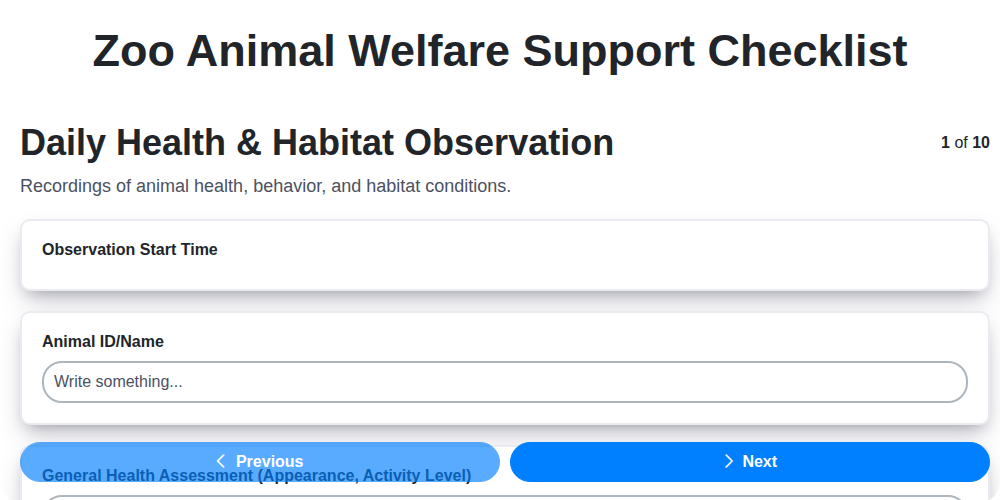
Zoo Animal Welfare Support Checklist
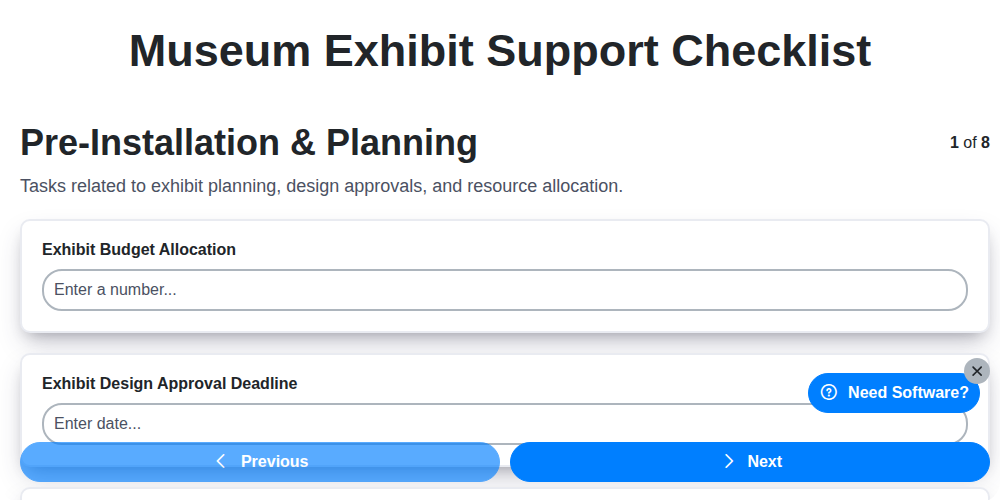
Museum Exhibit Support Checklist
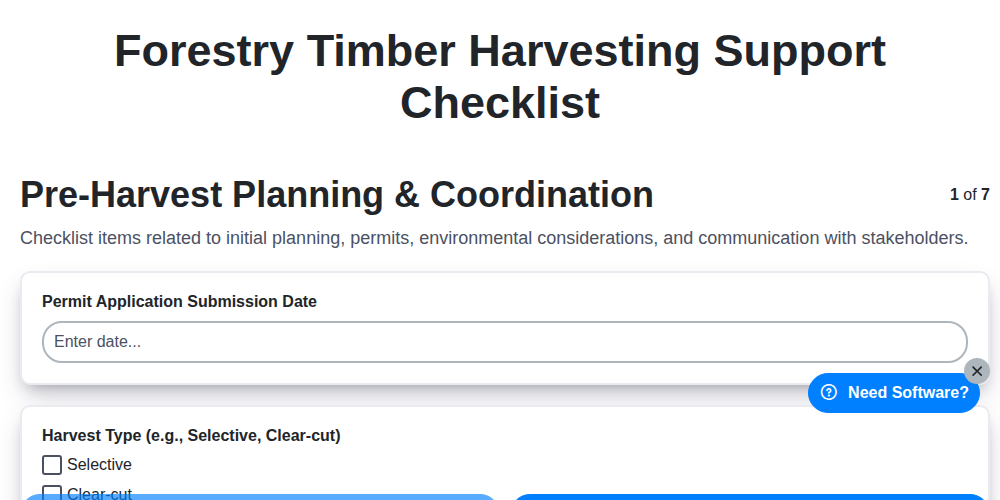
Forestry Timber Harvesting Support Checklist
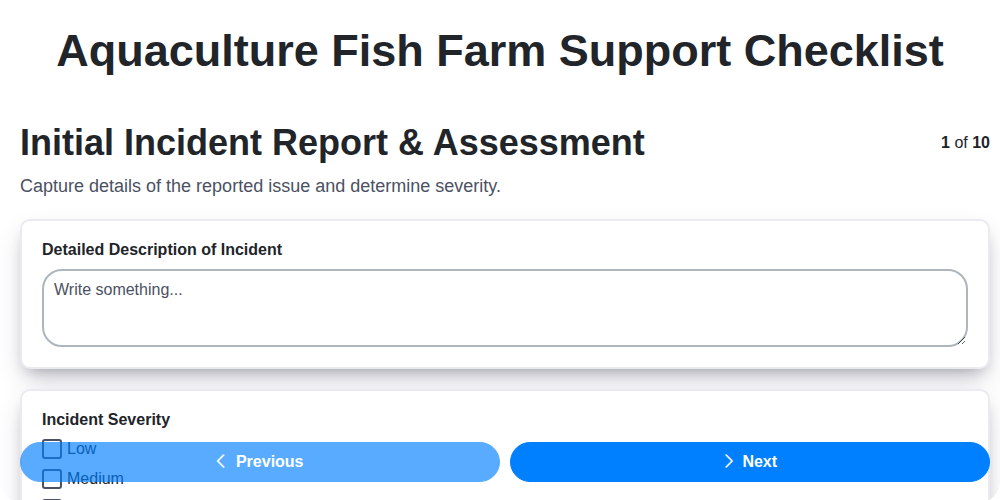
Aquaculture Fish Farm Support Checklist
Casino Guest Support Issue Checklist

Religious Organization Parishioner Support Checklist
Research & Development Project Support Checklist
Mining Equipment Maintenance Checklist
Need help with
Support Management?
Have a question? We're here to help. Please submit your inquiry, and we'll respond promptly.