 ChecklistGuro
 Inventory Cycle Count Process for Manufacturers
Ensure inventory accuracy and minimize costly discrepancies with our streamlined Inventory Cycle Count Process. This workflow guides manufacturers through efficient cycle counts, identifies potential issues, and automates reconciliation-reducing errors, optimizing stock levels, and boosting overall operational efficiency. Get a clear, real-time view of your inventory and unlock significant cost savings.
This Template was installed 2 times.
Start
Start of the Workflow/Process.
1. Retrieve Cycle Count Schedule
Fetch scheduled cycle count tasks from the Cycle Count Schedule data model.
2. Assign Cycle Count Task
Create a task for the assigned cycle count team member based on the schedule.
3. Retrieve Inventory Records
Get relevant inventory records (item, location, quantity) from the Inventory data model.
4. Physical Count Task
Assign a task to physically count the inventory.
5. Update Physical Count Quantity
Update the physical count quantity in the Inventory data model.
6. Calculate Variance
Calculate the variance between the system quantity and the physical count quantity.
7. Flag Variance Exceeding Threshold
If the variance exceeds a predefined threshold, flag the inventory record as requiring investigation.
8. Investigation Task
Create a task for the investigation team to investigate significant variances.
9. Create Variance Investigation Note
Create a note in the Variance Investigation data model to record findings.
10. Update System Quantity (if corrected)
Update the system quantity in the Inventory data model if the variance was due to an error.
11. Generate Cycle Count Report
Create a report summarizing the cycle count results, including variances and investigation notes.
12. Notify Inventory Manager
Send an email to the inventory manager summarizing significant variances and requiring review.
13. Retrieve Cycle Count History
Get the history of previous cycle counts for the item to identify trends.
14. Mark Cycle Count as Complete
Update the Cycle Count Status to 'Completed'.
End
End of the Workflow/Process.
Start of the Workflow/Process.
Fetch scheduled cycle count tasks from the Cycle Count Schedule data model.
Create a task for the assigned cycle count team member based on the schedule.
Get relevant inventory records (item, location, quantity) from the Inventory data model.
Assign a task to physically count the inventory.
Update the physical count quantity in the Inventory data model.
Calculate the variance between the system quantity and the physical count quantity.
If the variance exceeds a predefined threshold, flag the inventory record as requiring investigation.
Create a task for the investigation team to investigate significant variances.
Create a note in the Variance Investigation data model to record findings.
Update the system quantity in the Inventory data model if the variance was due to an error.
Create a report summarizing the cycle count results, including variances and investigation notes.
Send an email to the inventory manager summarizing significant variances and requiring review.
Get the history of previous cycle counts for the item to identify trends.
Update the Cycle Count Status to 'Completed'.
End of the Workflow/Process.
Comments
There are no comments yet. Be the first to add one!
Manufacturing Management Solution Demo
Stop chasing paperwork and wrestling with disconnected systems! Our solution brings clarity and control to your production process. From standard operating procedures (SOPs) and equipment maintenance to quality control and inventory tracking, we simplify every step.
Related Workflow Templates
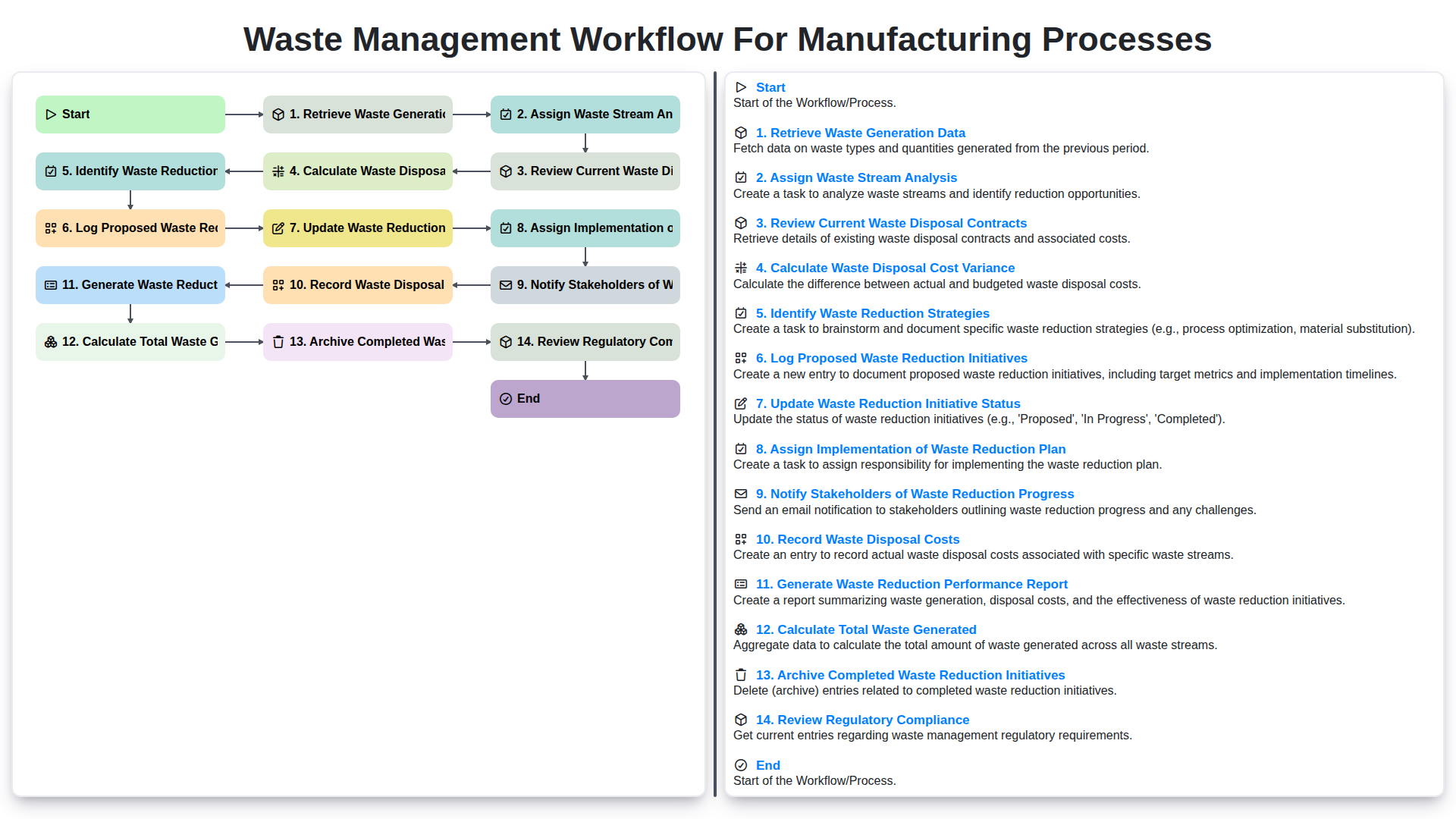
Waste Management Workflow for Manufacturing Processes
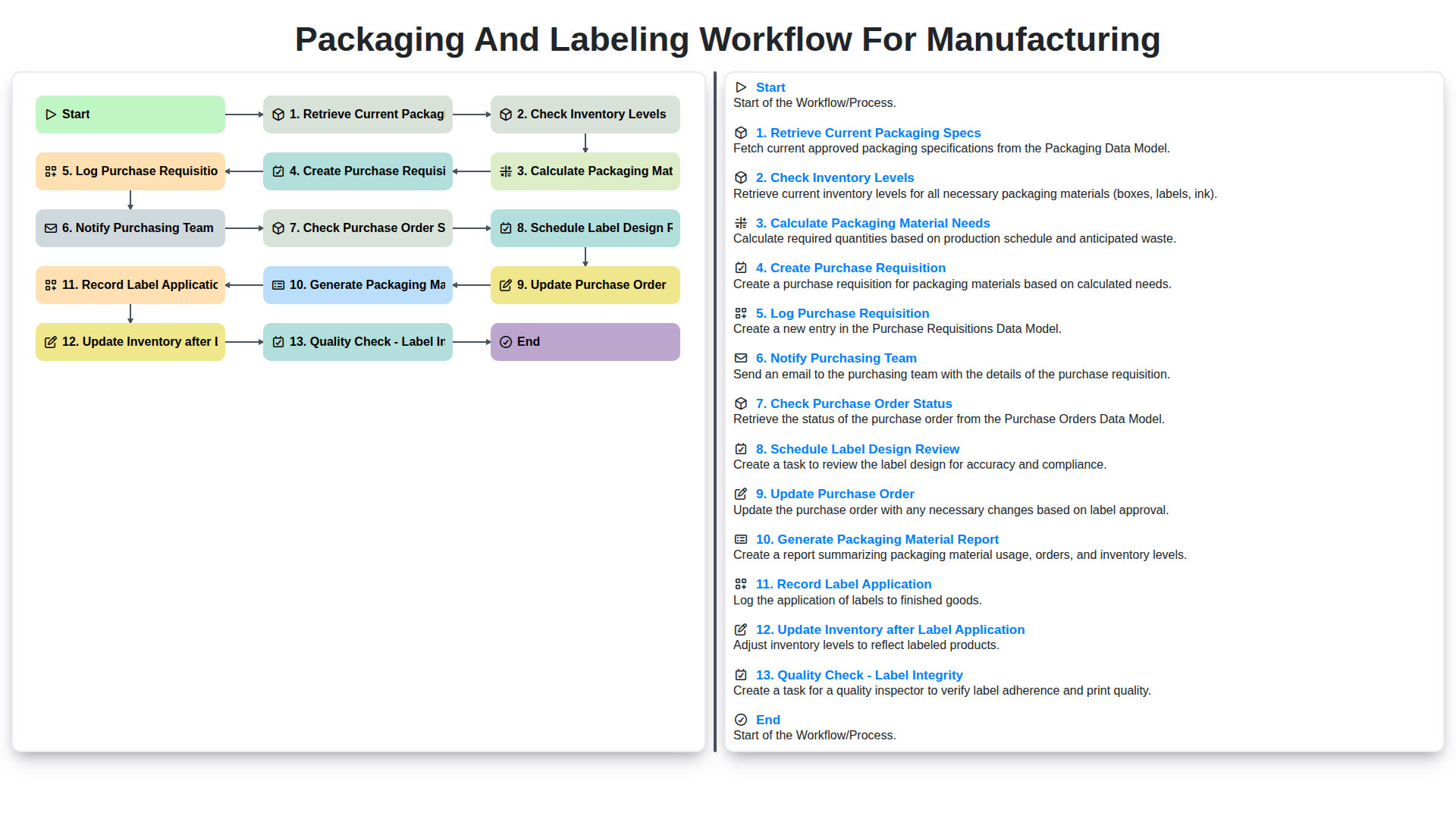
Packaging and Labeling Workflow for Manufacturing
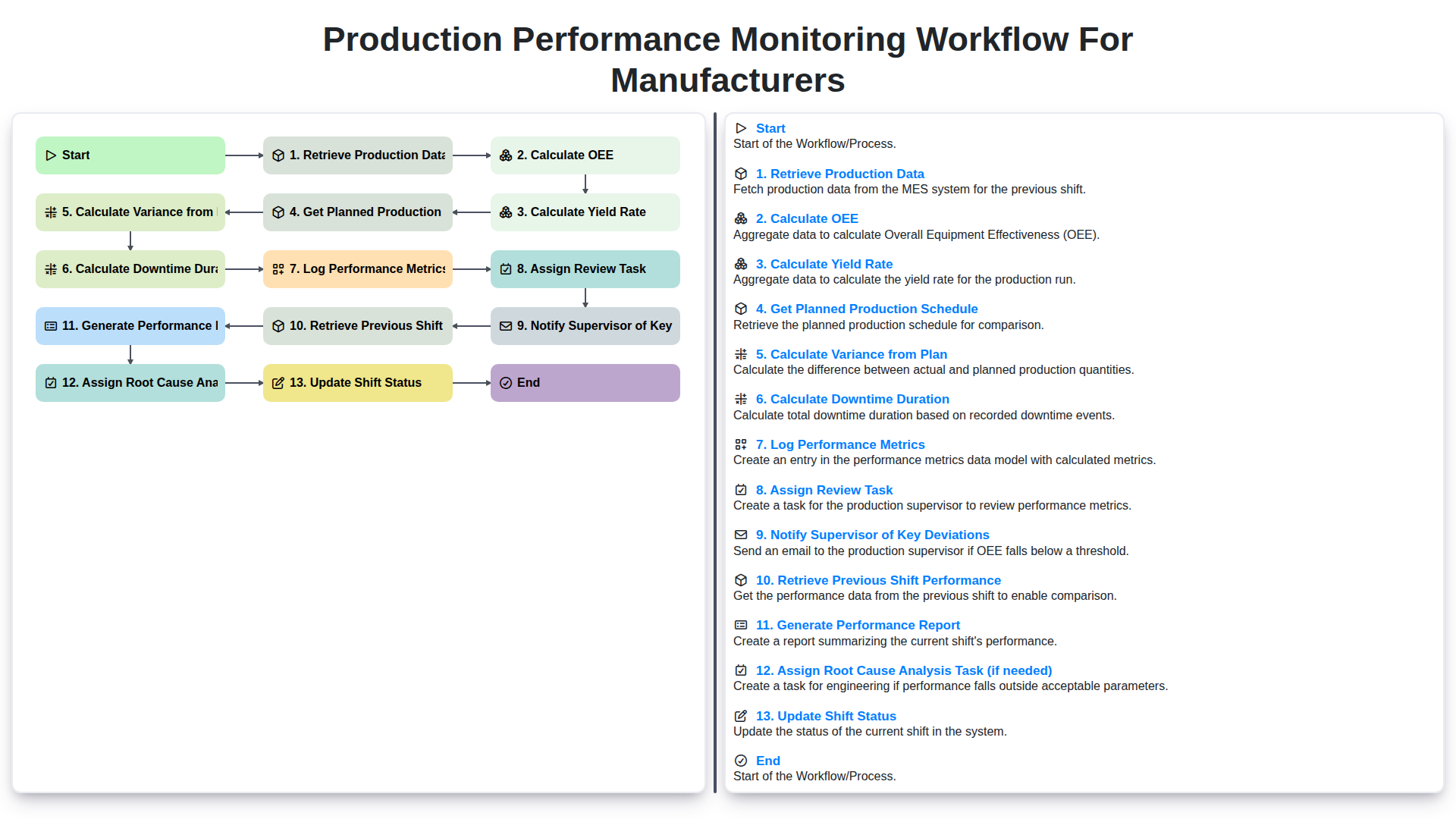
Production Performance Monitoring Workflow for Manufacturers
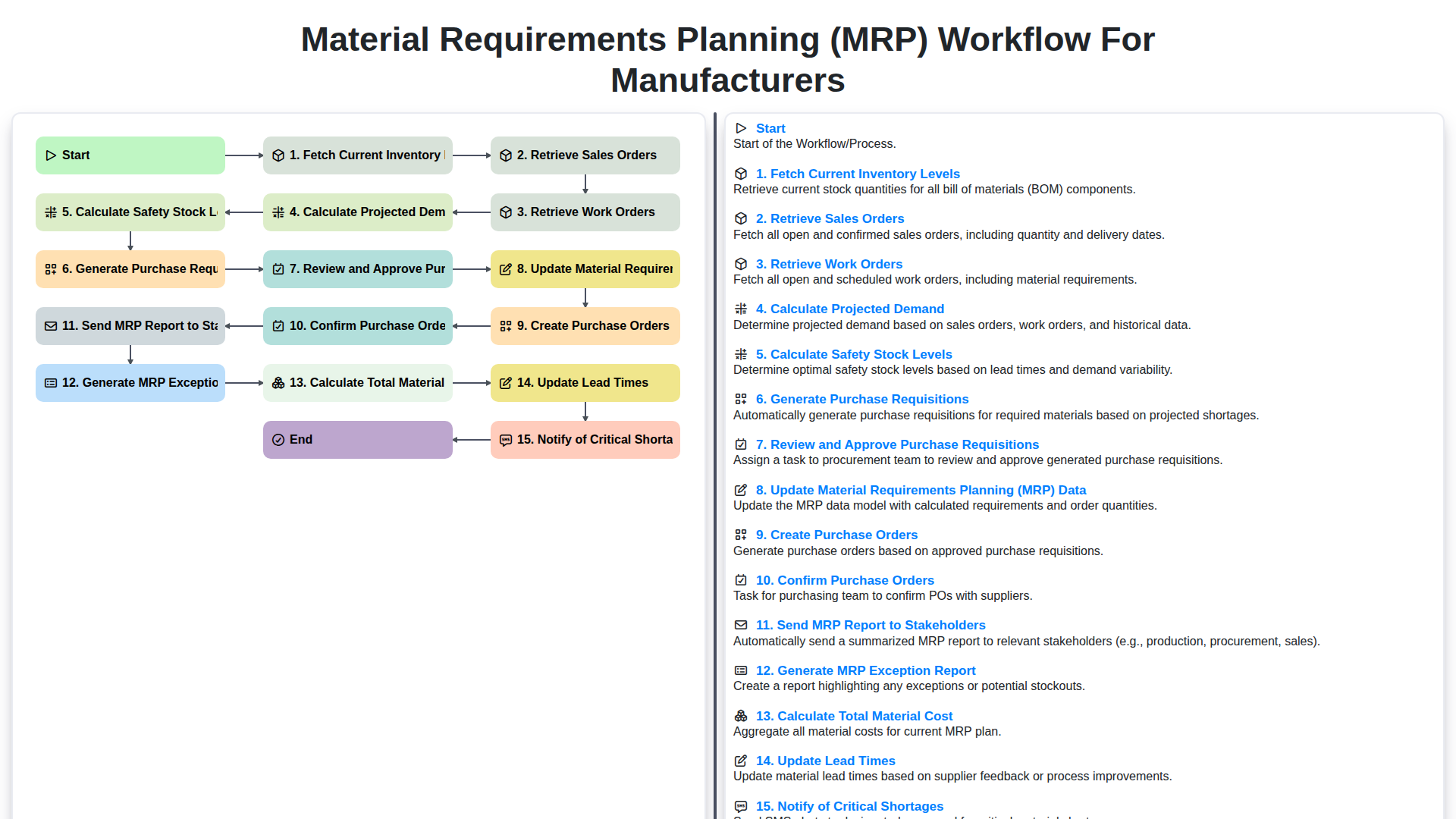
Material Requirements Planning (MRP) Workflow for Manufacturers
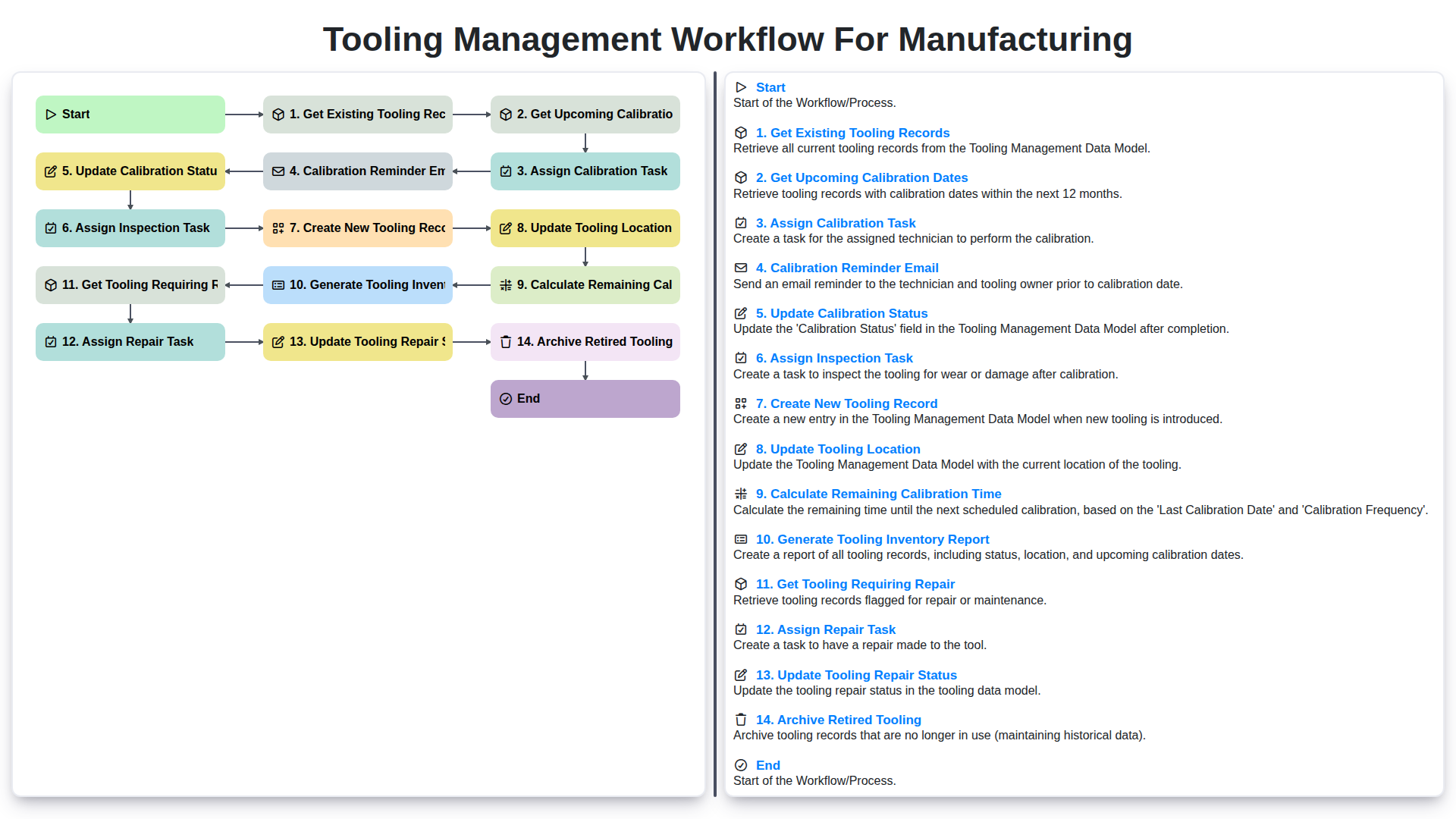
Tooling Management Workflow for Manufacturing
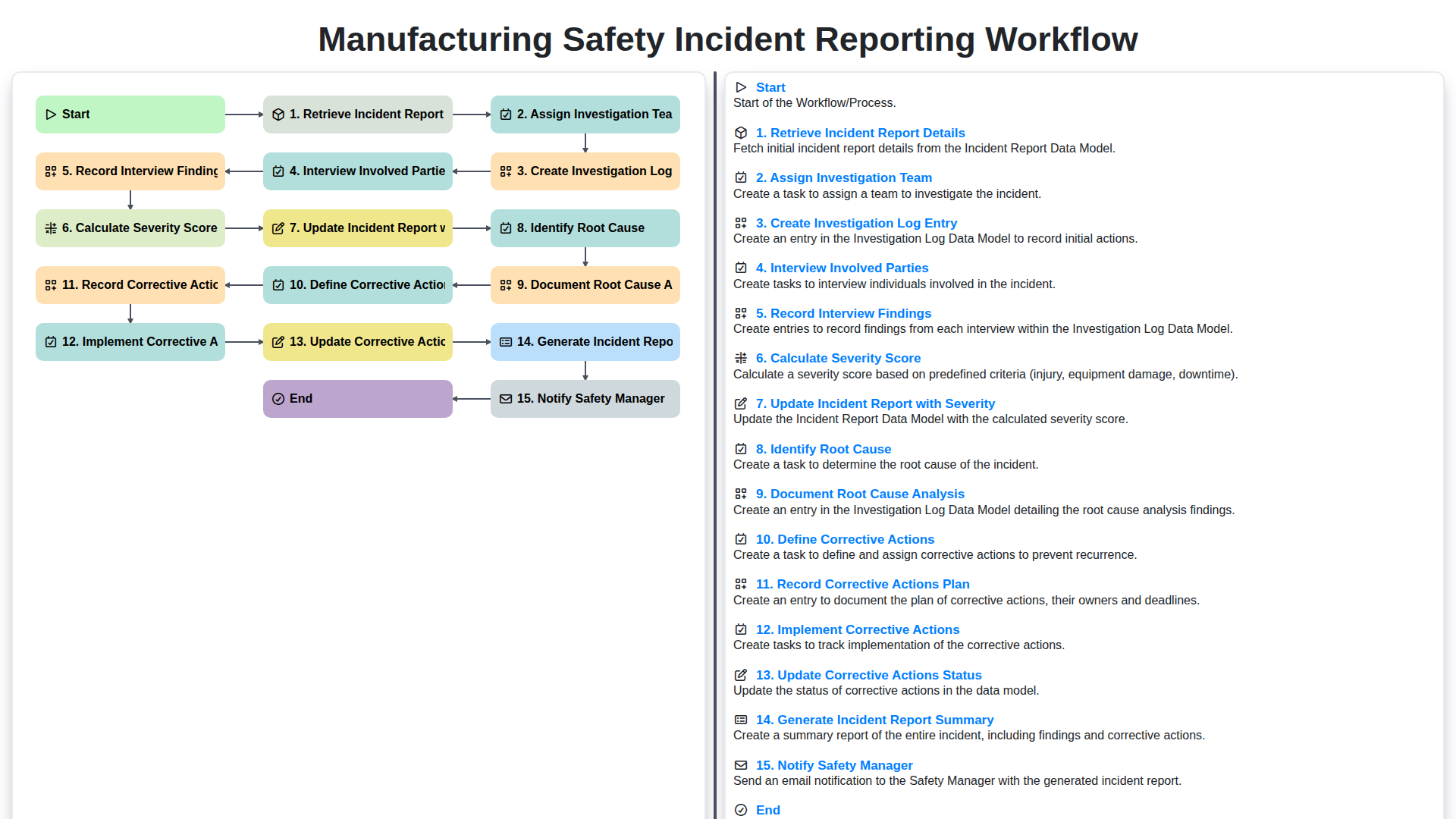
Manufacturing Safety Incident Reporting Workflow
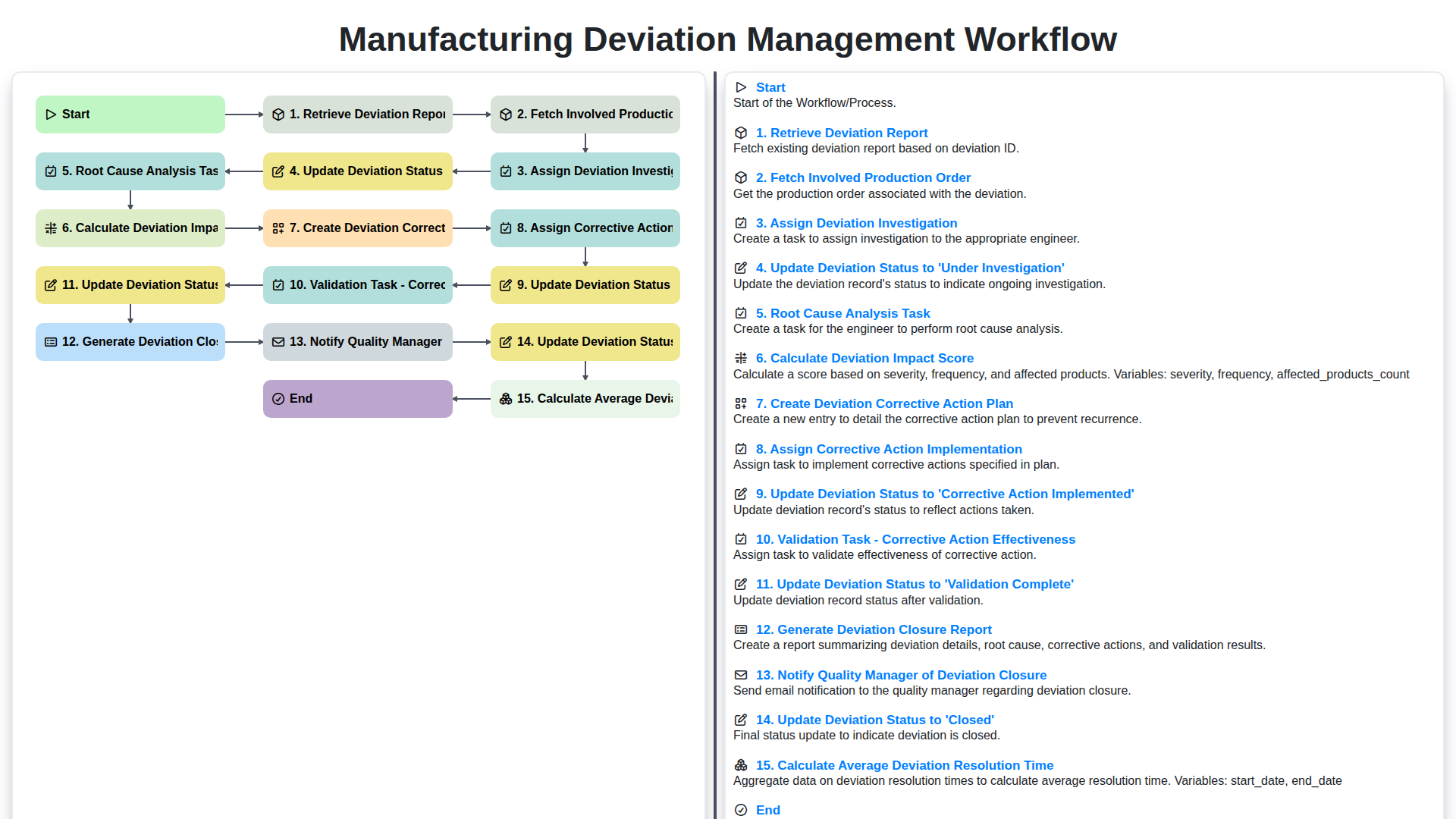
Manufacturing Deviation Management Workflow
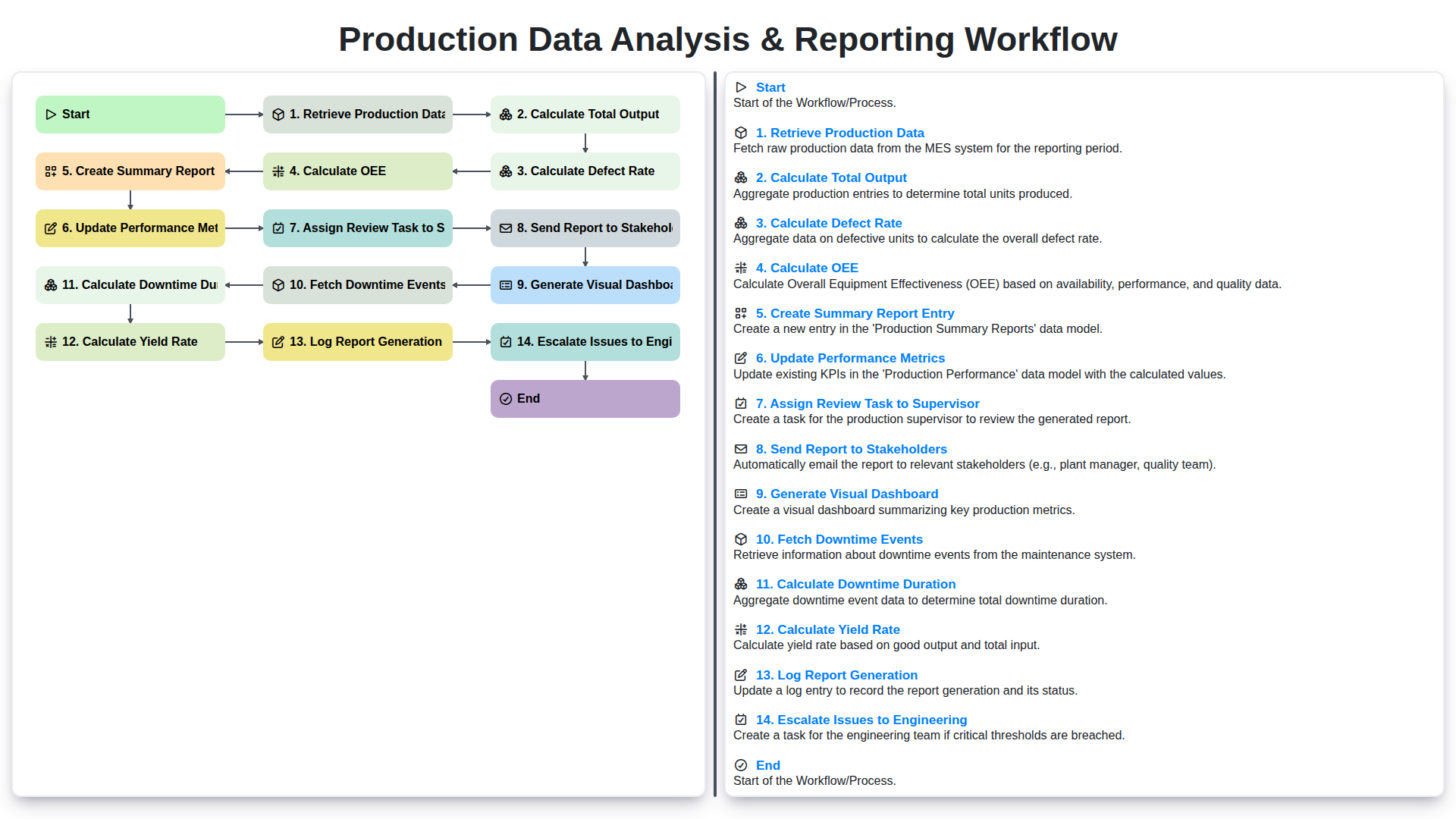
Production Data Analysis & Reporting Workflow
We can do it Together
Need help with
Manufacturing?
Have a question? We're here to help. Please submit your inquiry, and we'll respond promptly.