ERP Mobile Accessibility Checklist: Ensuring a Seamless User Experience
Published: 12/20/2025 10:00 PM Updated: 12/21/2025 6:47 AM
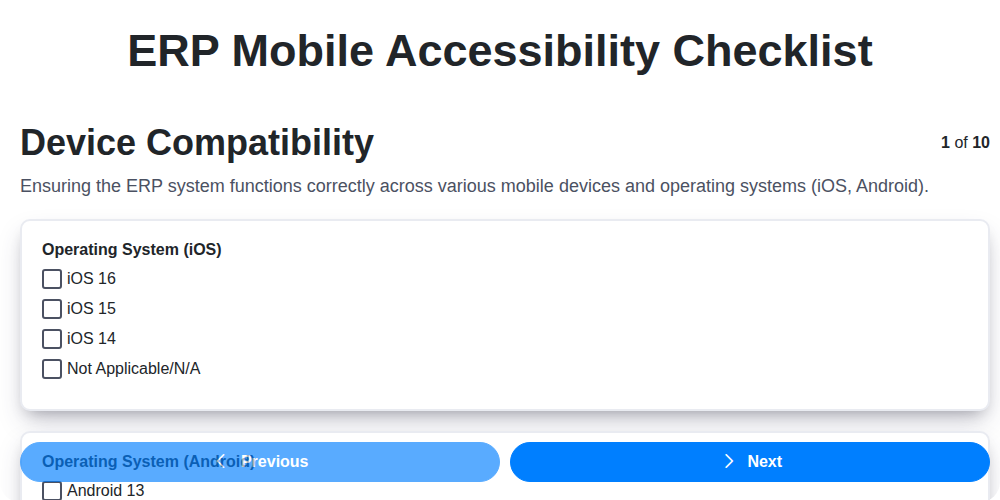
Table of Contents
- Introduction: The Rise of Mobile ERP
- Why Mobile ERP Accessibility Matters
- ERP Mobile Accessibility Checklist: A Detailed Guide
- 1. Device Compatibility: Covering the Landscape
- 2. Responsive Design: Adapting to Every Screen
- 3. User Interface (UI) Elements: Clarity and Simplicity
- 4. Data Input & Validation: Minimizing Errors
- 5. Security & Authentication: Protecting Sensitive Data
- 6. Performance & Speed: Optimizing for Mobile
- 7. Offline Functionality: Working When Connectivity is Limited
- 8. Accessibility Standards (WCAG): Meeting Global Guidelines
- 9. Navigation & Information Architecture: Intuitive Structure
- 10. Testing & User Feedback: Refining the Experience
- Conclusion: Empowering Mobile ERP Users
- Resources & Links
TLDR: Want your ERP accessible on mobile? This checklist breaks down everything you need to cover - from device compatibility and responsive design to security and accessibility standards (WCAG). Use it to ensure a smooth, user-friendly experience for your mobile ERP users and avoid costly accessibility errors.
Introduction: The Rise of Mobile ERP
The modern business landscape demands agility and accessibility - and that extends to your Enterprise Resource Planning (ERP) system. Gone are the days when ERP functionality was confined to desktop computers within the office. Today, businesses are increasingly mobile, and their employees need access to critical ERP data and processes from anywhere, at any time. This shift isn't just a convenience; it's becoming a necessity for improved productivity, faster decision-making, and a competitive edge. Mobile ERP allows field sales teams to update orders in real-time, warehouse staff to manage inventory on the go, and executives to monitor key performance indicators from their tablets. This blog post focuses on ensuring your ERP mobile experience isn't just functional, but exceptional, with a comprehensive checklist to guide your implementation and optimization.
Why Mobile ERP Accessibility Matters
In today's dynamic business landscape, mobile access to Enterprise Resource Planning (ERP) systems is no longer a luxury-it's a necessity. However, simply having an ERP system accessible on mobile devices isn't enough. True accessibility means ensuring that everyone, regardless of their device, location, or abilities, can effectively and efficiently utilize those ERP functions.
Think about it: field service technicians needing to update job status, sales reps needing to access customer data on the go, or warehouse managers needing real-time inventory visibility. Limiting their access through poorly designed or incompatible mobile interfaces drastically impacts productivity, accuracy, and employee satisfaction.
Beyond productivity, consider compliance. Increasingly, regulations mandate digital accessibility, and neglecting mobile ERP accessibility can lead to legal repercussions and damage your brand reputation. A truly accessible mobile ERP empowers your entire workforce, fostering inclusivity and ultimately contributing to a more agile and competitive business. It's not just about ticking a box; it's about unlocking the full potential of your ERP investment.
ERP Mobile Accessibility Checklist: A Detailed Guide
Before anything else, ensure your ERP mobile experience functions across a range of devices. This isn't just about iPhones versus Android phones; it's about different screen sizes, resolutions, and operating system versions.
Consider these points:
- Operating Systems: Test on the latest two major versions of iOS and Android. Don't forget to consider older, still-in-use versions.
- Screen Sizes: Account for phablets, tablets, and smaller smartphones. Use responsive design principles (see below) to adjust the layout accordingly.
- Device Manufacturers: While aiming for broad coverage is ideal, recognizing that users have a diverse range of manufacturers (Samsung, Google Pixel, Xiaomi, etc.) is important. While you can't test every device, prioritize devices with significant market share.
- Emulators and Simulators: Utilize emulators and simulators during development, but always supplement with testing on actual physical devices. Emulators can't perfectly replicate real-world conditions.
- Browser Variations: While many ERP solutions use native mobile apps, if a web-based ERP is being accessed via mobile, account for variations in mobile browsers (Chrome, Safari, Firefox, etc.).
Responsive Design
A responsive design is critical. This means the ERP interface automatically adapts to the user's screen size and orientation (portrait or landscape).
Key Considerations:
- Fluid Grids: Implement fluid grids using percentages instead of fixed pixels. This allows content to reflow and adjust dynamically.
- Flexible Images: Ensure images scale appropriately, preventing overflow or distortion.
max-width: 100%;is a good starting point. - Media Queries: Utilize CSS media queries to apply different styles based on screen size, resolution, and orientation.
- Avoid Horizontal Scrolling: Horizontal scrolling is frustrating on mobile devices. Design layouts to avoid it.
- Touch-Friendly Layouts: Elements should be spaced adequately to prevent accidental taps on the wrong controls.
User Interface Elements
Mobile users interact differently than desktop users. Re-evaluating UI elements is essential.
Focus on:
- Button Size & Spacing: Make buttons large enough for comfortable tapping with fingers. Provide sufficient spacing between buttons to reduce errors.
- Font Sizes: Ensure readability on smaller screens. Use relative units (e.g.,
em,rem) for font sizes to allow easy scaling. - Icons & Labels: Use clear and recognizable icons, paired with text labels where appropriate. Consider that icon meaning can vary across cultures.
- Input Fields: Optimize input fields for mobile keyboards. Use appropriate input types (e.g.,
type=email,type=tel) to display the correct keyboard. - Gestures: Consider incorporating common mobile gestures (e.g., swipe, pinch-to-zoom) to enhance usability where applicable, but ensure they don't conflict with core ERP functionality.
Data Input and Validation
Mobile data entry presents unique challenges.
Important Aspects:
- Keyboard Optimization: As mentioned, use appropriate HTML input types. Provide autocomplete suggestions where possible.
- Real-Time Validation: Implement client-side validation to provide immediate feedback to the user and reduce round trips to the server.
- Error Handling: Provide clear, concise, and helpful error messages. Indicate exactly what the user needs to correct.
- Data Formatting: Automatically format data as it's entered (e.g., phone numbers, dates) to reduce errors and improve user experience.
- Voice Input: Consider integrating voice input capabilities for certain fields, where appropriate.
Security and Authentication
Mobile devices are more vulnerable to security threats.
Critical Measures:
- Secure Authentication: Implement multi-factor authentication (MFA) to enhance security.
- Data Encryption: Encrypt sensitive data both in transit (using HTTPS) and at rest.
- Session Management: Implement robust session management to prevent unauthorized access.
- Device Binding: Consider device binding to restrict access to authorized devices.
- Regular Security Audits: Conduct regular security audits to identify and address vulnerabilities.
Performance and Speed
Slow loading times are a major cause of frustration.
Prioritize:
- Image Optimization: Compress and optimize images for mobile devices. Use responsive images to serve appropriately sized images.
- Code Minification: Minify HTML, CSS, and JavaScript files to reduce file sizes.
- Caching: Implement caching to reduce server load and improve loading times.
- Content Delivery Network (CDN): Utilize a CDN to distribute content geographically and reduce latency.
- Network Optimization: Minimize the number of HTTP requests.
Offline Functionality
Limited or unreliable network connectivity is a reality for many mobile users.
Consider:
- Data Caching: Cache frequently accessed data locally to allow users to continue working even when offline.
- Background Synchronization: Implement background synchronization to automatically update data when a network connection is available.
- Conflict Resolution: Implement a conflict resolution mechanism to handle data conflicts that may arise when users work offline and then synchronize their data.
- Limited Functionality: Define a clear scope for offline functionality. Not all ERP features can (or should) be available offline.
Accessibility Standards (WCAG)
Mobile accessibility is paramount. Following WCAG guidelines ensures inclusivity.
Focus on:
- Color Contrast: Ensure sufficient color contrast between text and background.
- Alternative Text: Provide alternative text for images.
- Keyboard Navigation: Ensure that all functionality can be accessed using a keyboard or assistive technology.
- Screen Reader Compatibility: Test with screen readers to ensure that the ERP interface is properly interpreted.
- Scalable Fonts: Allow users to increase font sizes.
Navigation and Information Architecture
Mobile navigation needs to be intuitive.
Guidelines:
- Simplified Navigation: Simplify the navigation structure to reduce the number of taps required to access information.
- Breadcrumbs: Provide breadcrumbs to help users understand their location within the ERP system.
- Search Functionality: Provide a prominent search bar to allow users to quickly find what they need.
- Consistent Design: Maintain a consistent design language throughout the ERP interface.
- Clear Labels: Use clear and concise labels for navigation elements.
Testing and User Feedback
Thorough testing and user feedback are crucial.
Implement a process that includes:
- Usability Testing: Conduct usability testing with a diverse group of users.
- Device Testing: Test on a variety of devices and operating systems.
- Accessibility Testing: Use automated accessibility testing tools and manual testing with assistive technologies.
- Performance Testing: Test the ERP interface under different network conditions.
- Gather User Feedback: Actively solicit user feedback and incorporate it into future iterations.
1. Device Compatibility: Covering the Landscape
Ensuring your ERP mobile accessibility isn't just about a mobile device; it's about covering a landscape of devices. Users will access your ERP from smartphones (Android and iOS, across various screen sizes and resolutions), tablets (both Android and iPad), and potentially even ruggedized devices used in field operations.
A fragmented approach can lead to a frustrating user experience for a significant portion of your workforce. Start by defining your target devices based on your user demographics and operational needs. Don't try to support everything, but be realistic about what's essential.
Here's a breakdown of considerations:
- Operating System Versions: Older versions of Android and iOS are still in use. Determine the minimum supported versions based on your user base. Consider the impact of deprecated features in older OS versions.
- Screen Sizes and Resolutions: Design for a range of screen sizes and aspect ratios. Utilize responsive design principles (more on that later!) to ensure content adapts gracefully.
- Device Capabilities: Different devices have varying processing power, memory, and camera capabilities. Optimize your application to function effectively even on less powerful devices.
- Browser Support: Mobile browsers vary as well. While you should aim for broad compatibility, prioritize the most common browsers used by your workforce.
- Testing Matrix: Create a documented test matrix that lists the devices and operating systems you're testing against. This provides a consistent approach to device compatibility verification.
Remember to revisit this matrix periodically as new devices and operating system versions are released.
2. Responsive Design: Adapting to Every Screen
In today's mobile-first world, a static ERP design simply won't cut it. Users expect a seamless experience regardless of whether they're using a smartphone, tablet, or desktop computer. Responsive design is the cornerstone of achieving this. It ensures your ERP application dynamically adjusts its layout and content to fit the screen size and orientation of the device accessing it.
Here's what to consider for robust responsive design in your mobile ERP:
- Fluid Grids: Implement flexible grid systems that use relative units (percentages) instead of fixed pixel values. This allows content to reflow and resize gracefully.
- Flexible Images: Ensure images scale proportionally without overflowing their containers. Use
max-width: 100%; height: auto;as a starting point. - Media Queries: Leverage media queries in your CSS to apply different styles based on screen size, resolution, and device orientation. This is key for tailoring the experience to specific device types.
- Viewport Meta Tag: Properly configure the viewport meta tag in your HTML to control how the page scales on mobile devices.
<meta name=viewport content=width=device-width, initial-scale=1.0>is a common starting point. - Testing Across Devices: Regularly test your ERP application on a range of devices-different screen sizes, resolutions, and operating systems-to ensure consistent and optimal rendering. Don't just rely on emulators; real device testing is crucial.
- Prioritize Content: On smaller screens, prioritize the most important information and actions. Consider hiding less critical elements or reorganizing the layout to reduce clutter.
A well-executed responsive design not only enhances usability but also improves SEO and reduces development costs by eliminating the need for separate mobile apps.
3. User Interface (UI) Elements: Clarity and Simplicity
Mobile ERP usage demands a UI that's instantly intuitive, even for complex tasks. Forget the desktop interface crammed onto a small screen - a mobile-first approach is key.
Here's what to consider:
- Large, Touch-Friendly Buttons & Icons: Ensure buttons and icons are adequately sized for easy tapping, even with gloves or on smaller devices. Consider the thumb zone - elements frequently used should be within easy reach.
- Clear Typography: Use legible fonts and appropriate font sizes. Avoid overly decorative or condensed fonts that can be difficult to read on mobile screens. Consider font contrast for readability in various lighting conditions.
- Strategic Use of White Space: Don't overcrowd the screen. White space (or negative space) improves readability and guides the user's eye to important elements.
- Consistent Visual Language: Maintain consistency in button styles, icon usage, and overall visual cues across the entire application. This helps users quickly learn and understand how to interact with the system.
- Minimize Input Fields: Break down long forms into manageable steps. Use progressive disclosure to reveal only the necessary information at each stage.
- Contextual Help & Tooltips: Provide concise, contextual help and tooltips to guide users through unfamiliar processes.
Prioritizing clarity and simplicity in UI elements will significantly improve user adoption and satisfaction with your mobile ERP solution.
4. Data Input & Validation: Minimizing Errors
Mobile ERP use often involves capturing data in the field - from inventory counts to sales orders. Inaccurate data entry can quickly snowball into significant operational problems. This section focuses on ensuring your mobile ERP application facilitates accurate and efficient data input.
Here's what to consider:
- Clear Input Fields: Label all fields clearly and concisely. Use appropriate input types (numeric keypad for numbers, date pickers for dates, etc.) to minimize input errors. Consider using auto-complete or suggestions where applicable.
- Data Type Enforcement: Implement strict data type validation at the point of entry. For instance, ensure a numeric field only accepts numbers and a date field only accepts valid dates. Provide immediate, helpful error messages if an incorrect data type is entered.
- Required Fields: Clearly indicate which fields are mandatory. Don't rely solely on visual cues; use explicit labeling (e.g., an asterisk).
- Format Masks: Utilize format masks to guide users in entering data in the correct format (e.g., phone numbers, postal codes).
- Validation Rules: Implement business rules and validation checks to ensure data integrity. For example, validating that an order quantity doesn't exceed available inventory.
- Unit of Measure Consistency: Ensure consistent use and clear display of units of measure. A misplaced decimal or incorrect unit can lead to significant errors.
- Barcode/QR Code Scanning: Integrate barcode and QR code scanning for automated and accurate data entry where applicable. Verify scanned data against the ERP system in real-time.
- Image Capture & Validation: If the application allows image capture (e.g., for product defects), incorporate validation to ensure images are clear and meet specific criteria.
- Real-Time Feedback: Provide users with immediate feedback on their input. Highlight errors as they occur and suggest corrections.
5. Security & Authentication: Protecting Sensitive Data
ERP systems house incredibly valuable and sensitive data - financial records, customer information, inventory details, and more. A mobile ERP app without robust security and authentication measures is a significant risk. This section outlines critical checks to ensure data integrity and user privacy.
Checklist Points:
- Multi-Factor Authentication (MFA): Implement MFA (e.g., password + biometric scan, one-time code) as a mandatory requirement for all users. Don't rely solely on passwords.
- Role-Based Access Control (RBAC): Ensure users only have access to the data and functionality relevant to their roles. Define clear access levels and enforce them consistently.
- Data Encryption (In Transit & At Rest): Data transmitted between the mobile device and the ERP system must be encrypted using protocols like HTTPS. Sensitive data stored on the device should also be encrypted.
- Secure Storage: Avoid storing sensitive data locally on the device whenever possible. If unavoidable, use secure storage mechanisms provided by the mobile operating system.
- Session Management: Implement secure session timeouts to prevent unauthorized access if a device is lost or stolen. Consider inactivity timeouts.
- Device Registration/Management: Implement a Mobile Device Management (MDM) solution or similar process to manage authorized devices and enforce security policies.
- Vulnerability Scanning: Regularly scan the mobile app for vulnerabilities and address them promptly.
- Authentication Logging: Maintain detailed logs of authentication attempts, both successful and unsuccessful, for auditing and security incident response.
- Data Masking/Obfuscation: Consider masking or obfuscating sensitive data displayed on the mobile device to protect against shoulder surfing.
- Compliance: Ensure your security practices comply with relevant industry regulations and standards (e.g., GDPR, HIPAA).
6. Performance & Speed: Optimizing for Mobile
Mobile users are notoriously impatient. A slow-loading ERP app can lead to frustration, abandonment, and a significant drop in productivity. Optimizing for performance and speed isn't just about making things look fast; it's about ensuring a seamless and efficient user experience.
Here's what to consider:
- Image Optimization: Large, unoptimized images are a common culprit for slow loading times. Compress images without sacrificing too much quality. Consider using appropriate image formats (WebP is often superior to JPEG or PNG).
- Code Minimization: Reduce the size of your code through techniques like minification (removing unnecessary characters like whitespace) and bundling multiple files into fewer requests.
- Caching: Implement robust caching mechanisms, both on the server-side and client-side (device). This allows frequently accessed data to be readily available, minimizing database queries and network requests.
- Network Optimization: Utilize Content Delivery Networks (CDNs) to distribute content geographically closer to users, reducing latency. Prioritize data retrieval and avoid unnecessary network calls.
- Data Prioritization: Only load essential data initially. Implement techniques like lazy loading for less critical information.
- Regular Performance Monitoring: Implement tools and processes to continuously monitor app performance and identify bottlenecks. Use real-user monitoring (RUM) to understand user experience in the field.
- Minimize Server Roundtrips: Batch operations where possible to reduce the number of requests to the ERP server.
Prioritizing performance and speed is crucial for successful mobile ERP adoption. A fast and responsive application keeps users engaged and productive, ultimately driving better business outcomes.
7. Offline Functionality: Working When Connectivity is Limited
In today's dynamic work environment, reliable internet access isn't always guaranteed. Whether your field staff are working remotely, traveling, or experiencing temporary network outages, offline functionality within your ERP mobile app is no longer a "nice-to-have" - it's a necessity.
Consider the implications of losing access to critical ERP data. Sales reps unable to process orders, warehouse staff unable to track inventory, or service technicians unable to access client details can severely impact productivity and customer satisfaction.
A well-designed offline mode allows users to:
- View and Edit Data: Cached data should be readily available for viewing and modification, even without a connection.
- Create New Records: Allow users to create new records that will synchronize when connectivity is restored.
- Manage Queues: Implement a clear queueing system to handle data synchronization when a connection is re-established. This ensures data integrity and avoids conflicts.
- Provide Clear Indicators: Visually indicate which data is available offline versus online, preventing confusion and minimizing errors. A clear "last synced" timestamp is also helpful.
- Handle Conflicts Gracefully: Develop strategies for resolving potential data conflicts that may arise from simultaneous offline edits. Version control or merge conflict resolution options can be invaluable.
Testing offline functionality rigorously - simulating various network conditions and scenarios - is crucial to ensuring a seamless and reliable user experience. A truly accessible ERP mobile app empowers users to remain productive, regardless of their connection status.
8. Accessibility Standards (WCAG): Meeting Global Guidelines
Ensuring your ERP mobile app is accessible isn't just a nice-to-have; it's often a legal requirement and crucial for inclusivity. The Web Content Accessibility Guidelines (WCAG) provide a globally recognized standard for making online content accessible to people with disabilities. Adhering to WCAG guidelines demonstrates a commitment to universal design and expands your user base.
Here's what to consider when evaluating your ERP mobile app against WCAG principles:
- Perceivable: Can users perceive the information being presented? This includes providing alternative text for images (alt text), captions for videos, and ensuring sufficient color contrast. Consider users with low vision or color blindness.
- Operable: Can users operate the interface? This involves making sure all functionality is keyboard accessible (for those who can't use a mouse or touchscreen), providing sufficient time to complete tasks, and avoiding content that triggers seizures. Think about users with motor impairments.
- Understandable: Is the content clear and easy to understand? Use clear and concise language, provide consistent navigation, and offer helpful error messages.
- Robust: Is the content accessible to a wide range of assistive technologies? This includes ensuring compatibility with screen readers and other tools.
Specifically, aim for WCAG 2.1 Level AA compliance as a baseline. While Level AAA offers the highest level of accessibility, it's often difficult to achieve completely and may not be necessary for all ERP functionalities. Regularly audit your app using automated tools and manual testing with users who have disabilities to identify and address any accessibility gaps. Remember that accessibility is an ongoing process, not a one-time fix.
9. Navigation & Information Architecture: Intuitive Structure
A confusing navigation system can derail even the most beautifully designed ERP mobile app. Users need to find what they need quickly and easily, regardless of screen size or device. This section focuses on ensuring your ERP mobile app's information architecture is intuitive and user-friendly.
Key Considerations:
- Clear Hierarchy: Establish a clear and logical hierarchy for all features and data. Group related functions together and use consistent labeling.
- Intuitive Menu Structure: Opt for familiar navigation patterns (e.g., tab bars, hamburger menus) and avoid overly complex or nested menus. Prioritize frequently used functions in prominent locations.
- Search Functionality: A robust search function is vital, especially in ERP systems with vast amounts of data. Ensure it's easily accessible and delivers relevant results. Implement filters and search suggestions.
- Breadcrumbs: Provide breadcrumbs to help users understand their location within the app and easily navigate back.
- Contextual Navigation: Consider contextual navigation options within specific modules or processes. Buttons and links should clearly indicate their destination.
- Consistent Placement: Maintain consistent placement of navigation elements throughout the app to avoid user confusion.
- Thumb-Friendly Navigation: Design for one-handed use. Key navigation elements should be easily reachable by users' thumbs, especially on larger devices.
By prioritizing a well-structured information architecture, you create a mobile ERP experience that's both efficient and enjoyable for your users.
10. Testing & User Feedback: Refining the Experience
Launching a mobile ERP solution doesn't end with development; it's the start of an ongoing refinement process. Rigorous testing and genuine user feedback are absolutely critical to ensuring your ERP functions flawlessly and delivers a positive experience for your employees.
Beyond Basic Functionality: Don't just test that transactions can be processed. Focus on how they're processed on various devices and in different usage scenarios. Consider real-world conditions - low bandwidth, interrupted connections, varied lighting - and test accordingly.
Phased Testing is Key: Start with internal testing by your development and IT teams. Progress to a beta program with a smaller group of representative users from different departments. This beta phase provides invaluable insights into usability and potential pain points that might have been missed in earlier stages.
Gathering User Feedback: Implement multiple channels for feedback collection. This could include:
- In-App Surveys: Short, targeted surveys within the app.
- Feedback Forms: Easy-to-access forms for more detailed comments.
- Usability Testing Sessions: Observe users interacting with the app to identify friction points.
- Analytics: Track app usage and identify areas where users struggle or drop off.
- Direct Communication: Encourage users to directly contact support with their feedback.
Iterative Improvements: Treat user feedback as a roadmap for continuous improvement. Prioritize issues based on severity and frequency and incorporate feedback into regular app updates. A commitment to ongoing testing and refinement will not only improve user satisfaction but also ensure the long-term success of your mobile ERP solution.
Conclusion: Empowering Mobile ERP Users
Ultimately, a successful mobile ERP strategy isn't just about having an app; it's about ensuring a seamless, accessible, and secure experience for your users, wherever they are. This checklist provides a foundational roadmap for achieving that. By proactively addressing these points - from device compatibility to performance and accessibility - you're not just ticking boxes; you're investing in increased productivity, improved user satisfaction, and a more agile business. Remember, mobile ERP is no longer a nice-to-have - it's a critical tool for empowering your workforce and driving business growth. Continuous monitoring, updates, and user feedback loops are key to maintaining a best-in-class mobile ERP solution that continues to evolve with your business needs.
Resources & Links
- Web Accessibility Initiative (WAI) - W3C: The definitive resource for understanding web accessibility guidelines, standards, and best practices. Includes information on WCAG.
- WCAG Checklist: A practical checklist derived from WCAG, to guide developers and testers in ensuring accessibility.
- MDN Web Docs - Accessibility: Comprehensive documentation and tutorials on building accessible web content, covering various aspects of accessibility.
- Microsoft Accessibility Insights: A free tool to help developers and testers identify and fix accessibility issues in web and mobile applications.
- WAVE Web Accessibility Evaluation Tool: A free online tool that analyzes web pages for accessibility issues and provides feedback.
- Smashing Magazine - Accessibility: A wide range of articles on web development, including frequent coverage of accessibility topics and techniques.
- Material Design - Accessibility: Google's Material Design guidelines emphasize accessibility. This resource provides guidance on designing accessible user interfaces.
- Apple Developer - Accessibility: Resources and guidelines for creating accessible apps for Apple devices (iOS, iPadOS, macOS).
- Android Accessibility: Information and resources for developers to create accessible Android applications.
- Udemy - Accessibility Courses: Offers various online courses covering web accessibility principles and practical implementation techniques. (Search for 'web accessibility')
Frequently Asked Questions
What is an ERP Mobile Accessibility Checklist and why is it important?
An ERP Mobile Accessibility Checklist is a detailed guide outlining the steps and considerations required to ensure your ERP system is accessible on mobile devices for users with disabilities. It's crucial because it enables broader user access, improves user satisfaction, reduces legal risks (related to accessibility regulations like WCAG and ADA), and enhances overall productivity by catering to a diverse workforce.
Who should use this checklist?
This checklist is for anyone involved in the design, development, testing, or maintenance of an ERP system's mobile interface. This includes ERP system administrators, developers, UX/UI designers, testers, project managers, and business analysts.
What standards does this checklist align with?
The checklist primarily aligns with the Web Content Accessibility Guidelines (WCAG) 2.1, Level AA. It also considers principles from the Americans with Disabilities Act (ADA) and relevant mobile accessibility best practices.
What types of mobile devices should this checklist cover?
The checklist should consider a wide range of mobile devices, including smartphones (iOS and Android) and tablets, and varying screen sizes and resolutions. It's important to test across different operating systems and device models where possible.
What are some key areas covered in the checklist?
The checklist typically covers areas such as keyboard navigation, screen reader compatibility, color contrast, font sizes, alternative text for images, clear and concise language, form accessibility, and error prevention. It also addresses responsiveness and adaptability to different screen sizes.
How do I interpret the checklist results? What does 'pass,' 'fail,' and 'needs improvement' mean?
'Pass' indicates the criteria is fully met. 'Fail' signifies the criteria is not met and requires immediate action. 'Needs improvement' means the criteria is partially met but could be enhanced to provide a better user experience. Prioritize failures first, then address areas needing improvement.
How often should I review and update this checklist?
The checklist should be reviewed and updated regularly, at least annually, or whenever significant changes are made to the ERP system or mobile technology evolves. Staying current with WCAG updates and emerging accessibility best practices is essential.
What if we don't have the resources to address all accessibility issues immediately?
Prioritize issues based on severity and impact on users. Start with the most critical failures that significantly hinder usability. Consider phased implementation and continuous accessibility integration into development workflows.
How can I test for mobile ERP accessibility?
A combination of manual testing with assistive technologies (screen readers, keyboard navigation), automated testing tools, and user testing with individuals with disabilities is recommended. Involve users with disabilities in the testing process for valuable feedback.
Where can I find additional resources and support for mobile ERP accessibility?
Numerous resources are available online, including the WebAIM website (webaim.org), the W3C's accessibility guidelines (w3.org/WAI/), and accessibility consulting services. Your ERP vendor may also offer accessibility support and documentation.
Found this Article helpful?
Comments
There are no comments yet. Be the first to add one!
ERP - Enterprise Resource Planning Solution Demo
Overwhelmed by disconnected systems? ChecklistGuro provides a centralized ERP solution, connecting your business processes - finance, operations, & more - for improved visibility and control. Simplify operations & boost efficiency.
Related Articles
MRP System Go-Live Checklist: Your Path to a Successful Implementation

Top 10 CMiC Alternatives for 2025
The Ultimate Foundation Waterproofing Installation Checklist Template
Top 10 Odoo Alternatives for 2025

How to Save Money on Bill of Materials (BOM) Management Software
The Ultimate Waterproofing Checklist: Ensuring a Leak-Proof Installation

The 10 Best Manufacturing Management Software of 2025
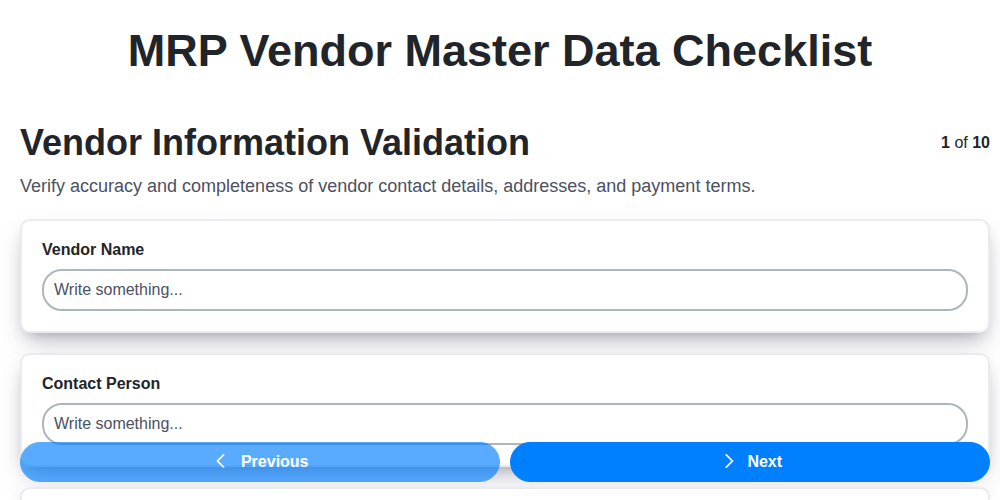
MRP Vendor Master Data Checklist: Ensuring Accuracy and Efficiency
We can do it Together
Need help with
Enterprise Resource Planning (ERP)?
Have a question? We're here to help. Please submit your inquiry, and we'll respond promptly.