 ChecklistGuro
 Backorder Management and Notification Process
Streamline your supply chain with our automated Backorder Management and Notification Process. Optimize stockouts, prevent lost sales, and maintain customer loyalty by automating real-time stock alerts, order tracking, and proactive customer communication to turn inventory delays into seamless shopping experiences.
This Template was installed 1 times.
Start
Start of the Workflow/Process.
1. Identify Backordered Items
Retrieve all order entries where the status is 'Backordered' and the fulfillment date is overdue.
2. Calculate Total Backorder Value
Sum the total monetary value of all identified backordered items to assess financial impact.
3. Calculate Delay Duration
Calculate the number of days between the original promised delivery date and the current date.
4. Update Order Status
Update the 'Last Checked' timestamp and 'Current Status' in the Order Data Model.
5. Assign Procurement Review
Create a task for the Procurement Manager to investigate the cause of the stock shortage.
6. Fetch Supplier Lead Times
Retrieve data from the Supplier Model to find updated estimated delivery dates for the missing items.
7. Calculate New Estimated Delivery Date
Add the retrieved supplier lead time to the current date to project a new delivery window.
8. Create Backorder Incident Log
Create a new entry in the 'Incident Log' data model to document the delay and the mitigation plan.
9. Notify Customer of Delay
Send an automated email to the customer containing the order details and the new estimated delivery date.
10. Alert Warehouse Manager
Send an SMS alert to the Warehouse Manager if the backorder value exceeds a certain threshold.
11. Update Inventory Records
Create a task for the Inventory Clerk to adjust expected stock arrival quantities in the system.
12. Generate Weekly Backorder Report
Create a summary report for stakeholders showing backorder trends, aging, and total revenue at risk.
13. Clear Resolved Backorder Alerts
Delete temporary notification entries or alerts once the order has been moved to 'Fulfilled' status.
End
End of the Workflow/Process.
Start of the Workflow/Process.
Retrieve all order entries where the status is 'Backordered' and the fulfillment date is overdue.
Sum the total monetary value of all identified backordered items to assess financial impact.
Calculate the number of days between the original promised delivery date and the current date.
Update the 'Last Checked' timestamp and 'Current Status' in the Order Data Model.
Create a task for the Procurement Manager to investigate the cause of the stock shortage.
Retrieve data from the Supplier Model to find updated estimated delivery dates for the missing items.
Add the retrieved supplier lead time to the current date to project a new delivery window.
Create a new entry in the 'Incident Log' data model to document the delay and the mitigation plan.
Send an automated email to the customer containing the order details and the new estimated delivery date.
Send an SMS alert to the Warehouse Manager if the backorder value exceeds a certain threshold.
Create a task for the Inventory Clerk to adjust expected stock arrival quantities in the system.
Create a summary report for stakeholders showing backorder trends, aging, and total revenue at risk.
Delete temporary notification entries or alerts once the order has been moved to 'Fulfilled' status.
End of the Workflow/Process.
Frequently Asked Questions
Comments
There are no comments yet. Be the first to add one!
Inventory Management Solution Demo
Optimize your inventory & boost profitability! ChecklistGuro streamlines tracking, ordering, & fulfillment. Reduce waste, minimize stockouts, & improve efficiency. Manage it all with our Work OS.
Related Workflow Templates
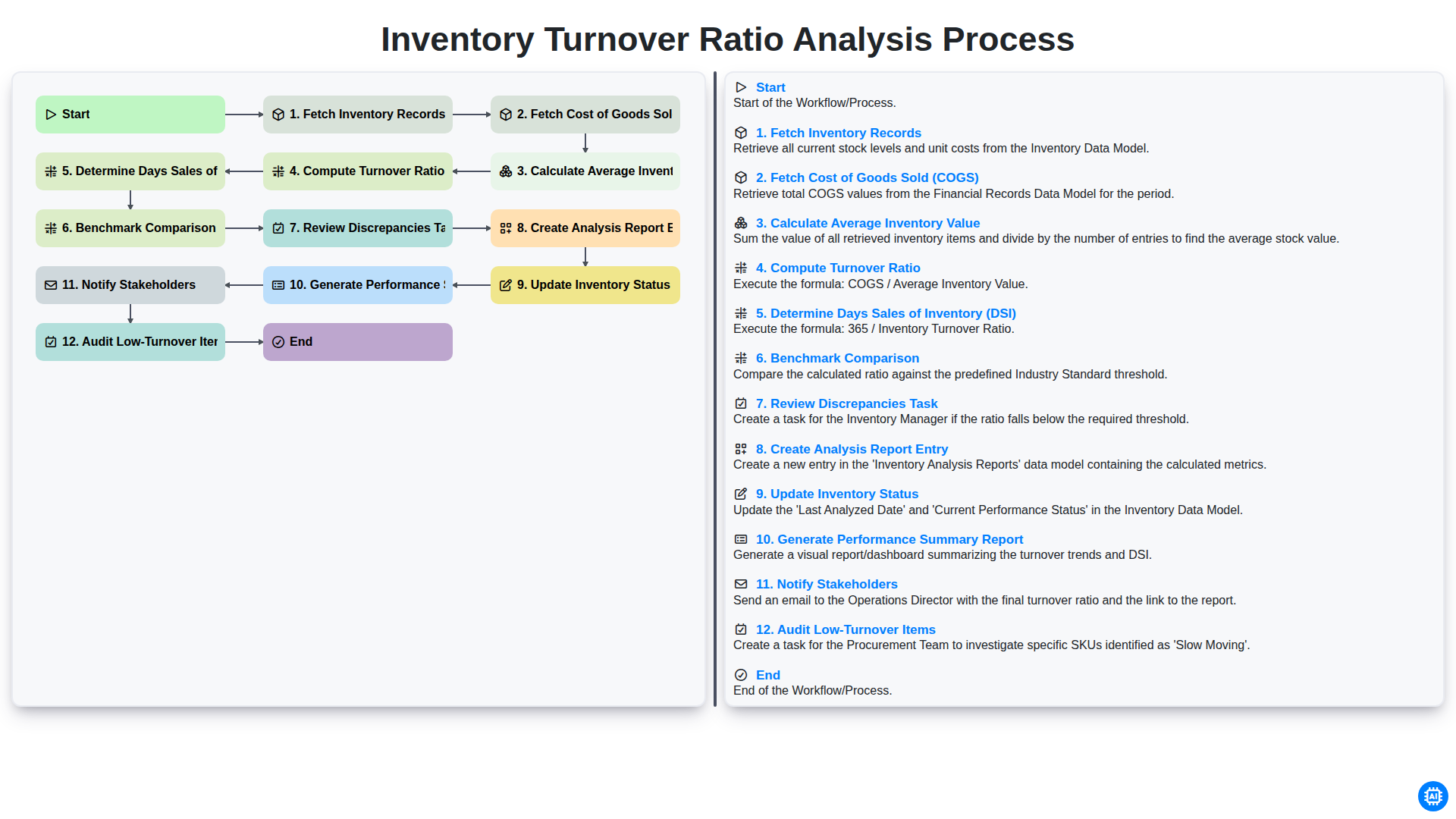
Inventory Turnover Ratio Analysis Process
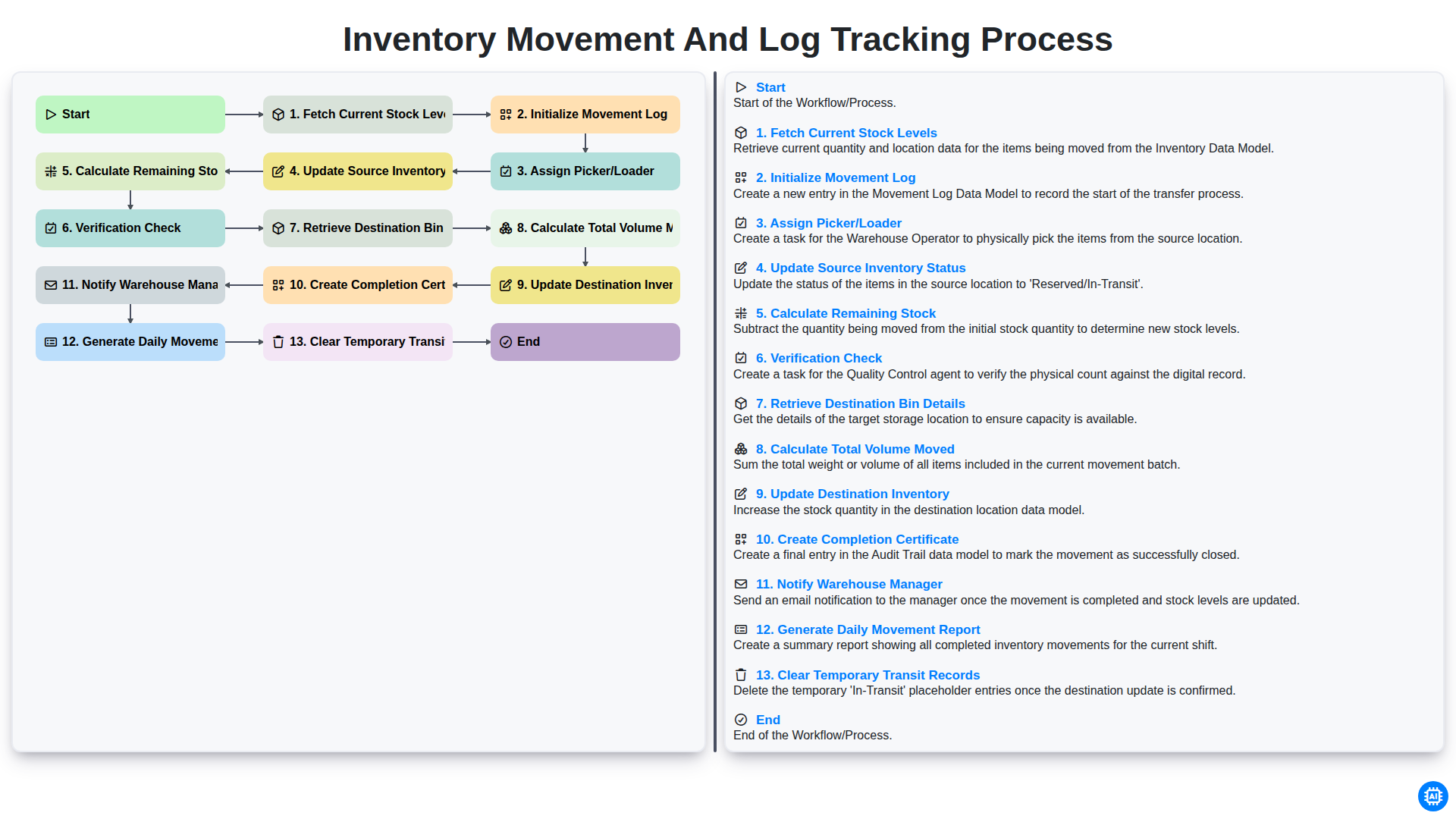
Inventory Movement and Log Tracking Process
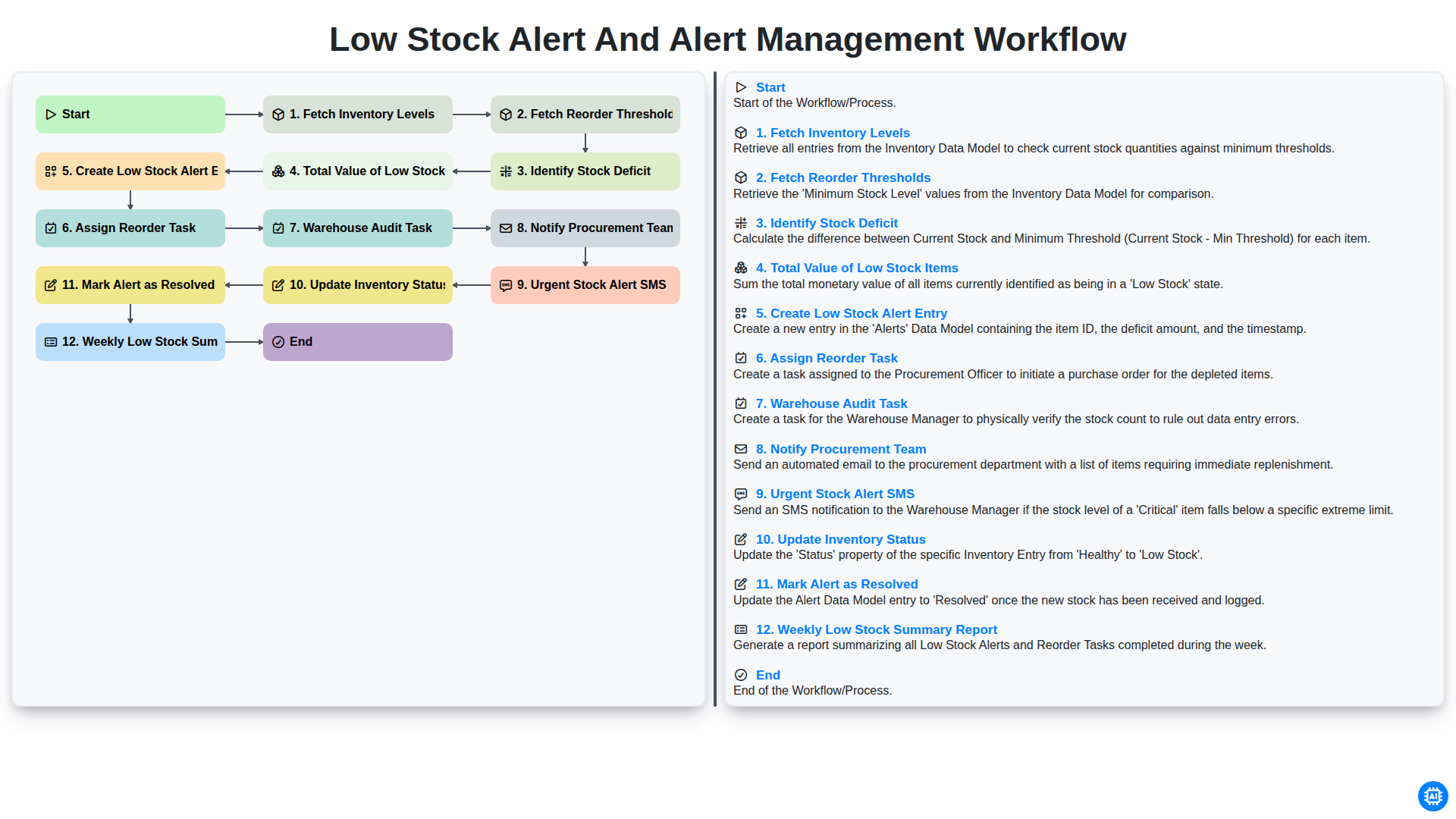
Low Stock Alert and Alert Management Workflow
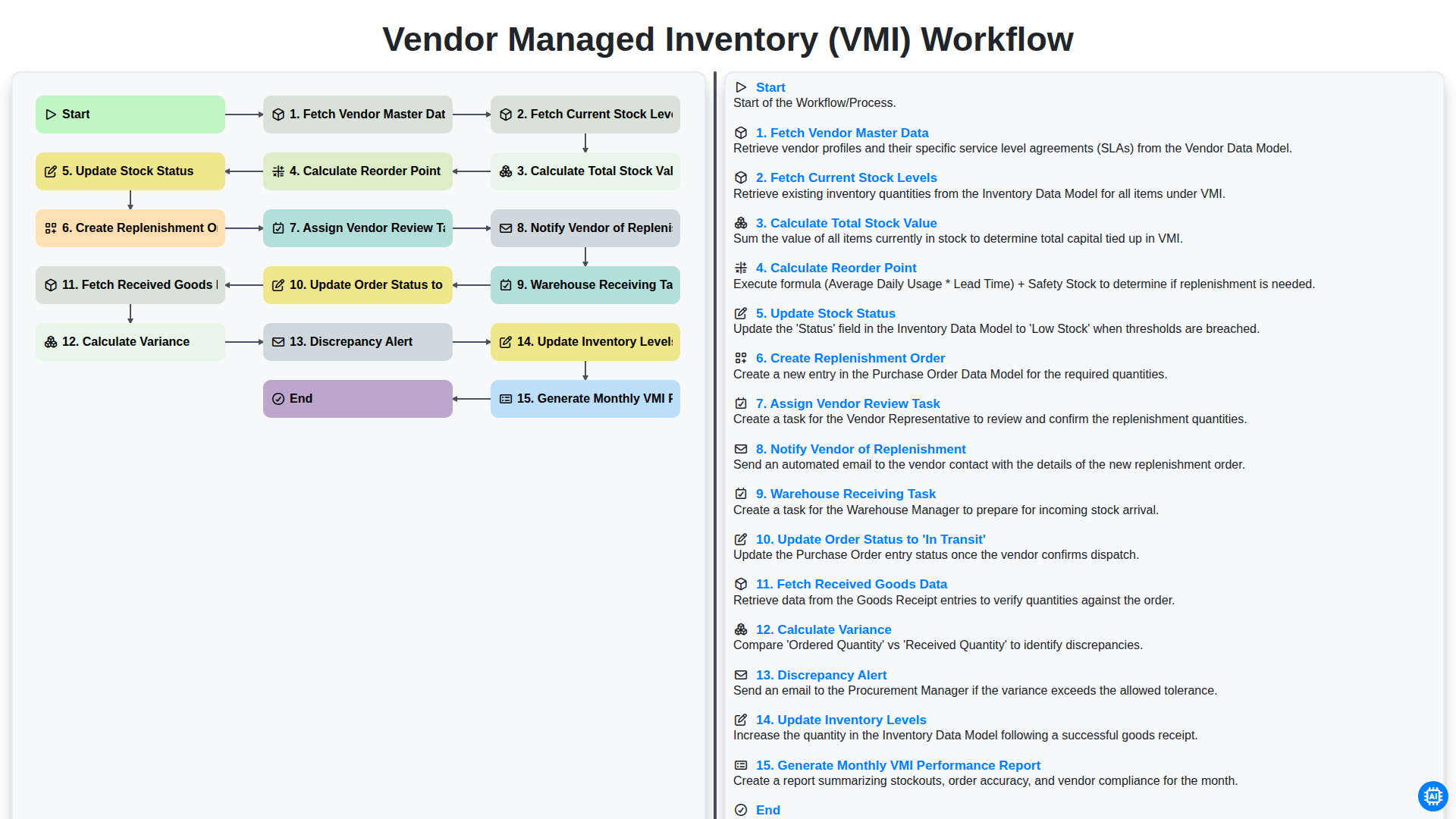
Vendor Managed Inventory (VMI) Workflow
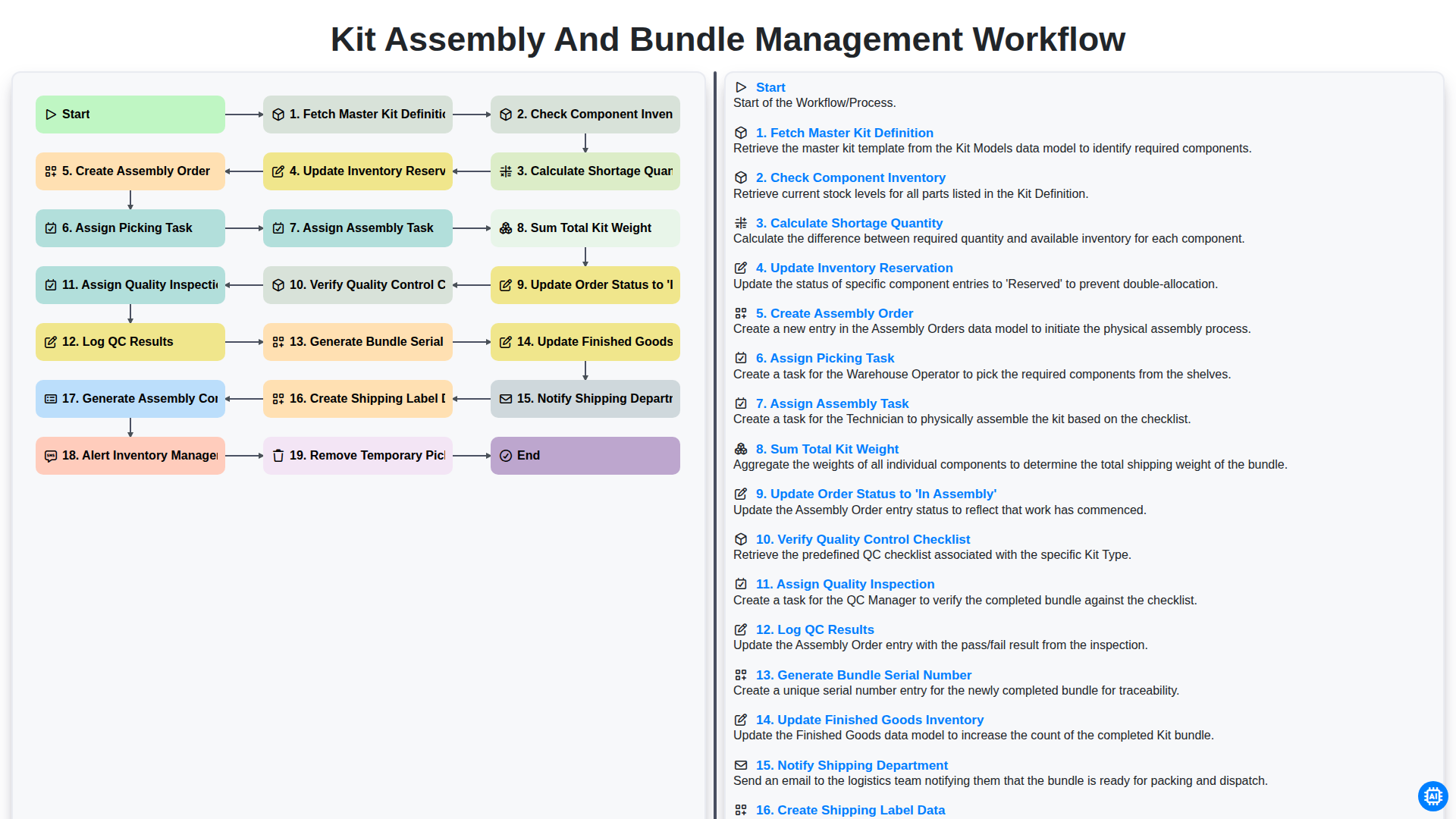
Kit Assembly and Bundle Management Workflow
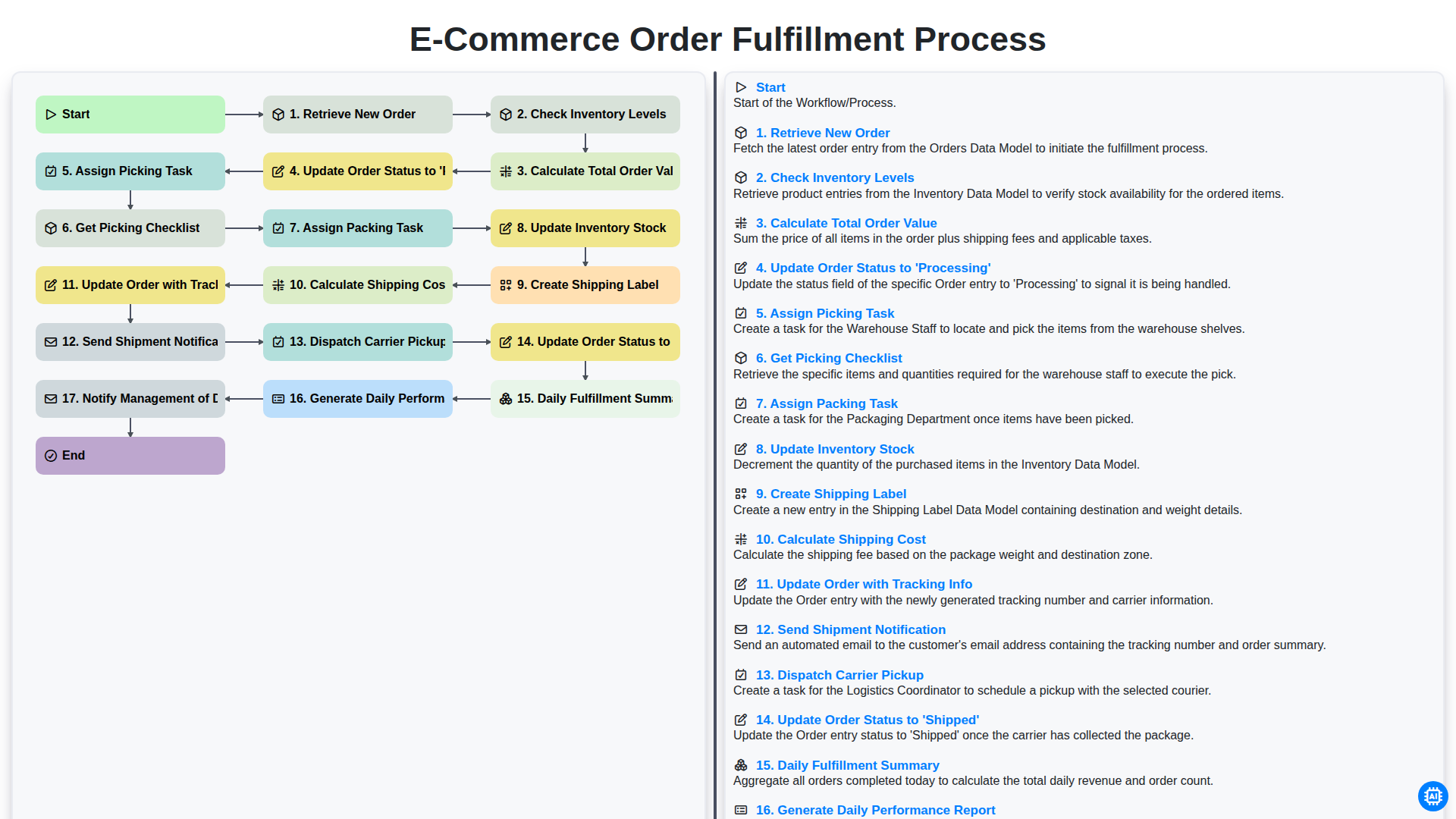
E-commerce Order Fulfillment Process
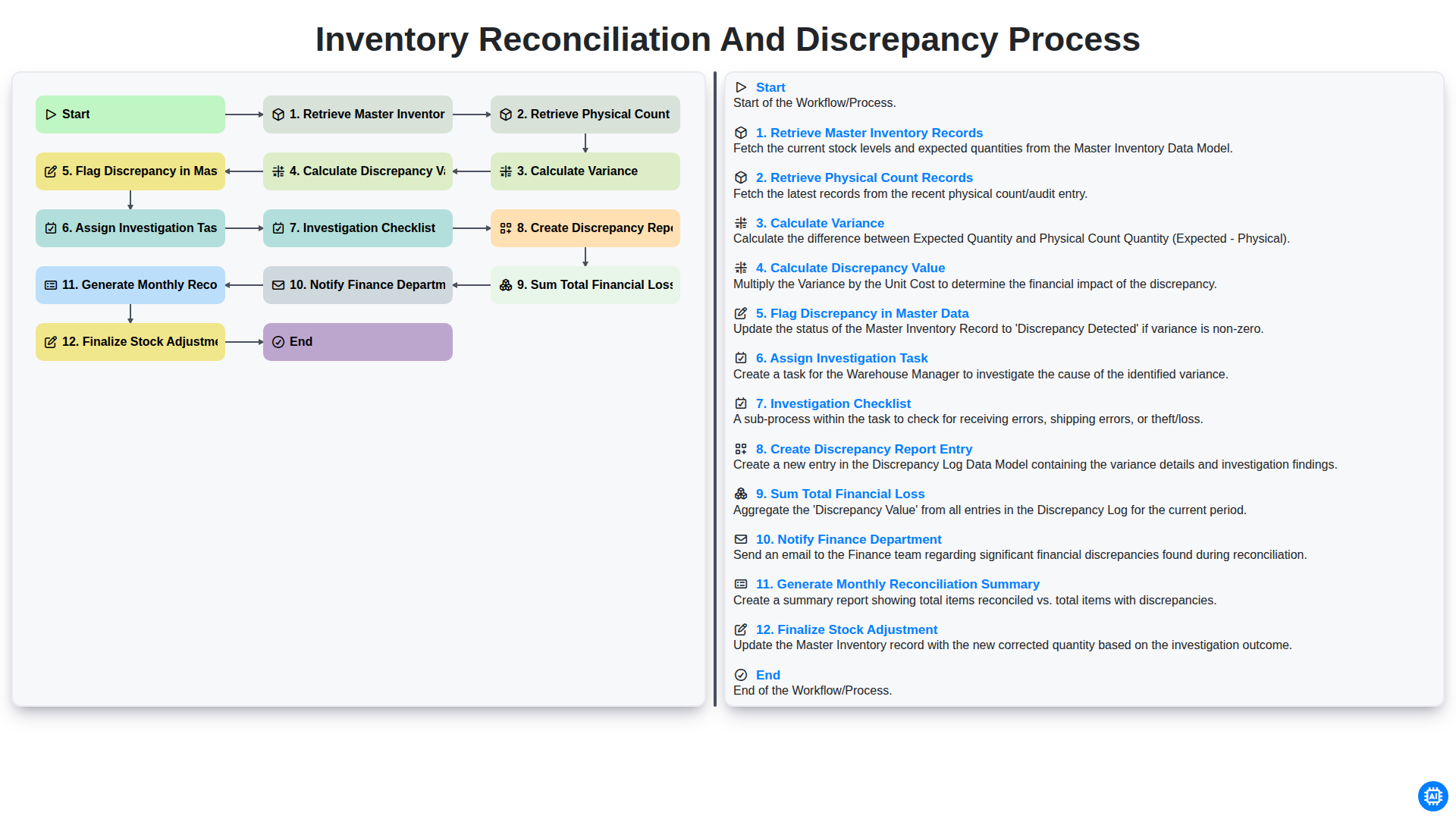
Inventory Reconciliation and Discrepancy Process
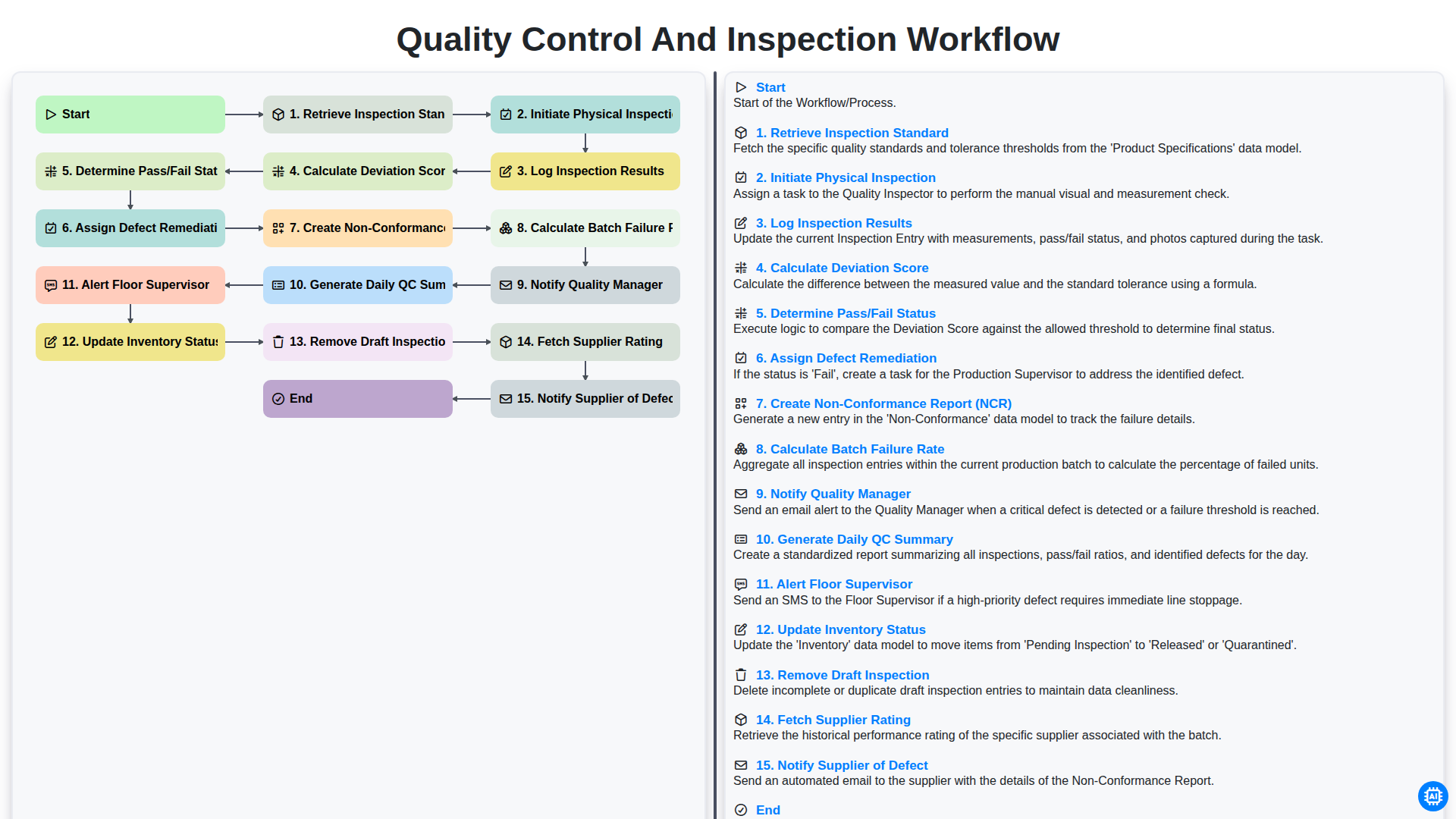
Quality Control and Inspection Workflow
Need help with
Inventory Management?
Have a question? We're here to help. Please submit your inquiry, and we'll respond promptly.