 ChecklistGuro
 Dock Scheduling & Gate Management Process
Streamline your supply chain efficiency with our comprehensive Dock Scheduling & Gate Management Process. Master the art of coordinating carrier arrivals, optimizing yard density, and eliminating bottlenecking at the warehouse entry point. This essential logistics workflow provides actionable strategies for real-time gate control, automated appointment scheduling, and seamless dock door management to reduce detention fees, improve driver turnaround times, and ensure a synchronized, high-throughput loading dock operation.
This Template was installed 4 times.
Start
Start of the Workflow/Process.
1. Retrieve Scheduled Appointments
Fetch all upcoming truck appointments from the Dock Schedule data model for the current day.
2. Update Appointment Status
Change the status of a dock appointment from 'Scheduled' to 'Arrived' when a truck reaches the gate.
3. Gate Guard Check-in Task
Assign a task to the Gate Security officer to verify driver ID and cargo manifests upon arrival.
4. Create Gate Log Entry
Create a new record in the Gate Log data model containing arrival time, driver name, and vehicle plate number.
5. Check Dock Availability
Query the Dock Management model to find available, empty dock doors.
6. Dock Assignment Task
Assign a task to the Warehouse Supervisor to assign a specific dock door to the arrived vehicle.
7. Assign Dock Door
Update the Appointment entry with the assigned Dock Door number.
8. Calculate Estimated Wait Time
Calculate the difference between current time and the scheduled appointment time to determine delay severity.
9. Notify Warehouse Team
Send an email to the receiving department notifying them that a high-priority shipment has arrived at the gate.
10. Unloading Verification Task
Create a task for the Forklift Operator to verify the seal integrity and cargo condition upon docking.
11. Update Loading/Unloading Status
Update the status of the dock activity to 'In Progress' once unloading begins.
12. Calculate Total Active Trucks
Sum the count of all entries in the Gate Log where status is 'At Dock' to monitor facility congestion.
13. Create Departure Record
Create a new entry in the Departure Log once the truck has finished loading/unloading.
14. Close Appointment
Update the original appointment entry to 'Completed' status.
15. Driver Departure Alert
Send an SMS to the driver's registered mobile number notifying them that their paperwork is signed and they are cleared to depart.
16. Daily Gate Throughput Report
Generate a daily performance report showing total arrivals, average wait times, and dock utilization rates.
17. Clear Temporary Gate Pass
Delete the temporary digital gate pass entry once the vehicle has successfully exited the facility.
End
End of the Workflow/Process.
Start of the Workflow/Process.
Fetch all upcoming truck appointments from the Dock Schedule data model for the current day.
Change the status of a dock appointment from 'Scheduled' to 'Arrived' when a truck reaches the gate.
Assign a task to the Gate Security officer to verify driver ID and cargo manifests upon arrival.
Create a new record in the Gate Log data model containing arrival time, driver name, and vehicle plate number.
Query the Dock Management model to find available, empty dock doors.
Assign a task to the Warehouse Supervisor to assign a specific dock door to the arrived vehicle.
Update the Appointment entry with the assigned Dock Door number.
Calculate the difference between current time and the scheduled appointment time to determine delay severity.
Send an email to the receiving department notifying them that a high-priority shipment has arrived at the gate.
Create a task for the Forklift Operator to verify the seal integrity and cargo condition upon docking.
Update the status of the dock activity to 'In Progress' once unloading begins.
Sum the count of all entries in the Gate Log where status is 'At Dock' to monitor facility congestion.
Create a new entry in the Departure Log once the truck has finished loading/unloading.
Update the original appointment entry to 'Completed' status.
Send an SMS to the driver's registered mobile number notifying them that their paperwork is signed and they are cleared to depart.
Generate a daily performance report showing total arrivals, average wait times, and dock utilization rates.
Delete the temporary digital gate pass entry once the vehicle has successfully exited the facility.
End of the Workflow/Process.
Frequently Asked Questions
Comments
There are no comments yet. Be the first to add one!
Logistics Management Solution Demo
Tired of shipping delays, lost packages, and inefficient routes? ChecklistGuro's Work OS platform streamlines your entire logistics operation, from warehouse management and order fulfillment to route optimization and delivery tracking. Gain real-time visibility, reduce costs, and improve customer satisfaction. Learn how ChecklistGuro can transform your logistics business!
Related Workflow Templates
Logistics Risk Management Process
Dangerous Goods Compliance Workflow
Smart Dock Scheduling Process
Transportation Management System (TMS) Workflow
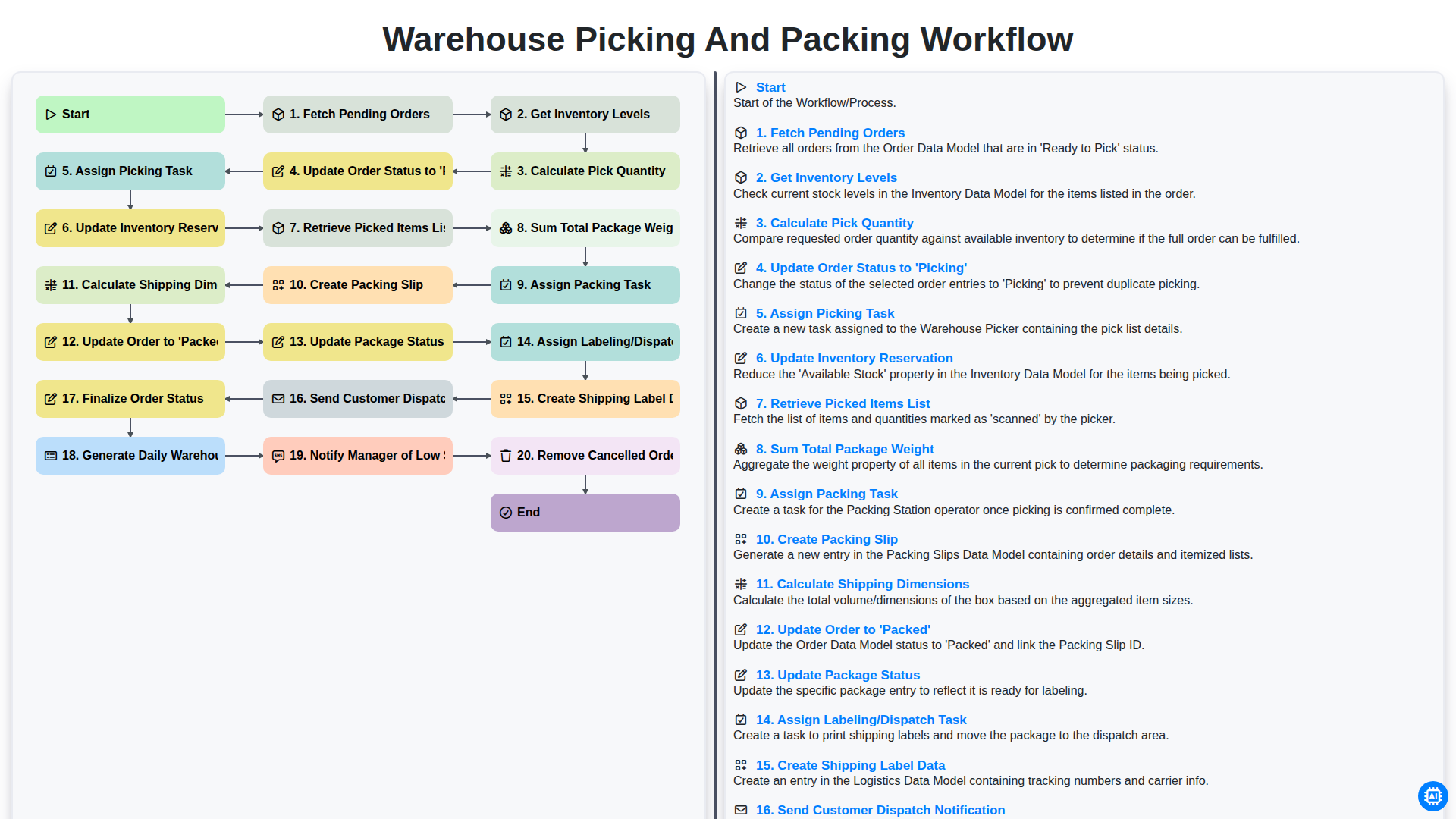
Warehouse Picking and Packing Workflow
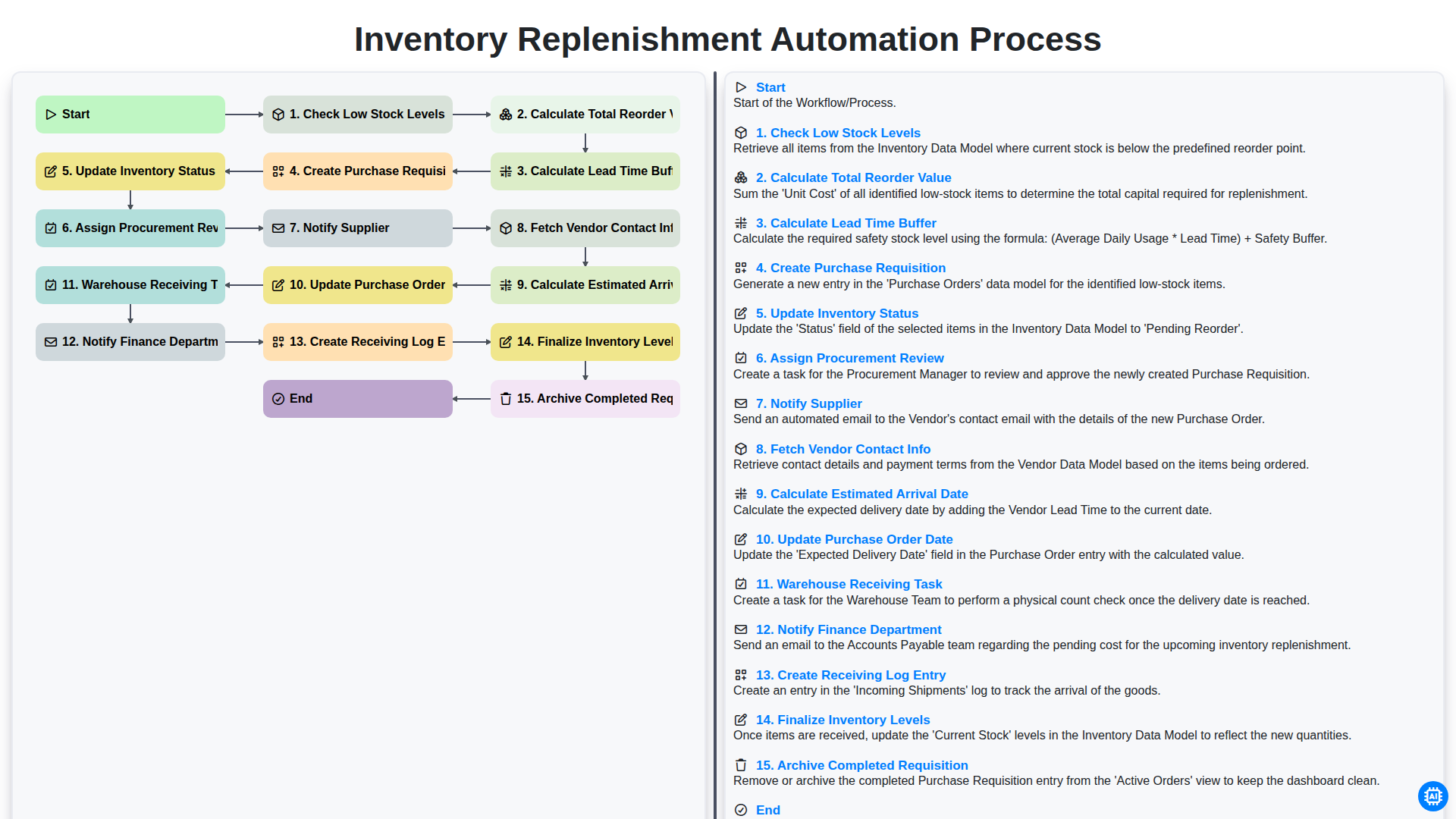
Inventory Replenishment Automation Process
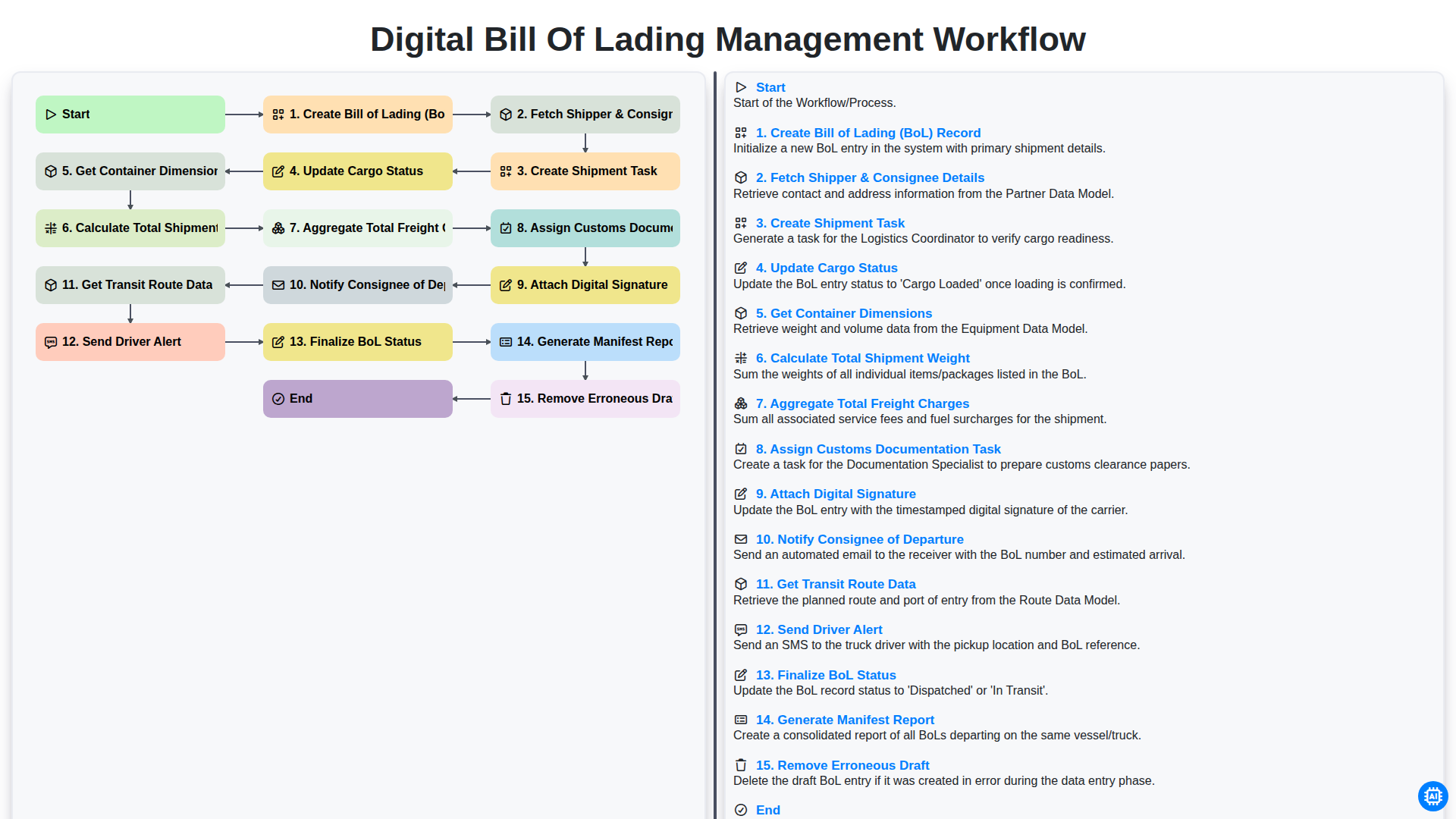
Digital Bill of Lading Management Workflow
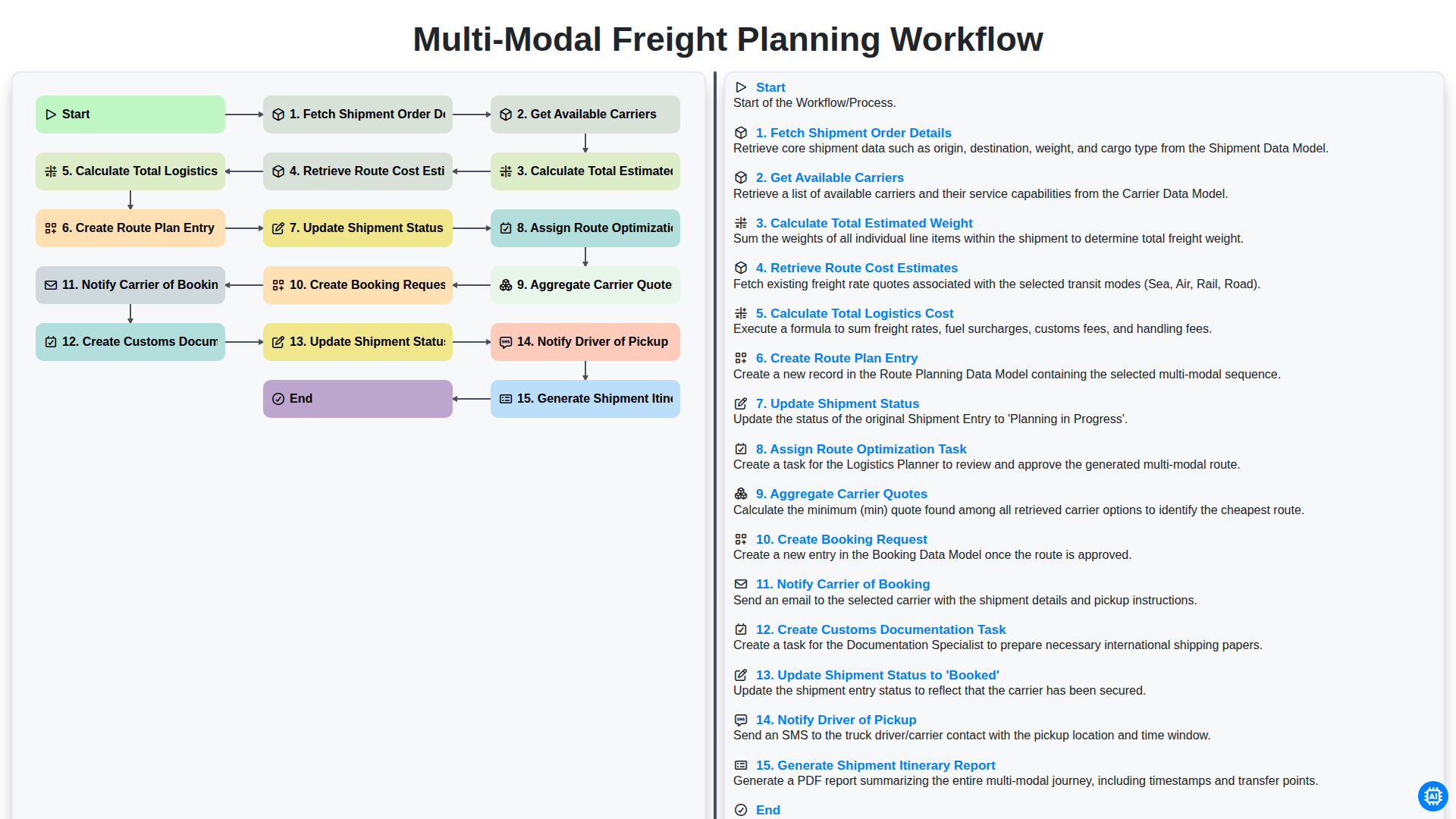
Multi-Modal Freight Planning Workflow
Need help with
Logistics?
Have a question? We're here to help. Please submit your inquiry, and we'll respond promptly.